How to Fix the Mismatch Build Error on Your RuneScape: Dragonwilds Server
Still have questions?
Come chat with us and we will get back to you as soon as possible!

Shockbyte
Support Team

How to Fix the Mismatch Build Error on Your RuneScape: Dragonwilds Server
You see a Mismatched Build error in RuneScape: Dragonwilds when your game and your server run different versions of the game. Jagex releases patches and hotfixes often, and every player and the server need to be on the same build before anyone can connect.
Most of the time, you can fix the error by restarting your server so it installs the latest update. If you play on console, you may also need to wait for the update to reach your platform before you can join.
#Why the Error Happens
Jagex typically releases each Dragonwilds update on PC first. Console versions go through a certification process with Sony, Microsoft and Nintendo before players can download them, so console updates can arrive a few hours or several days after the PC release.
Your Shockbyte server runs the PC dedicated server build. When your server starts with Steam Auto Updates turned on, it downloads the newest PC version as soon as Jagex releases it. This creates two situations where versions can stop matching:
- Your server is behind your game. Jagex released an update, your game installed it, and your server hasn't restarted since. Restarting your server fixes this.
- Your game is behind your server. Your server has the newest PC build, but the update hasn't reached your console yet. You need to wait for the update on your platform, then install it.
#How Updates Reach Each Platform
| Platform | When updates usually arrive |
|---|---|
| PC (Steam, Epic Games Store, Jagex Launcher) | First, usually as soon as Jagex releases the update. |
| PlayStation 5 | After Sony approves the update, often later the same day. |
| Xbox Series X|S | After Microsoft approves the update, often later the same day. |
| Nintendo Switch 2 | After Nintendo approves the update, which can take several days. |
Timing changes from patch to patch and the above is just an estimate from past updates. Jagex posts updates on platform availability in the official RuneScape: Dragonwilds Discord and on the Dragonwilds news page.
#Fixing the Mismatched Build Error
- Navigate to the Shockbyte Control Panel and open your RuneScape: Dragonwilds server.
- Restart your server by clicking the arrow next to Shut Down and selecting Restart.
- Wait for your server to finish starting.
Your server checks for the latest PC build and installs it during startup, and large updates take longer to download than hotfixes. You can follow the progress in the Console tab.
- Update RuneScape: Dragonwilds on your device:
- On PC, update the game through Steam, the Epic Games Store, or the Jagex Launcher.
- On console, check for updates from your console's game menu or store page.
- Fully close the game and launch it again, then join your server.
If you still see the error after these steps and you play on console, the update probably hasn't reached your platform yet. Try again once Jagex confirms the update is live for your console.
Important
Restart your server after every Dragonwilds update, even a small hotfix. Jagex asks dedicated server owners to restart after each patch so the server runs the current build.
#Keeping Your Server on Its Current Build
Your server updates automatically each time it starts. If your group plays on console and you want to keep playing while you wait for an update to reach your platform, you can turn off automatic updates so your server stays on its current build.
-
Navigate to the Shockbyte Control Panel and open your RuneScape: Dragonwilds server.
-
Click Shut Down to stop your server and open the Settings tab.
-
Under Server, select Steam Server Properties.
-
Make sure Simple view is selected in the top right.
-
Click the Steam Auto Updates toggle to turn it off.
-
Save your changes.
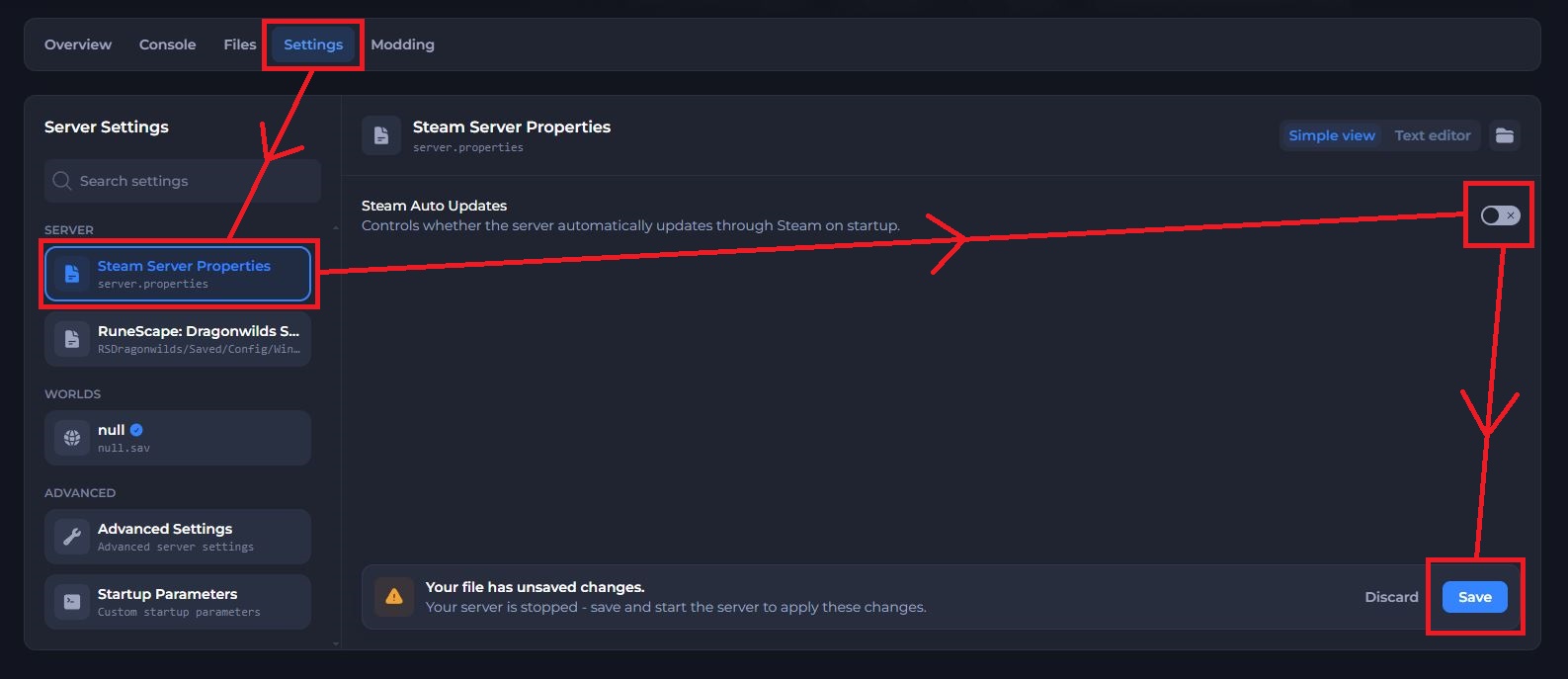
-
Click Start Server to start your server without updating.
Turning off Steam Auto Updates keeps the build your server already has. It won't move your server back to an older build, so turn it off before you restart your server after a new update releases.
Important
While Steam Auto Updates is off, players who have installed the latest update can't join your server. Turn the setting back on and restart your server once the update reaches every platform your group uses.
#Troubleshooting
- I restarted my server and still see Mismatched Build.
Make sure your game has installed the latest update, then close and relaunch it. On console, check Jagex's announcements to confirm the update is live for your platform.
- Restarting doesn't update my server.
Check that Steam Auto Updates is turned on in Settings under Steam Server Properties. Your server only downloads updates on startup when this setting is on.
- My server doesn't show up in the server list after an update.
Restart your server, update your game, and search again. A server on a different version from your game may not appear in the list.
- My PC friends can join, but I can't on console.
Your server has the newest PC update, and your console is still waiting for it. You'll be able to join once the update reaches your platform.
- My server crashes or won't start after an update.
Check the Console tab for errors. If you use mods, remove them from the Modding tab and start your server again, since an update can stop older mods from working.
For the latest patch notes and platform release times, follow the official RuneScape: Dragonwilds Discord and the Dragonwilds news page.
If you still need help, contact our support team and we'll take a look for you.