Still have questions?
Come chat with us and we will get back to you as soon as possible!

Ruben B
Partnership Manager

How to setup a database for your RedM server
Depending on which template was chosen during setup, you may be required to connect a database to your server for it to store data in. This guide will cover how to setup this database and entering its details into txAdmin.
Note:
This article is part of our RedM setup guide, if you wish to get more info on setting up your RedM server or do not see the fields to enter database options, please read this article first.
Creating your database
-
Access your control panel.
-
Navigate to Databases.
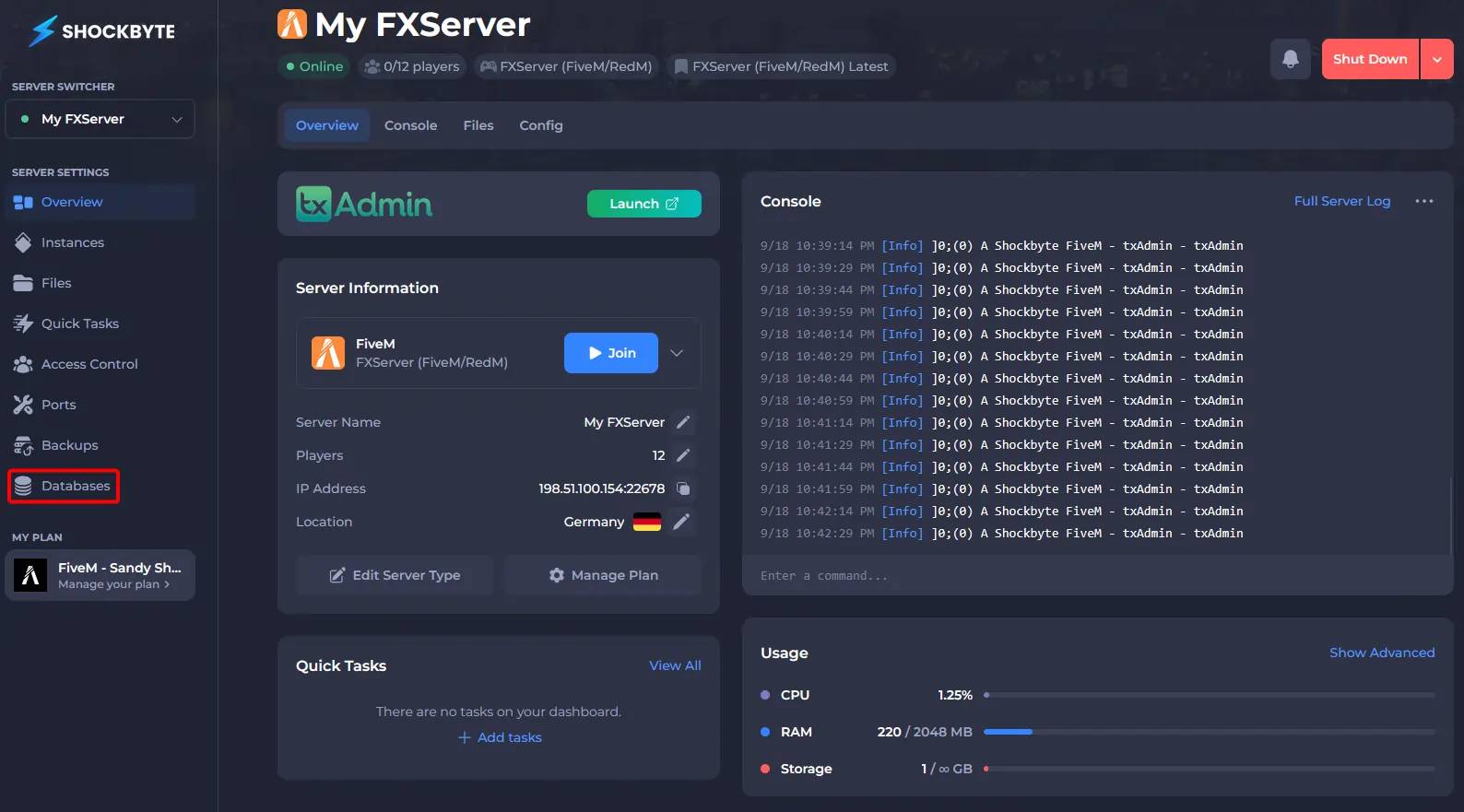
-
Click on Create Database.

-
Name the database, select MariaDB as type, and create it.
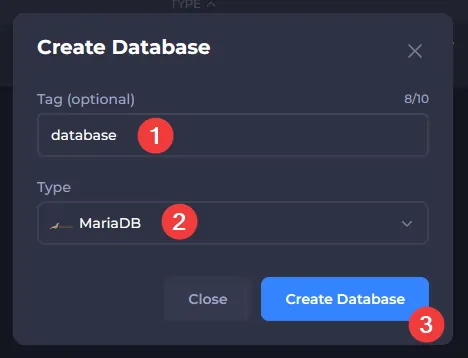
-
Take note of all details, you will need to enter them later.
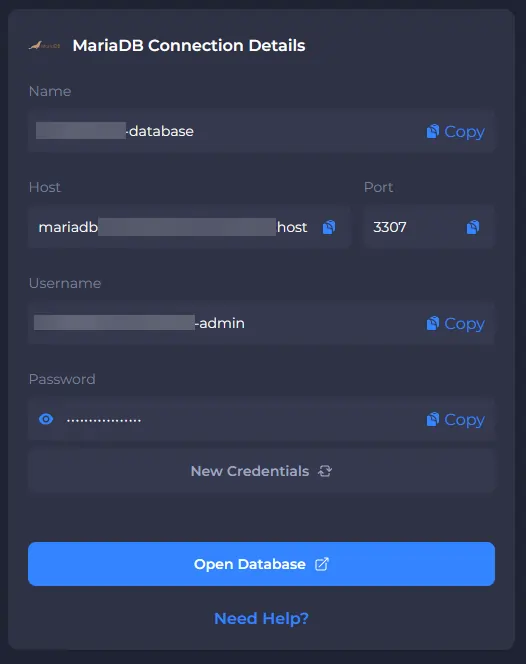
Entering your database connection details
Note:
If you do not see the option to enter connection details, your setup might not require one. Please refer to our guide on Getting started with your RedM server for more information.
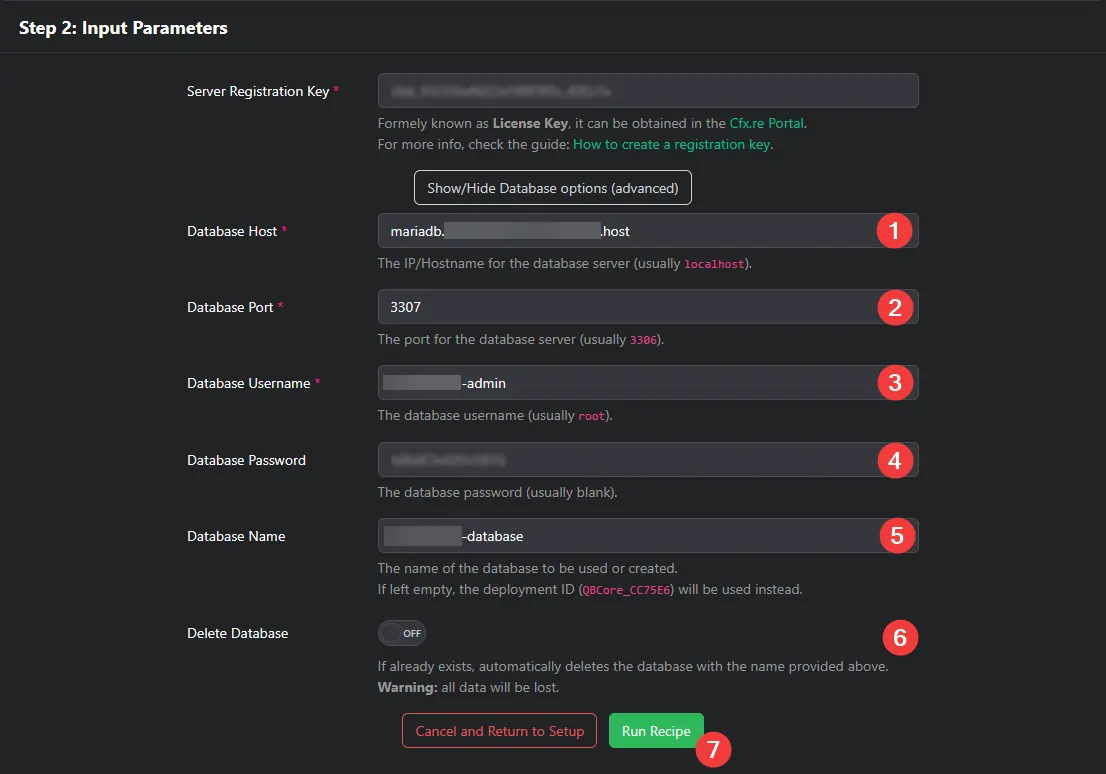
- Show the Database Options during your setup.
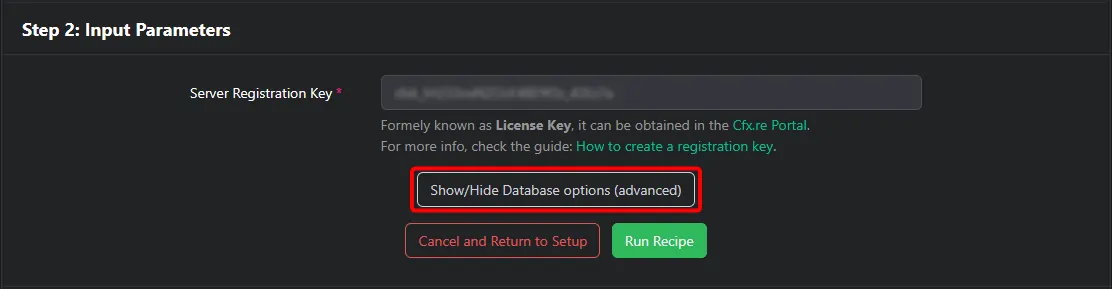
- Enter the connection details of your database, and run the recipe.
Now that your server has successfully connected to the database, you can continue setting up your server using our Getting started guide.