Still have questions?
Come chat with us and we will get back to you as soon as possible!

Shockbyte
Support Team

How to Upload or Download a Save-Game for Your Project Zomboid Server
If you have an existing Singleplayer save, you're able to upload this to your server at any time you'd like. On top of uploading an existing world, you can download this locally and convert your world to a Singleplayer save.
#Uploading the Save to your Server
-
Access your Control Panel and Stop your server.
-
Navigate to the Project Zomboid user directory on your computer. For Windows, you can find this under
C:/Users/YOUR_USERNAME/Zomboidby default.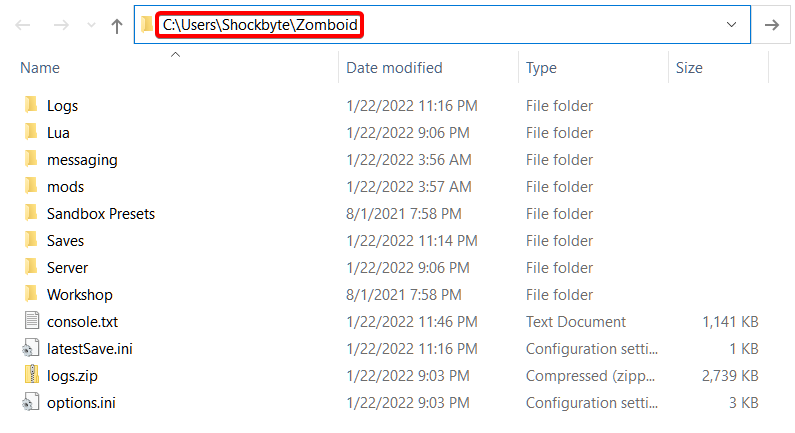
-
Click the
/Savesfolder to see a list of all your worlds. Depending on the gamemode you've chosen for your save, this will be located in the corresponding folder.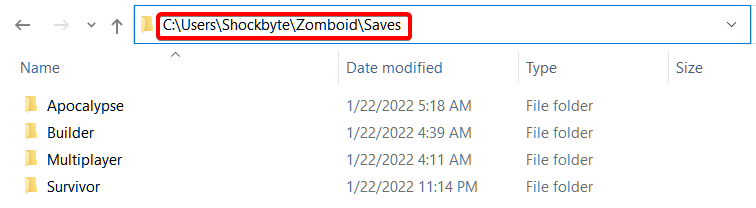
-
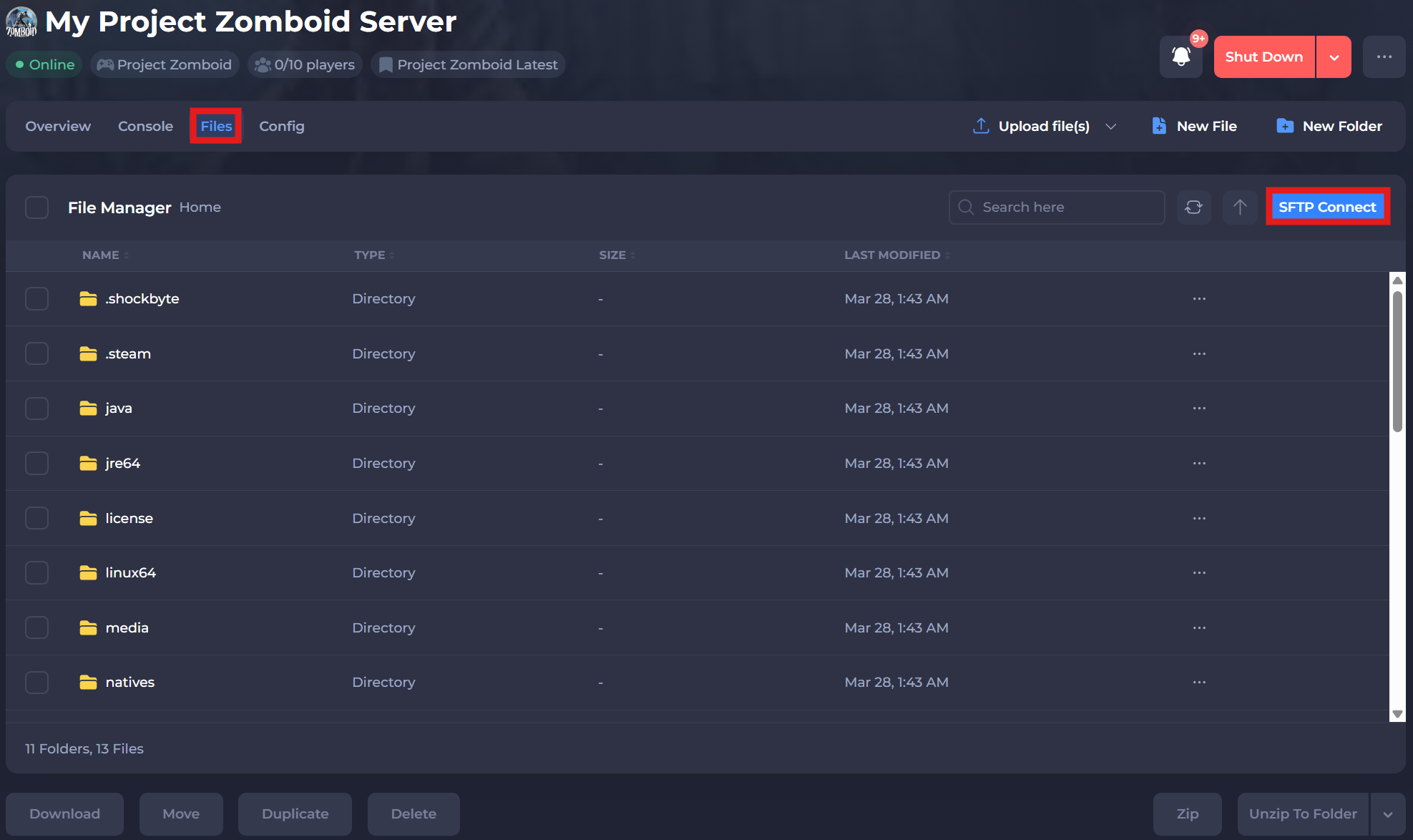
Navigate back to your Control Panel and select the Files tab.
-
Select the SFTP Connect and login to your server's FTP directory via an FTP client such as Filezilla or WinSCP.
-
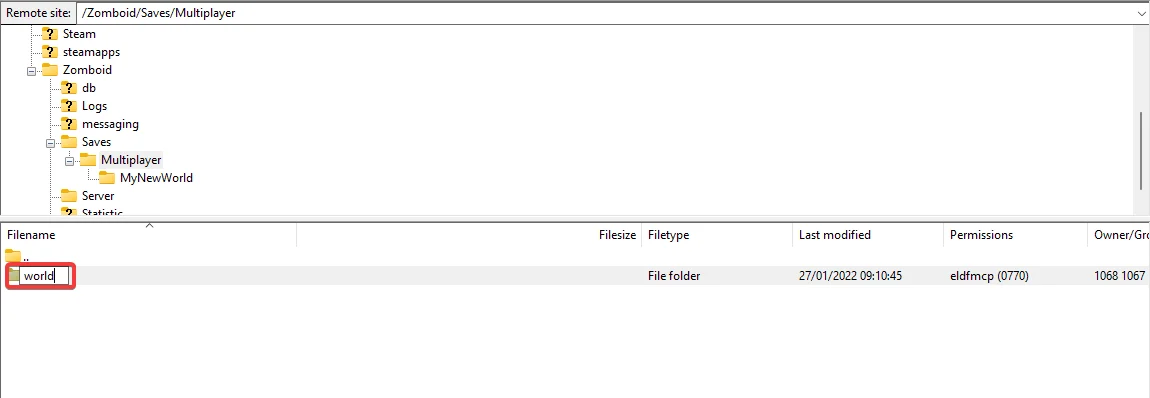
Navigate to
/Zomboid/Saves/Multiplayerin your server's FTP directory. Upload the save folder on your computer to this directory. -
Rename the save folder you've uploaded to the world field that matches on your control panel. If this folder exists already, delete or rename the existing world folder.
Important
If you start the server after this point, your server will crash. You will need to convert your players.db file to the format Multiplayer uses or delete your players.db in your world folder. Do keep in mind that if you delete the players.db file, your player data will reset.
Setting the Active World
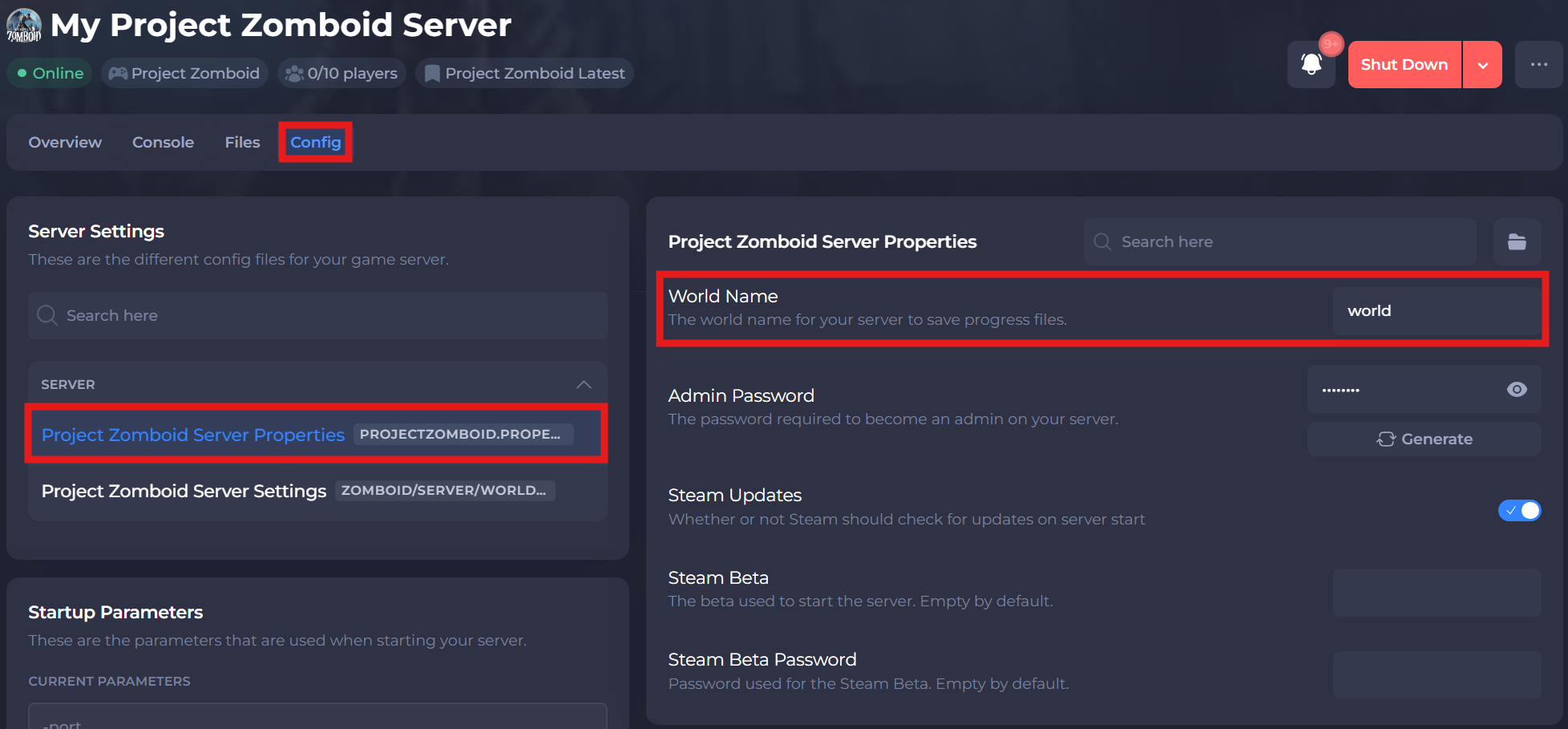
Now that you have officially uploaded your world to the server, you will need to set the active world in the Config area of the panel.
-
Access your Control Panel and Stop your server.
-
Navigate to the Config tab and locate the World Name option. Set this value to the name of the save you uploaded in the earlier steps.
-
Save and restart your server to ensure the new changes apply.
#Downloading your Save
-
Access your Control Panel and Stop your server.
-
Navigate to the Files tab and locate the
/Zomboid/Saves/Multiplayerdirectory on your server. Locate the world folder with the same name as the field on your control panel.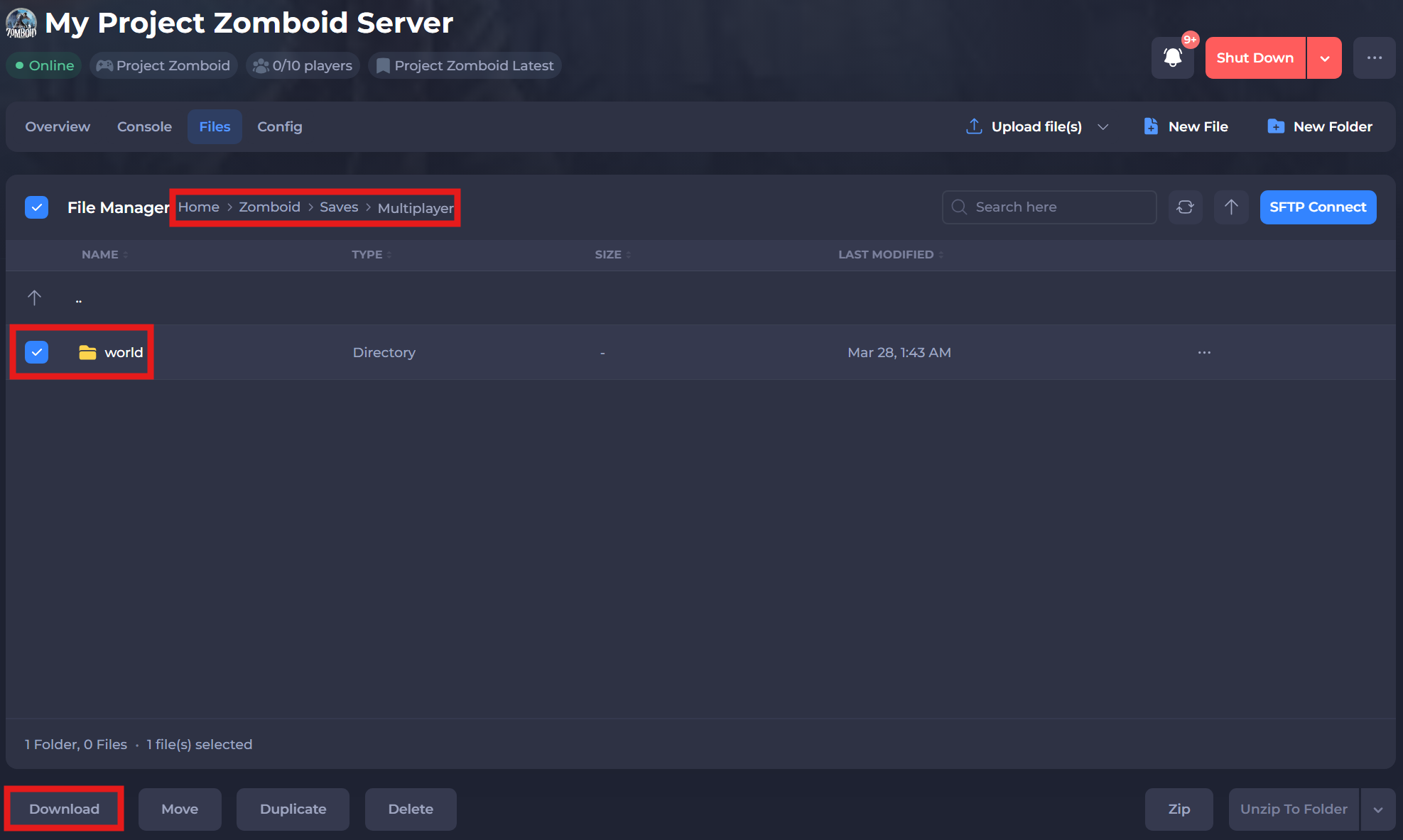
-
Select the download button and then place the save in any of the gamemode folders located under
C:/Users/YOUR_USERNAME/Zomboid/Savesdirectory. -
Copy the
players.dbfile from another existing Singleplayer world you have to the world you've just downloaded. The other Singleplayer world can be any world of your choice as this is just a placeholder to transfer your Multiplayer save data. -
Once you've moved a Singleplayer compatible
players.dbfile to your world that you just downloaded, follow our Knowledgebase guide here. -
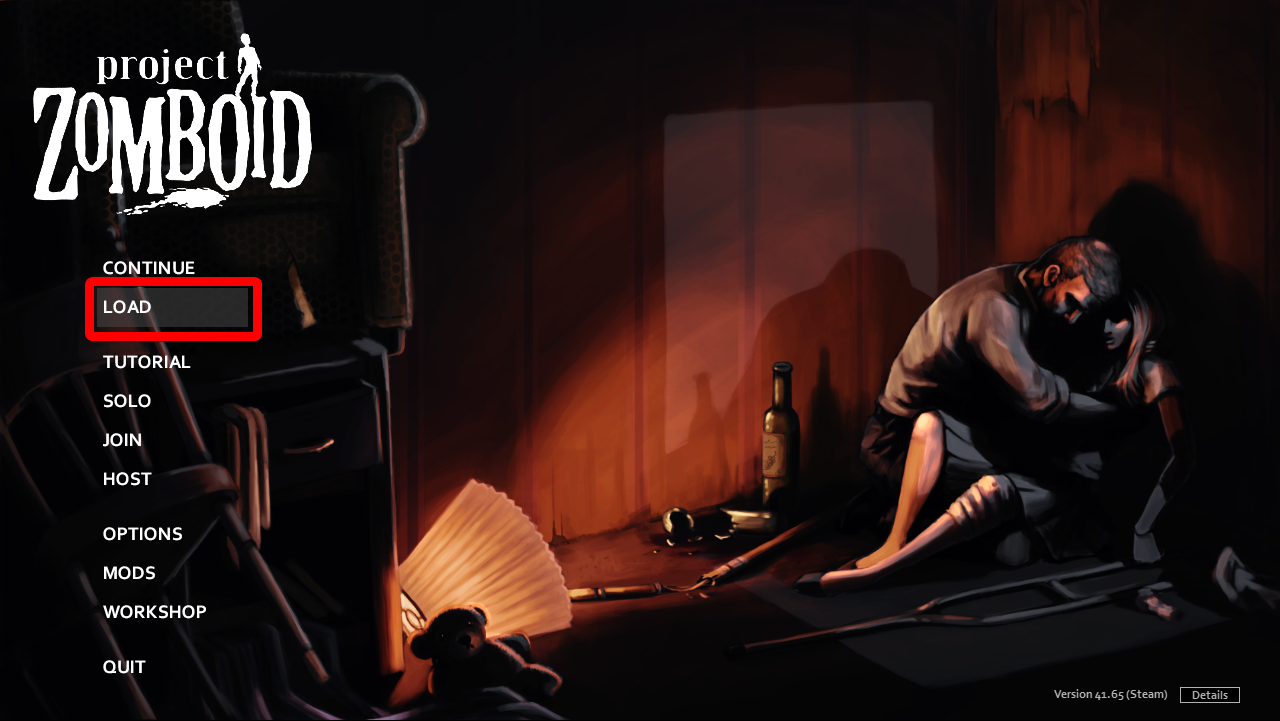
Start Project Zomboid on your computer, then press the LOAD button.
-
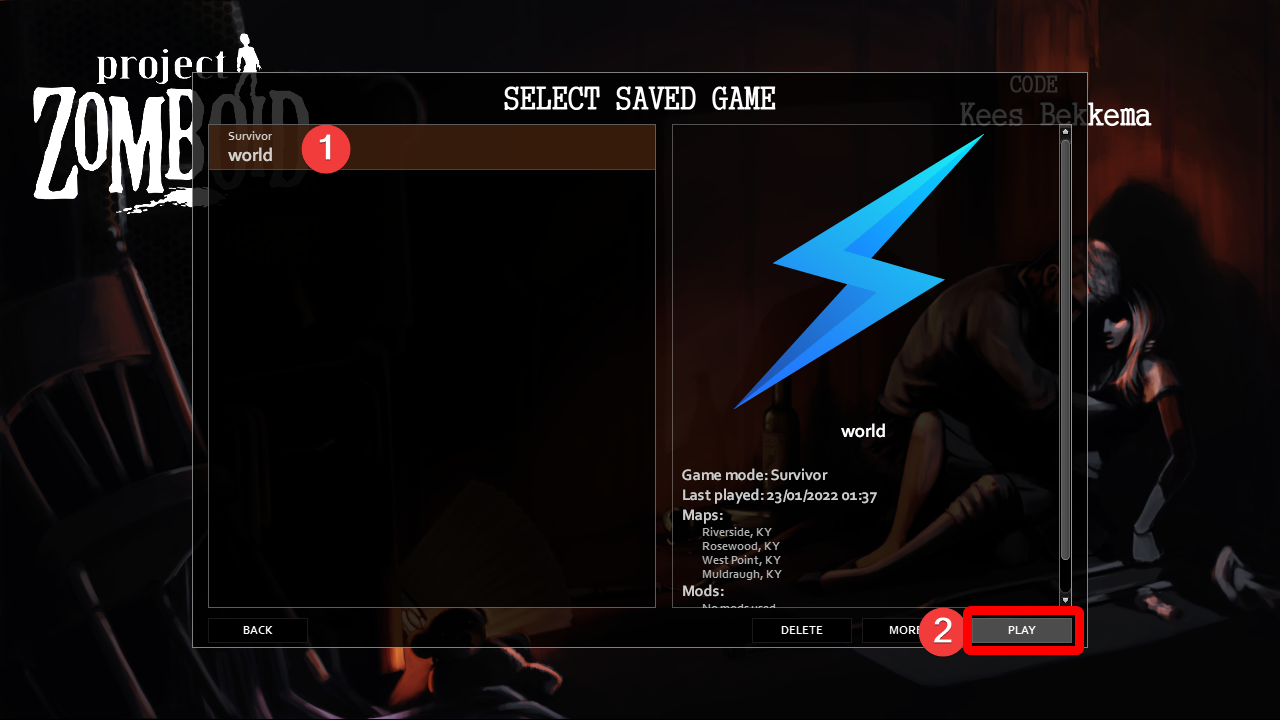
Select the world you've just uploaded and press PLAY.
If you require any further assistance, please contact our support at: https://shockbyte.com/billing/submitticket.php