R5Reloaded
R5Reloaded
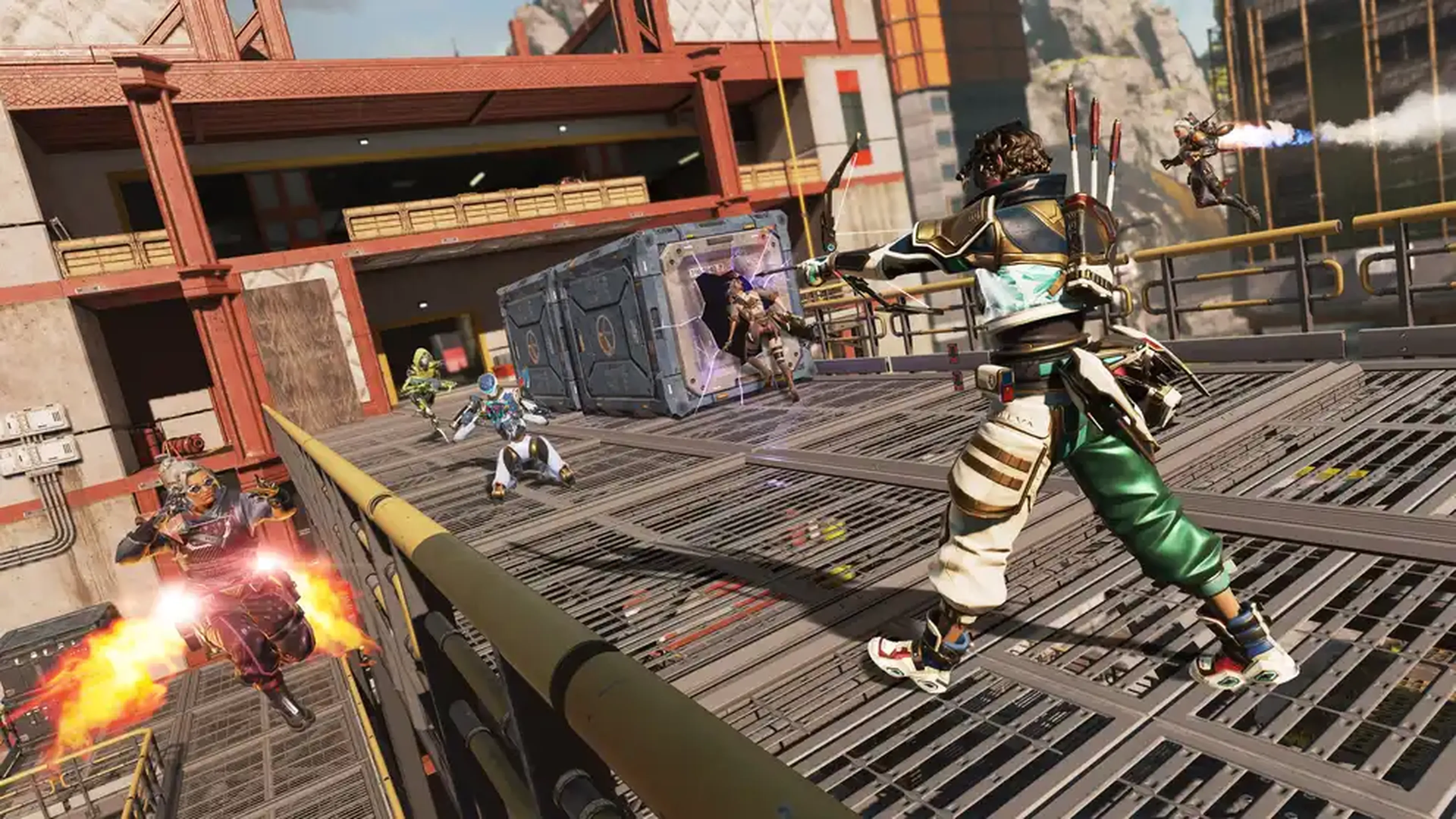
4 ArticlesSquad up, drop in, and fight to be the last legend standing. Master high-mobility gunfights, run custom matches, and keep the action going on your own dedicated server, your rules, your way.
How to Change the Launch Playlist on your R5Reloaded Server
The launch playlist determines which game mode your R5Reloaded server loads when it starts up, whether that's a classic battle royale, a fast-paced deathmatch, or one of the many custom community modes. Switching it lets you tailor your server to exactly the kind of matches you want to run, and it only takes a few moments through the server panel. --- Setting the Launch Playlist 1. Access your Control Panel and navigate to the Config tab. Select the R5Reloaded Server Properties file. 2. Locate the Launch Playlist field and set your desired playlist from the available options. 3. Save and restart your server to ensure the new changes apply. --- Available Playlists | Playlist | Description | | --- | --- | | Free for All / TDM (default) | Everyone fights in a respawn-based deathmatch, solo or in teams. | | Instagib | One hit eliminates, fast and chaotic. | | Movement PVP | Combat focused on advanced movement and traversal. | | Grapples and Guns | Everyone gets a grappling hook for high-mobility fights. | | Surf | Movement-focused surf maps. | | 4D FFA | A chaotic free-for-all variant with extra movement freedom. | | Realistic TTV Building | A building and practice playlist with realistic settings. | | 1v1 | Classic one-versus-one duels. | | 1v1 Vampire | 1v1 duels where dealing damage restores your health. | | 1v1 Headshots Only | 1v1 duels where only headshots deal damage. | | 1v1 LG Duels | 1v1 duels restricted to a single weapon. | | Zone Wars | Close-quarters fights inside a shrinking play area. | | Battle Royale (Trios) | Classic battle royale in three-player squads. | | Battle Royale (Duos) | Classic battle royale in two-player squads. | | Battle Royale (Solos) | Classic battle royale, every player for themselves. | | Firing Range | Open practice area to test weapons and loadouts. | | Training | Guided practice mode for learning the basics. | | Winter Express | Objective mode fighting over a moving train. | | Armed & Dangerous (Trios) | Squads battle with only snipers and shotguns. | | Mortal Evo Shields (Solos) | Solo mode where shields do not regenerate. | | Capture the Flag | Two teams fight to capture each other's flag. | | Prop Hunt | One team hides disguised as props while the other hunts. | | Duck Hunt | A hunter-versus-hunted mode with one side heavily outnumbered. | | Infected | Survivors hold out against a growing team of infected players. | | Aim Trainer | Dedicated mode for sharpening your aim. | | Movement Gym | Practice course for mastering movement mechanics. | --- If you require any further assistance, please contact our support at: https://shockbyte.com/billing/submitticket.php
How to Change the Hostname of your R5Reloaded Server
Your server's hostname is the name players will see when browsing for your server in the R5Reloaded server list, so setting a clear, recognizable one makes it easy for your friends to find and join you. Updating it only takes a few moments through the server panel. This article walks you through how to change your server's hostname using the configuration settings in your Shockbyte server panel. --- Setting the Hostname 1. Access your Control Panel and navigate to the Config tab. Select the R5Reloaded Server Properties file. 2. Locate the Hostname field and set your desired server name. This is the name players will see in the server browser. 3. Save and restart your server to ensure the new changes apply. --- If you require any further assistance, please contact our support at: https://shockbyte.com/billing/submitticket.php
How to Join your R5Reloaded Server
Getting started is simple! R5Reloaded runs through its own launcher rather than Steam, so once you've got that installed you'll be able to find and join your server straight from the in-game server browser. Just install the launcher, hit play, find your server in the list, and you're ready to drop in! ::ProseNote{title="Note" description="To locate your server in the in-game browser, your server will need to have a Hostname set in your Config settings. Please see our guide that explains How to Change the Hostname of your R5Reloaded Server before proceeding with the next steps." appearance="default"} :: --- Installing the R5Reloaded Launcher Before you can connect, you'll need the R5Reloaded launcher installed on your PC. 1. Head to the official R5Reloaded download page at https://r5reloaded.com/download. 2. Download the launcher and follow the on-screen steps to complete the installation. --- Joining your Server 1. Open the R5Reloaded launcher and click Play. 2. Once the game has loaded, navigate to the Servers menu. 3. Locate your server by its Hostname in the list, then click Connect. --- If you require any further assistance, please contact our support at: https://shockbyte.com/billing/submitticket.php
Getting Started with your R5Reloaded Server
Welcome to your R5Reloaded server! Squad up, drop in, and fight to be the last legend standing. With your own dedicated server you set the rules, run custom matches, sharpen your aim, and keep the action going exactly how you want it. Let's get you into the arena. The guides below cover everything you need to go from a fresh server to a full lobby of friends. --- Getting Started The following articles cover the most common questions you may have when first starting with your new R5Reloaded server. - How to Join your R5Reloaded Server - How to Change the Hostname of your R5Reloaded Server - How to Change the Launch Playlist on your R5Reloaded Server --- If you require any further assistance, please contact our support at: https://shockbyte.com/billing/submitticket.php