How to Add an Admin to your Empyrion - Galactic Survival Server
Still have questions?
Come chat with us and we will get back to you as soon as possible!

Nuno Paiva
Game Integration Specialist @ Shockbyte

How to Add an Admin to your Empyrion - Galactic Survival Server
Adding an admin to your Empyrion - Galactic Survival server gives trusted players access to powerful in-game commands, letting them help manage your galaxy, moderate other players, and keep things running smoothly. Unlike some games, Empyrion handles admins through a dedicated config file rather than a single panel field, but don't worry, it only takes a couple of minutes to set up.
This article walks you through how to grant admin permissions on your server.
Note
You'll need each player's SteamID64 to add them. If you don't know yours, you can look it up by entering your Steam profile URL at https://steamid.io/ and copying the steamID64 value.
#Creating your Admin Config File
-
Access your Control Panel and navigate to the Files tab.
-
Open the Saves folder. Inside, you'll find a file named adminconfig.example.yaml.
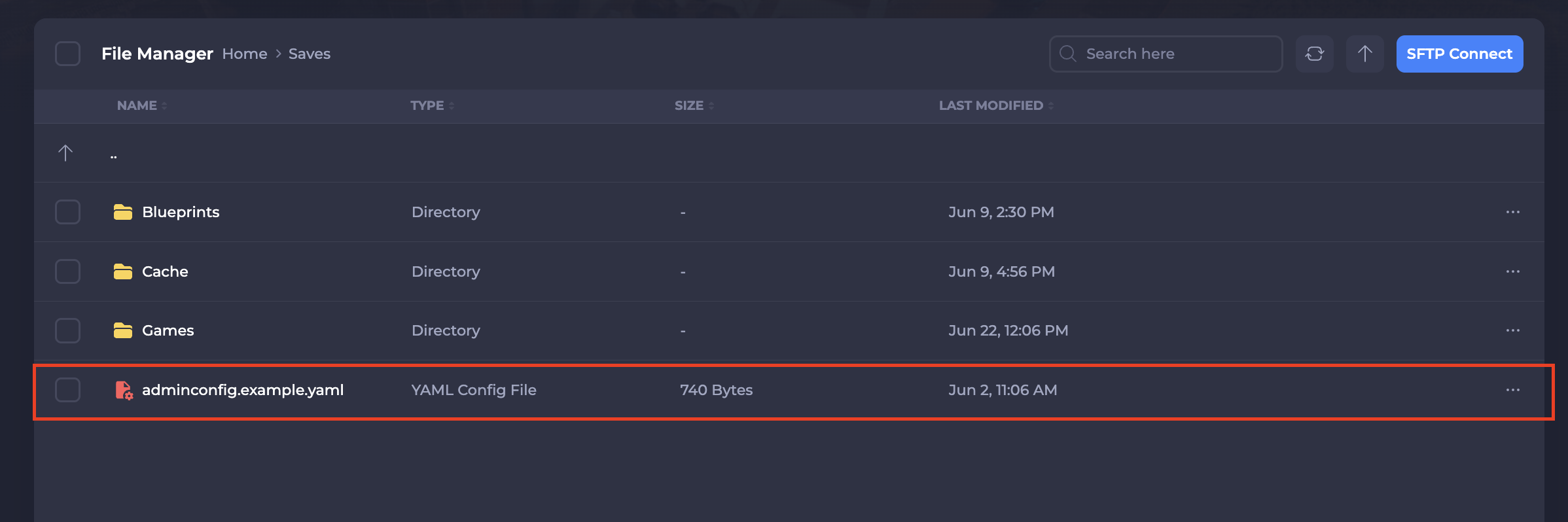
- Duplicate this file, then rename the copy to adminconfig.yaml. The example file only takes effect once it has been renamed, so this step is required.
#Adding an Admin
-
Open your new adminconfig.yaml file to edit it.
-
Under the Elevated list, enter the player's SteamID64 in the
Idfield and set their Permission level. Your file should look something like this:
Elevated:
- Id: 76561198202513095   # the player's SteamID64
  Permission: 9           # 9 = Admin
- Save the file and restart your server to apply the changes.
Permission Levels
Empyrion uses three permission levels. Set the Permission value to 3 for a GameMaster, 6 for a Moderator, or 9 for a full Admin. Only these three values are accepted.
To add more admins, simply add another - Id: / Permission: pair beneath the first one, one entry per player.
If you require any further assistance, please contact our support at: https://shockbyte.com/billing/submitticket.php