How to Install a Workshop Scenario on your Empyrion - Galactic Survival Server
Still have questions?
Come chat with us and we will get back to you as soon as possible!

Nuno Paiva
Game Integration Specialist @ Shockbyte
How to Install a Workshop Scenario on your Empyrion - Galactic Survival Server
Steam Workshop scenarios are one of the best ways to transform your Empyrion - Galactic Survival server, swapping the default galaxy for fully reworked experiences like Reforged Eden, complete with new ships, points of interest, balancing, and storylines. This guide walks you through downloading a Workshop scenario to your server and switching your galaxy over to it.
Important
Scenarios can only be applied to a brand new save. Switching the scenario on an existing galaxy will not work, so you'll need to start a fresh save game to load it. If you have a world you want to keep, back it up before continuing.
#Finding the Scenario Workshop ID
-
Head to the scenario's page on the Steam Workshop.
-
Look at the page's URL. The Workshop ID is the number that comes after
?id=. For example, in.../filedetails/?id=2025737498, the ID is 2025737498. Copy this number.
#Downloading the Scenario
-
Access your Control Panel and navigate to the Config tab. Select the Empyrion Steam Settings file.
-
Locate the Scenario Workshop IDs field and paste in the Workshop ID you copied.
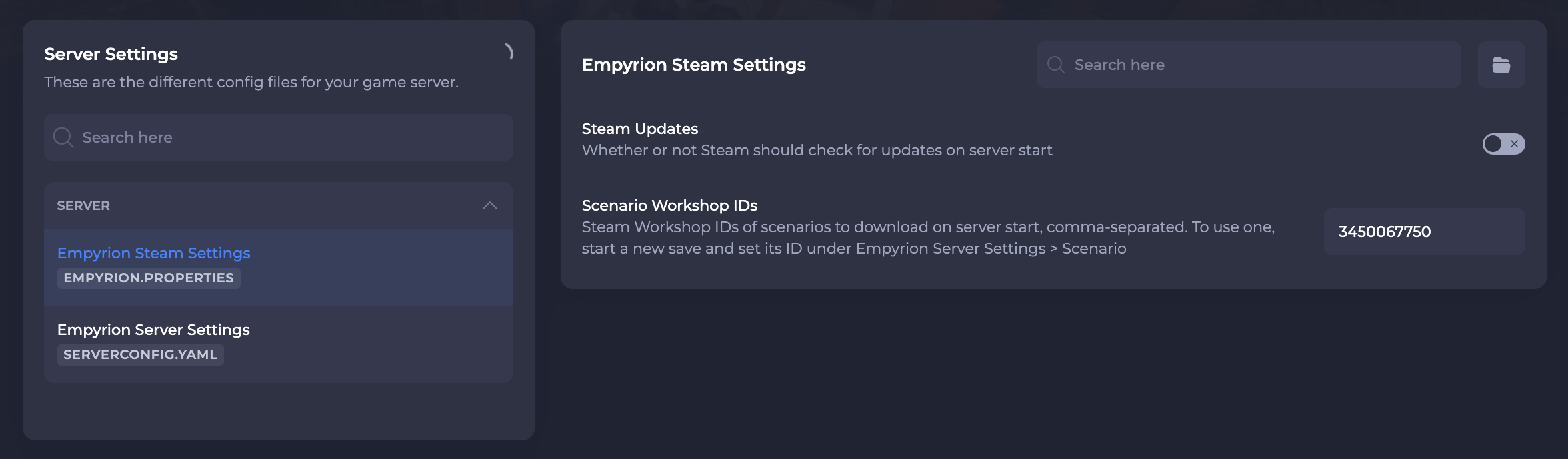
- Save and restart your server. The scenario will automatically download on this restart, this may take a few moments depending on the size of the scenario.
#Enabling the Scenario
Once the scenario has downloaded, you'll need to start a new save and point it at the scenario.
-
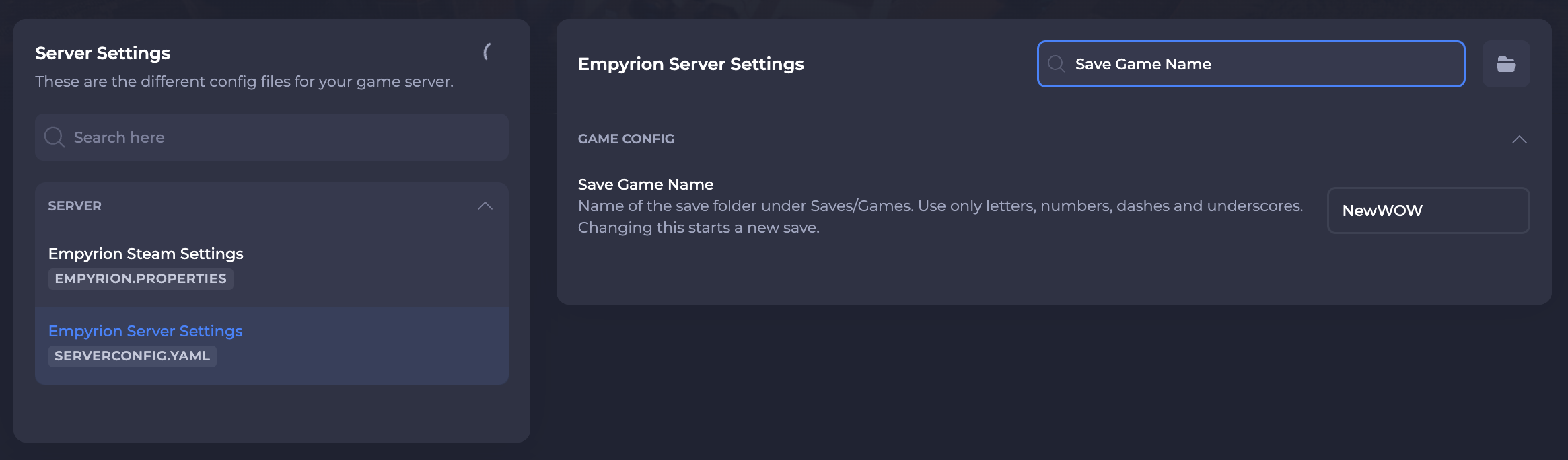
Back on the Config tab, select the Empyrion Server Settings file.
-
Locate the Save Game Name field and enter a new, unique name. This creates the fresh save the scenario needs to load into.
- Locate the Scenario field and enter the scenario so it loads into your new save.
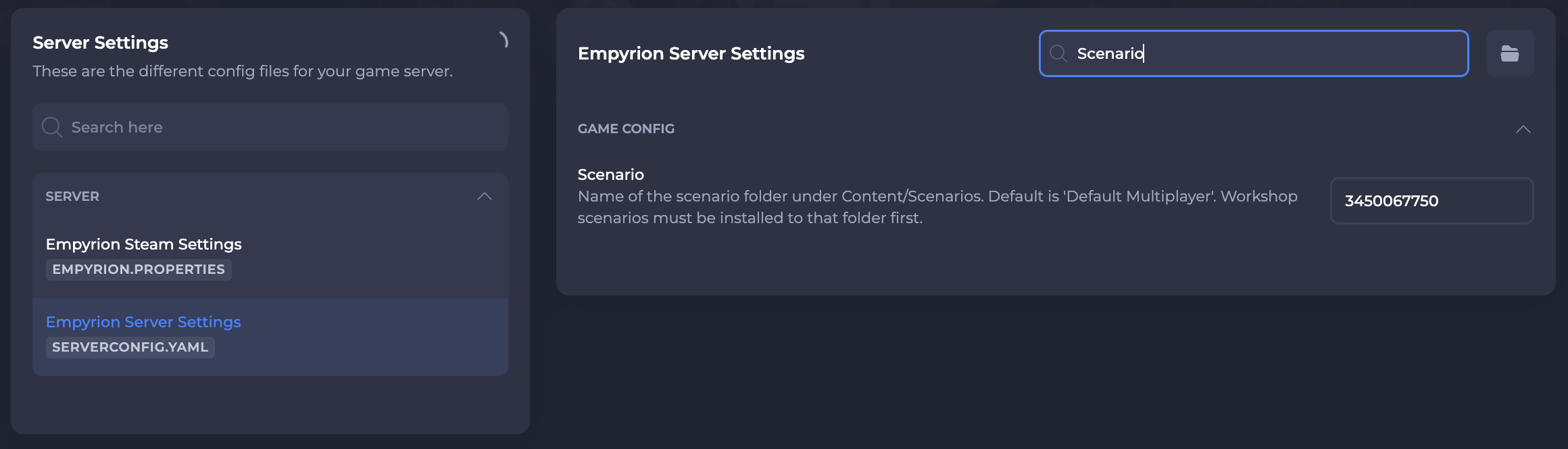
- Save and restart your server one more time. Your server will now generate a fresh galaxy running your chosen scenario.
If you require any further assistance, please contact our support at: https://shockbyte.com/billing/submitticket.php