Still have questions?
Come chat with us and we will get back to you as soon as possible!

Shockbyte
Support Team

How to Add UE4SS Mods to your RuneScape: Dragonwilds Server
Customising your RuneScape: Dragonwilds server with mods is one of the best ways to tailor the gameplay, tweak server balance, and add unique features for your community. Whether you want to introduce quality-of-life improvements or overhaul core mechanics, this guide will walk you through installing and configuring mods step-by-step.
Note
Client-side mods are currently not supported for console versions of RS: Dragonwilds. However, you can still use server-side mods, which are only required to be installed on the server.
Before we get started, we will need to install UE4SS on both your server and on your own client.
UE4SS is the core mod loader for Unreal Engine games that acts as a bridge between the game's code and custom scripts/mods.
#Installing UE4SS on your Server
Warning
Please be sure to Create a Backup of your server before proceeding. Otherwise, you can Create a New Instance for your Modded server type to keep this separate from your vanilla instance.
-
Access your Control Panel and Stop your server.
-
Click the Edit Server Type button.
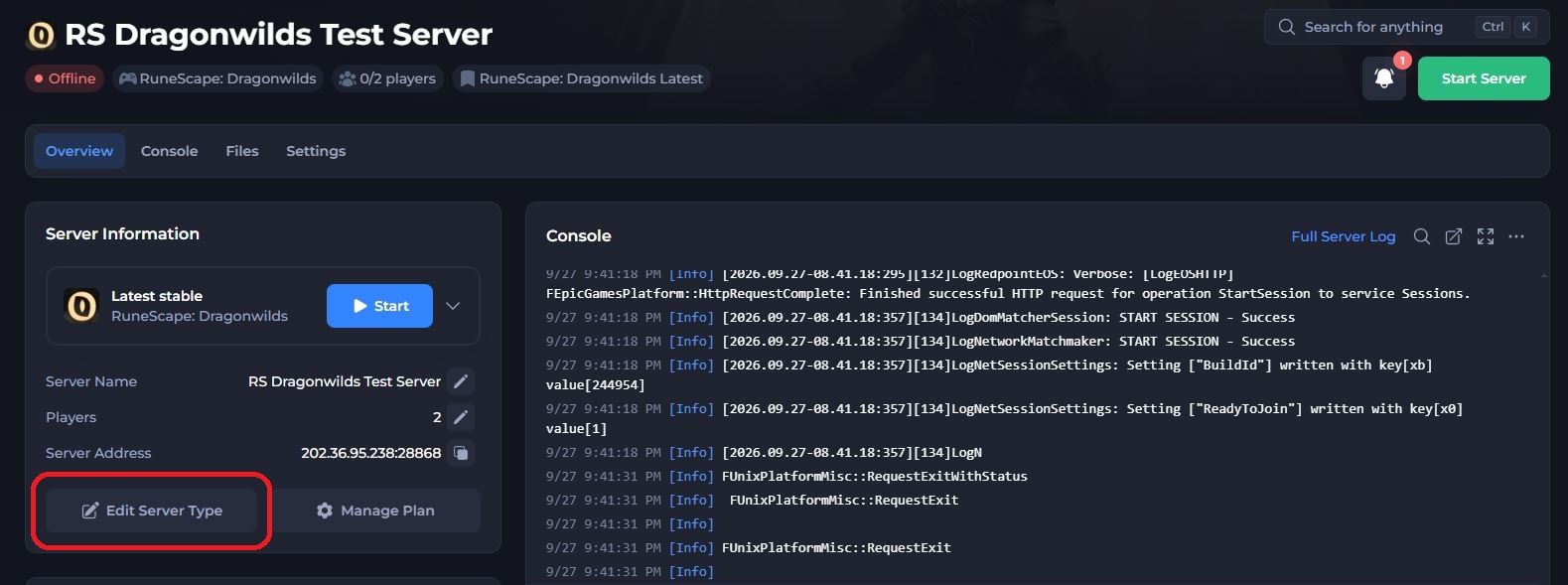
-
Select the
RuneScape: Dragonwilds (Modded)server type, then click Next Steps > Save Changes.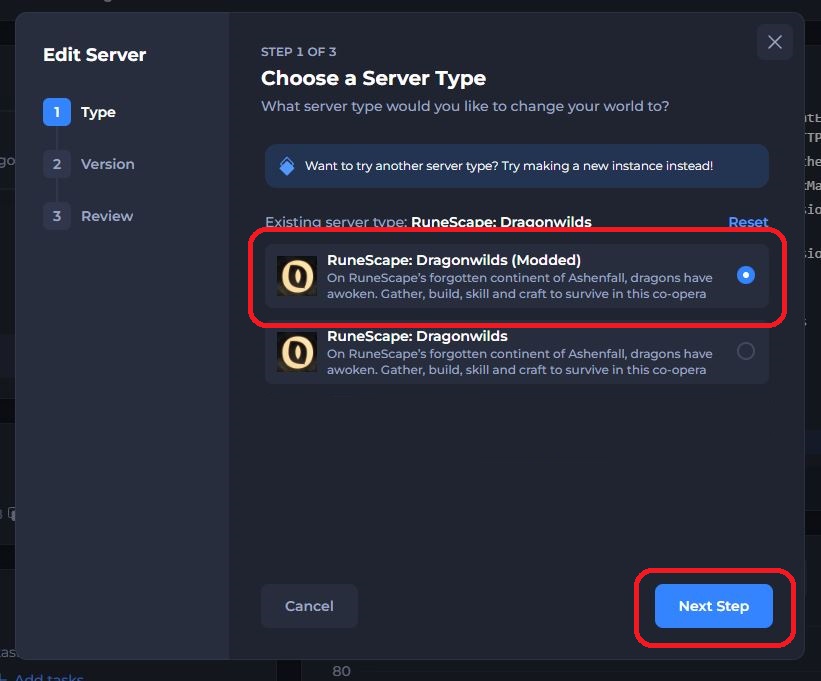
-
Start your server and this will automatically switch to a Windows-based version of RS Dragonwilds (Required for UE4SS) along with installing UE4SS.
UE4SS is now installed on your server.
Important
As your server is now running on a Windows-based version of RS Dragonwilds, you will need to update your configs and re-add your Owner ID.
#Installing UE4SS Locally (Steam)
-
Download the latest stable version of UE4SS from Nexus Mods here by selecting the Manual download button.
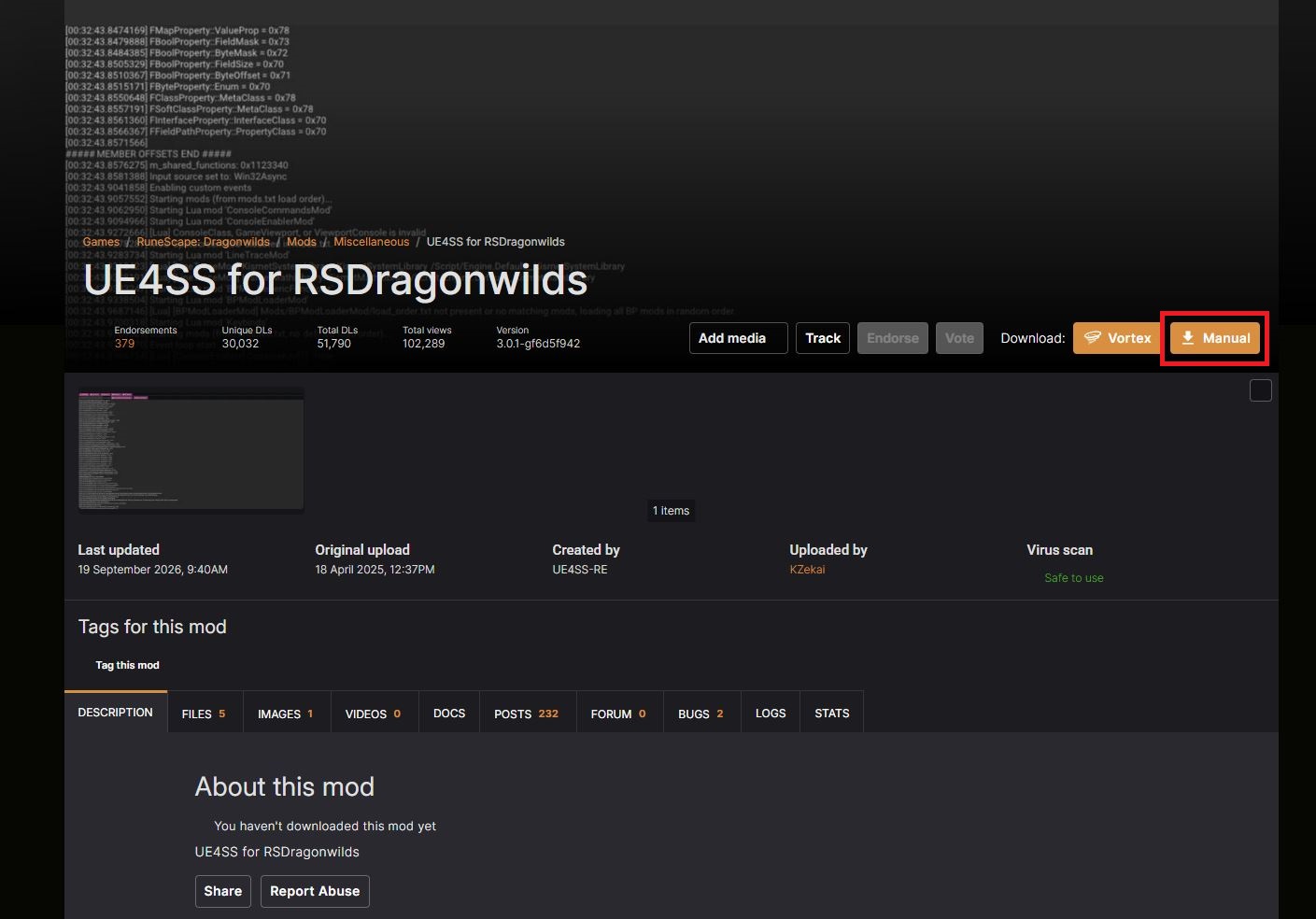
-
Open your Steam client and access your Steam Library.
-
Find RuneScape: Dragonwilds, right-click the game and select
Manage -> Browse Local Files. This is your game root folder.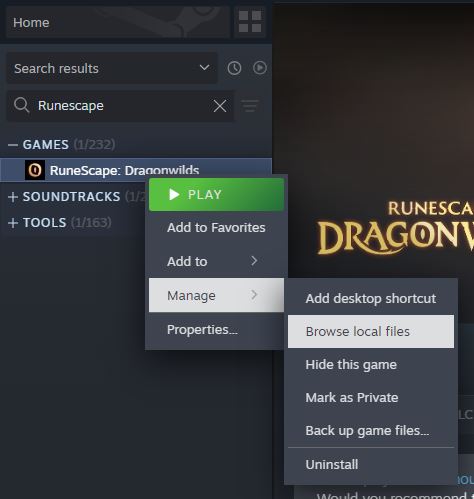
-
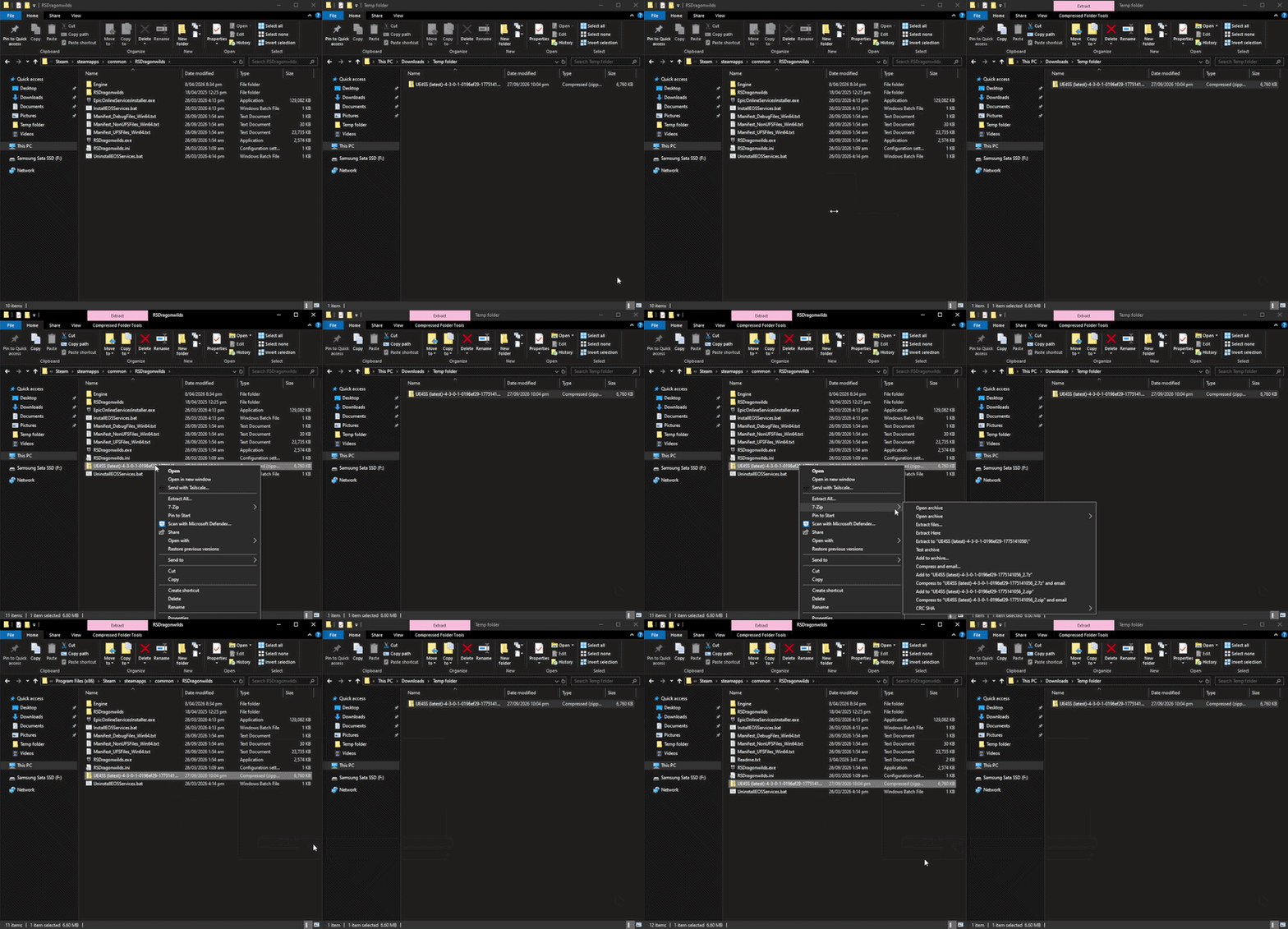
Extract the contents of the UE4SS zip into your game's root folder.
-
Install the optional "UE4SS Signatures" if any of the mods you are looking to run require FText support.
That's it, UE4SS is now installed on your Steam game client.
#Installing Mods on your Server
Our control panel is directly linked with Nexus Mods, allowing you to find, install and update mods directly within the control panel.
-
Access your Control Panel and Stop your server.
-
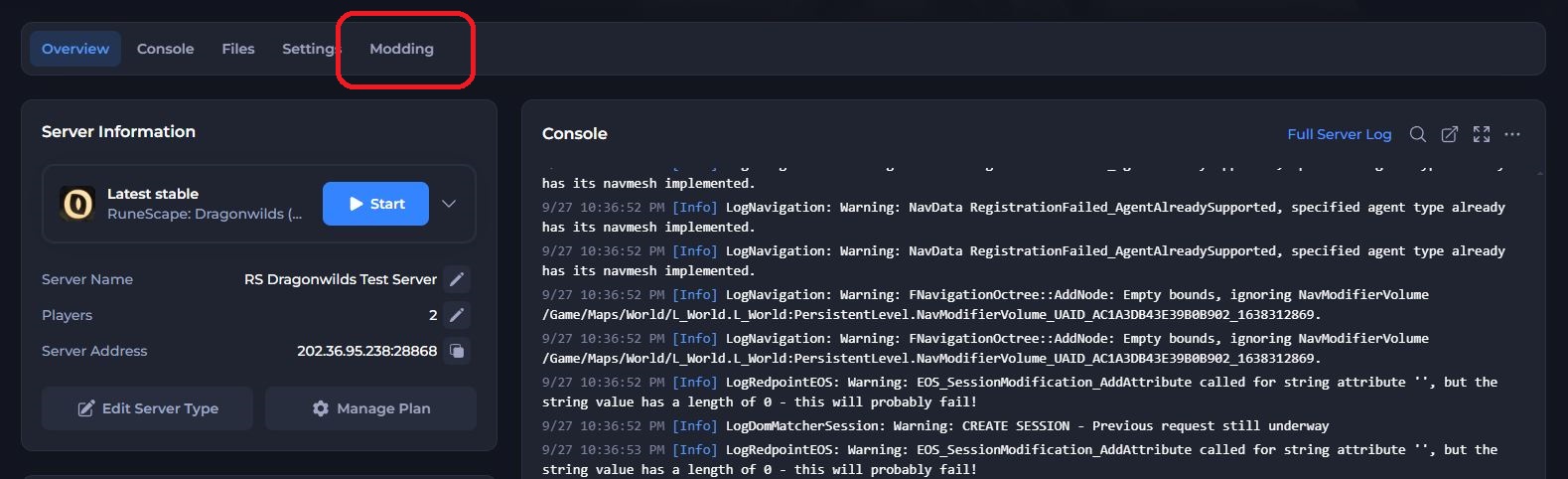
Select the Modding tab at the top of your control panel.
-
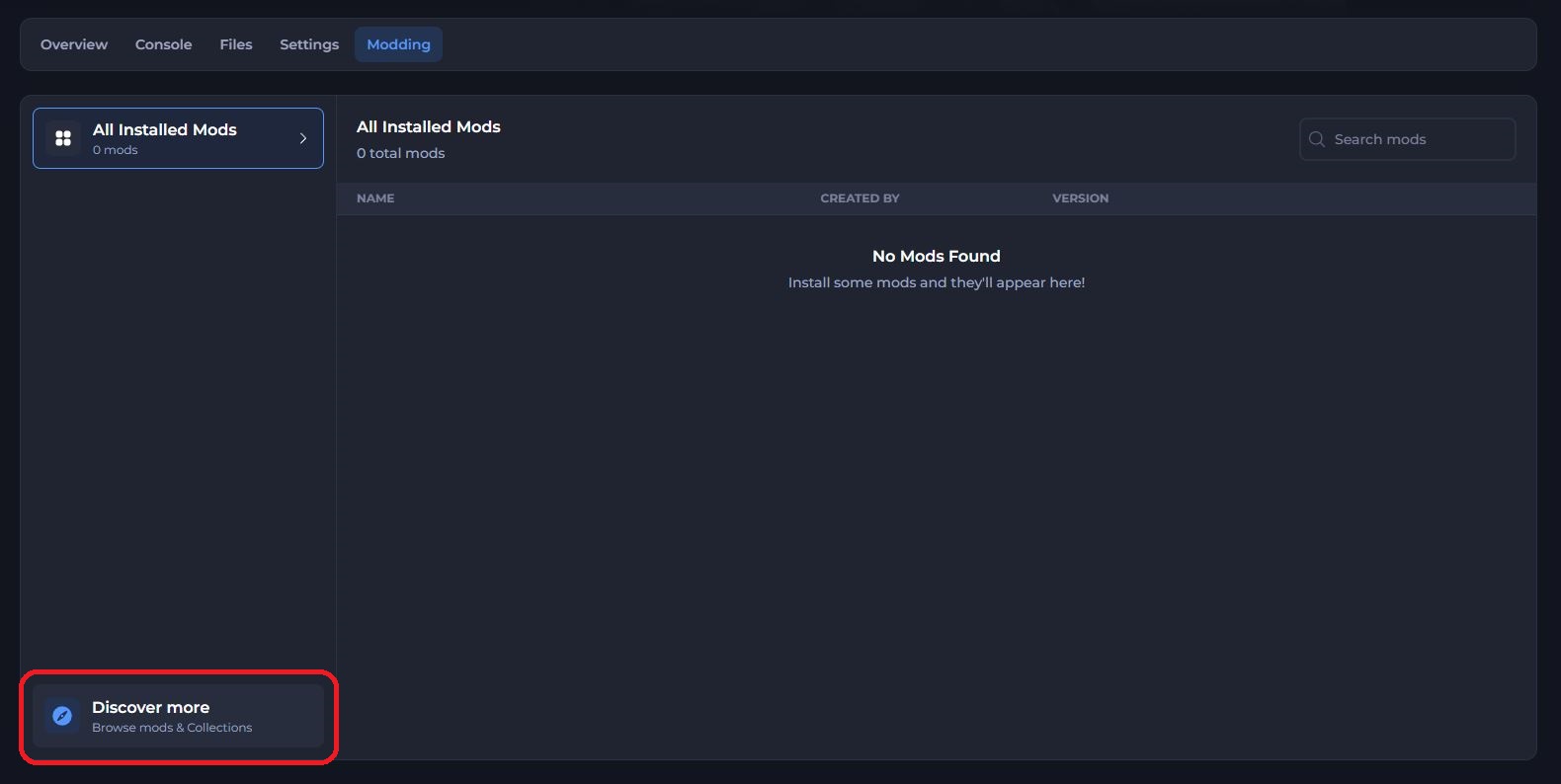
Select Discover More in the bottom left.
-
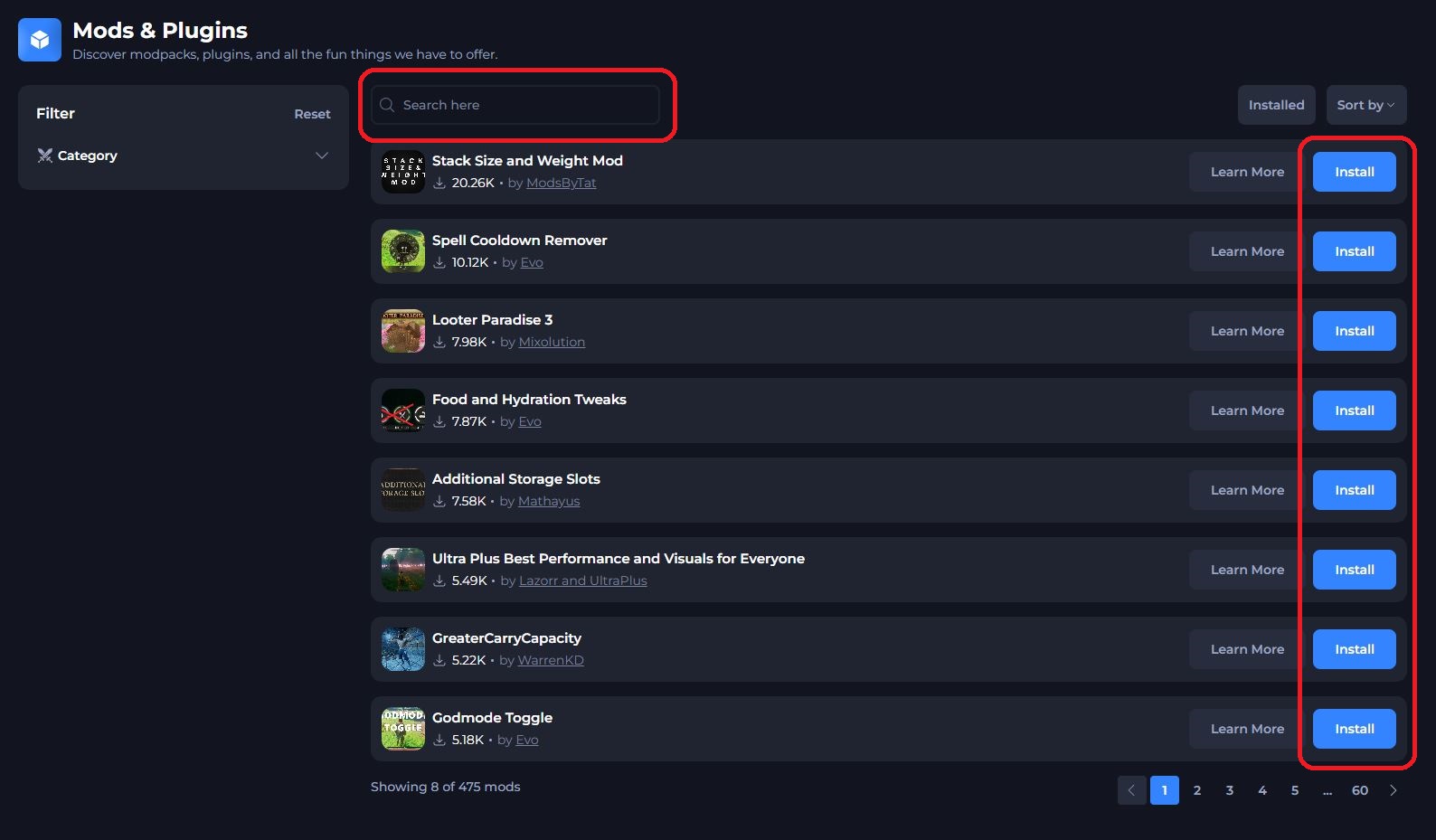
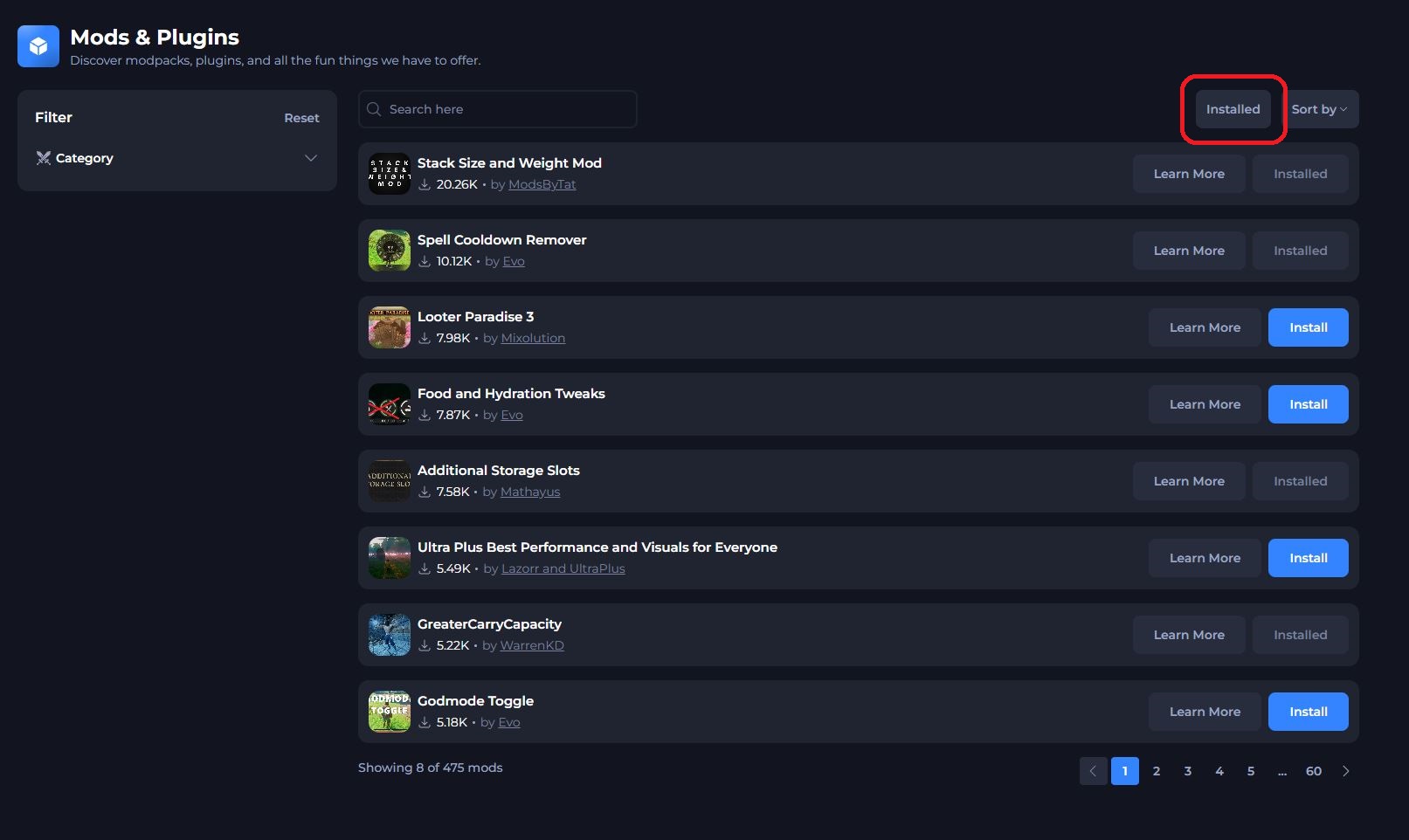
Search for your desired mod and click Install.
-
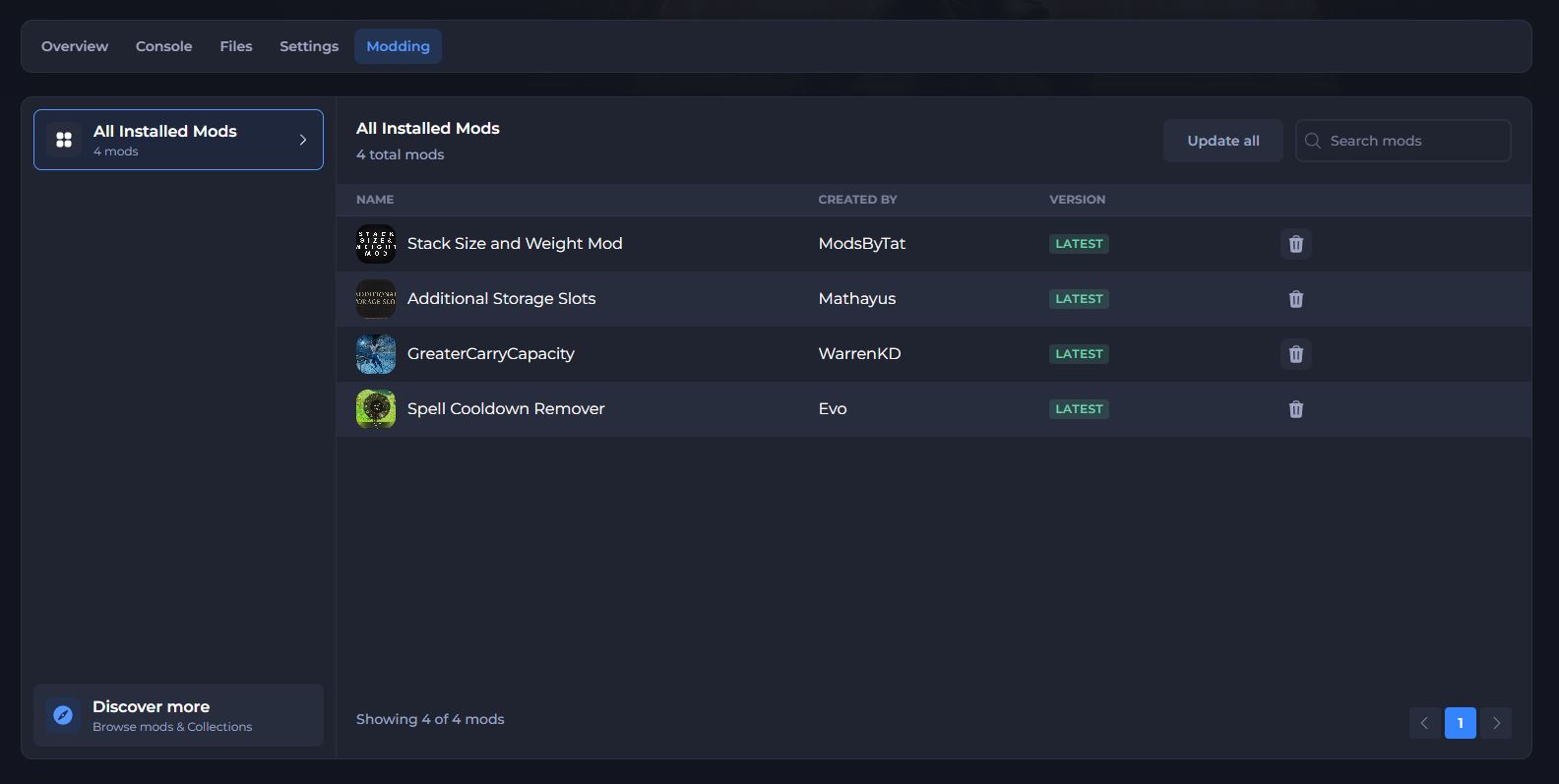
Once you have installed your desired mods, click the Installed button in the top right to view your list of installed mods.
-
In this tab, you can manage your mods by removing or updating them if needed.
-
Start your server.
You have now installed mods on your server.
#Manually Installing Mods on your Client
To install mods on your client, you will need to download the mod files and manually extract them to your game directory.
-
Download your chosen mods from Nexus Mods. (Alternatively, you can access each mod's Nexus page by clicking the mod in your Modding tab.)
-
Open your Steam client and access your Steam Library.
-
Find RuneScape: Dragonwilds, right-click the game and select
Manage -> Browse Local Files. This is your game root folder. -
Access the
RSDragonwilds\Binaries\Win64\ue4ss\mods\and extract each mod here. (In this example, we are installing Additional Storage Slots)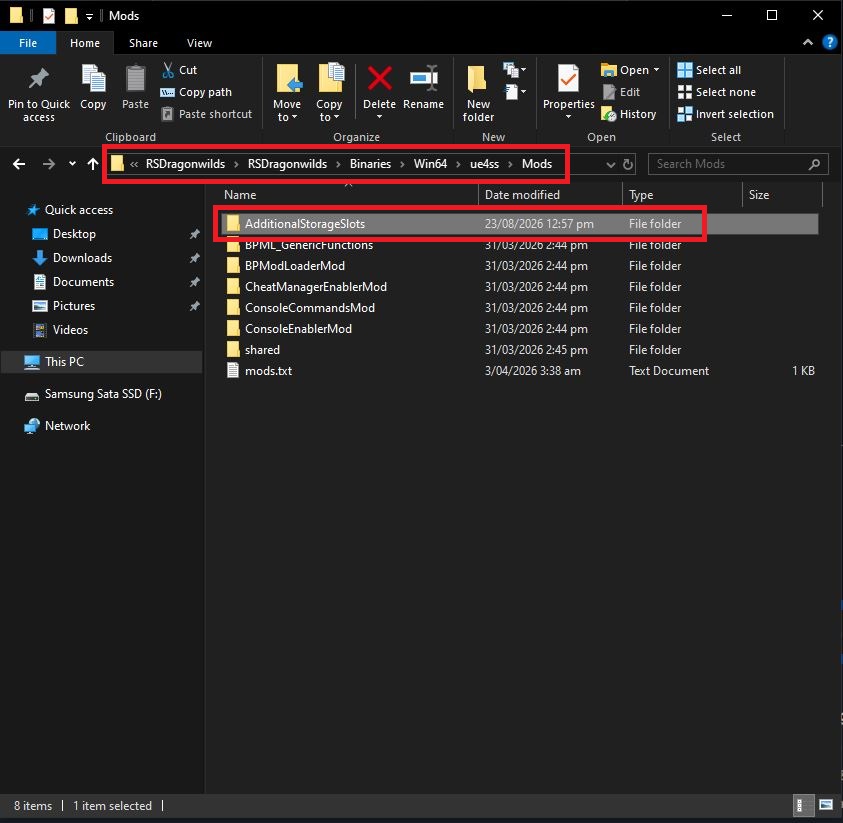
-
Enable the mod in
RSDragonwilds\Binaries\Win64\ue4ss\Mods.txtfile by adding<ModName> : 1on a new line. (ThisModNameshould match the extracted mod folder name, eg:AdditionalStorageSlots : 1)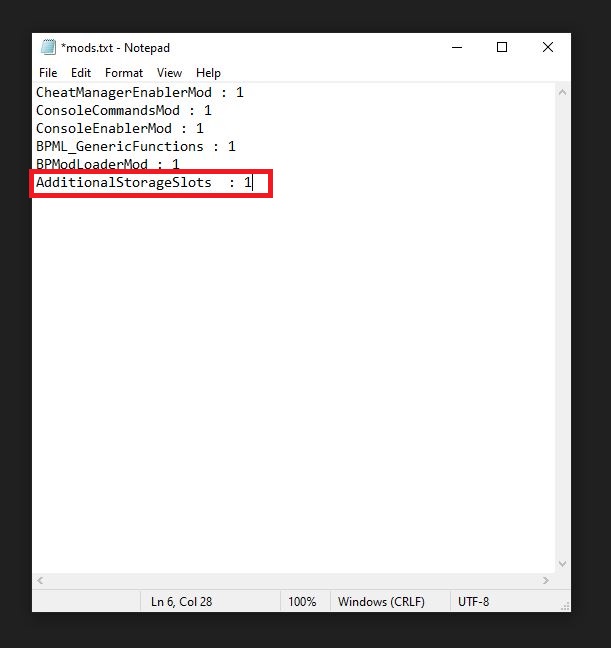
-
Be sure to save your
Mods.txtfile after enabling your mods, then you can launch your game.
Your mods should now be installed. Be sure to install all the same mods that are also installed on your server, otherwise, you may run into mod mismatch issues.
If you require any further assistance, please contact our support at: https://shockbyte.com/billing/submitticket.php