Still have questions?
Come chat with us and we will get back to you as soon as possible!

Shockbyte
Support Team

How To Adjust The DayZ Server Settings
DayZ servers can be configured in multiple ways, from administrative options to settings that affect gameplay. At the bottom of the article, you’ll find a list of the most common settings.
#Adjusting DayZ Server Settings
You can adjust the settings of your server in the serverDZ.cfg file on your control panel.
-
Access your control panel and Stop the server.
-
Navigate to the Files tab.
-
Locate and open the serverDZ.cfg file.
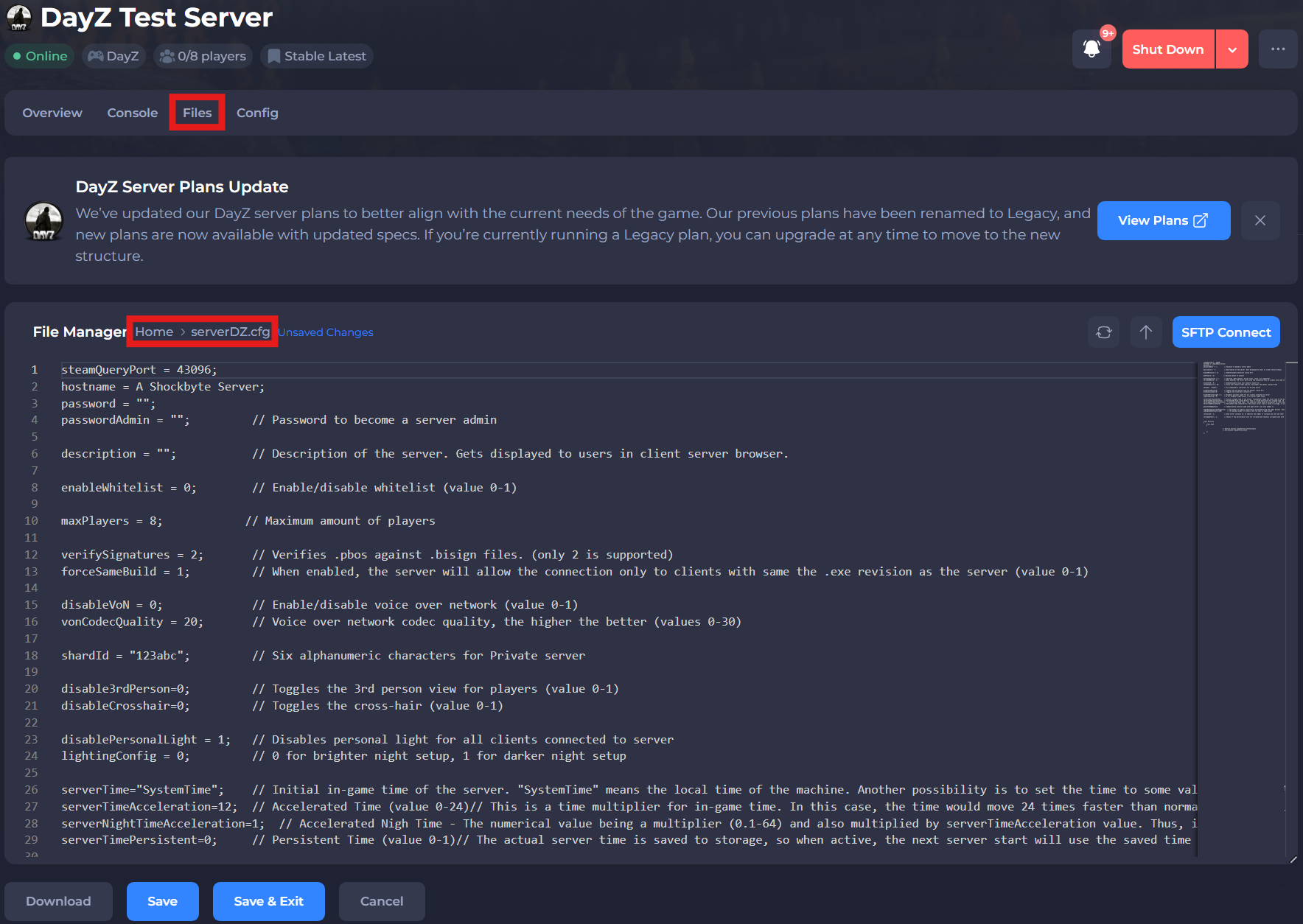
-
Adjust your settings to align with your goals.
-
Click Save and Restart your server.
#DayZ Server Settings
This table provides an overview of DayZ server settings, including whitelist, server password and more.
| Setting Name | Description | Default Value |
|---|---|---|
hostname | Sets the server name that will be displayed publicly. | N/A |
password | Sets the server password. | N/A |
passwordAdmin | Sets the password to become a server admin. | N/A |
enableWhitelist | Enables or disables the whitelist. | 0 (Disabled) |
disableVoN | Enables or disables Voice over Network. | 0 (Disabled) |
vonCodecQuality | Sets the Voice over Network codec quality. | 20 |
serverTimeAcceleration | Determines how fast time moves. | 12 |
serverNightTimeAcceleration | Determines how fast night time passes. Is multiplied based on serverTimeAcceleration as well. | 1 |
You’re done changing your settings! You may also be interested in adding mods to your server.
If you need additional help, our support team is always happy to assist: https://shockbyte.com/contact