Still have questions?
Come chat with us and we will get back to you as soon as possible!

Shockbyte
Support Team

How to Configure your Soulmask Server
A benefit of owning a Soulmask dedicated server is the configuration options offered for many of the game features. Allowing server owners to customise the experience their server offers.
#Changing your Config Settings
You can configure the main Soulmask server settings from your Soulmask Server Settings file, found on your server's control panel.
-
Access your Control Panel and Stop your server.
-
Navigate to the Config tab and select the Soulmask Server Config file on the left-hand side.
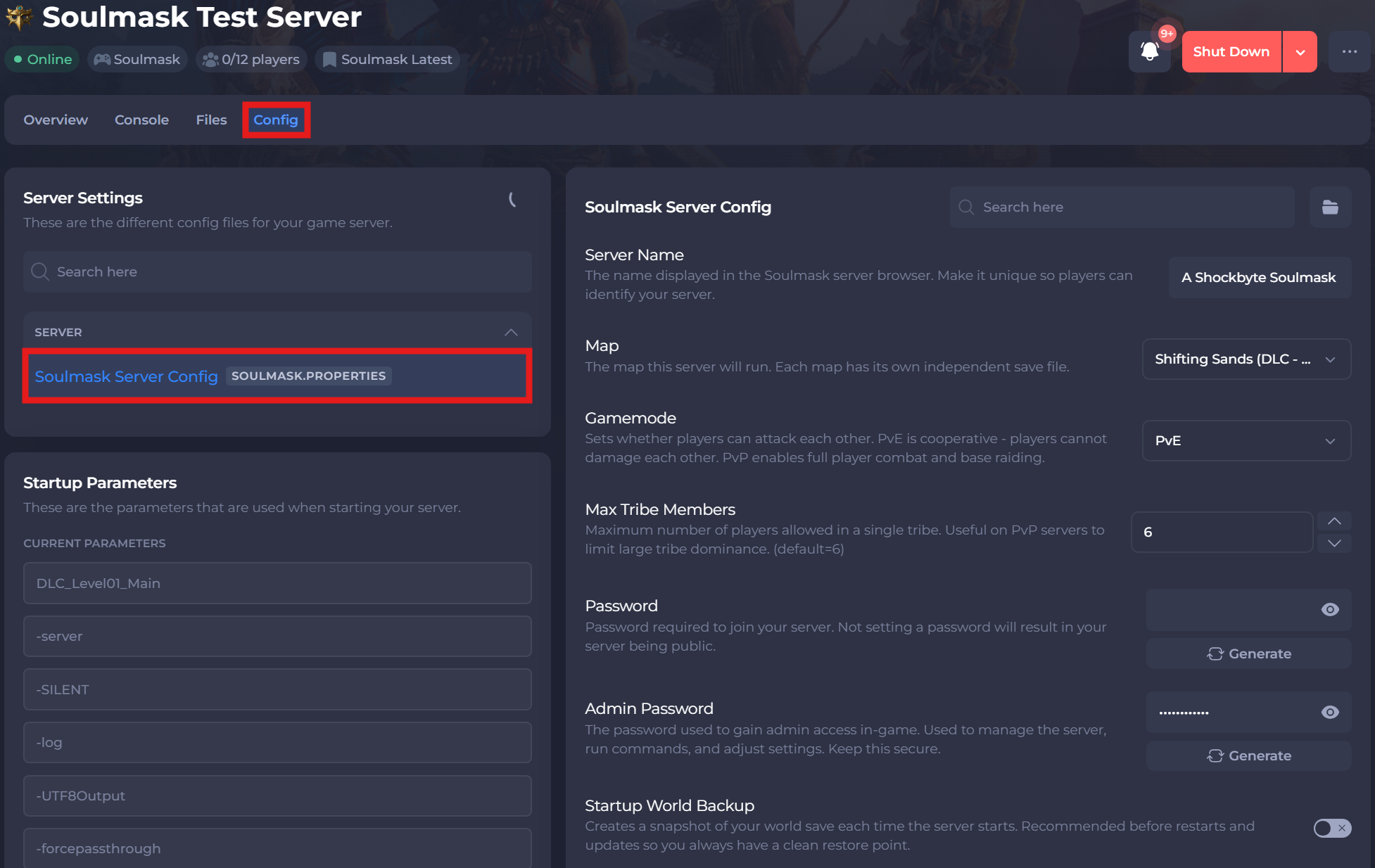
-
After making your desired changes, save and restart your server to ensure the new changes apply.
#List of Configurations
The table below lists all the available settings found in the Soulmask Server Settings file.
| Setting | Description |
|---|---|
| Server Name | The name displayed in the Soulmask server browser. Make it unique so players can identify your server. |
| Map | The map this server will run. Each map has its own independent save file. |
| Gamemode | Sets whether players can attack each other. PvE is cooperative - players cannot damage each other. PvP enables full player combat and base raiding. |
| Max Tribe Members | Maximum number of players allowed in a single tribe. Useful on PvP servers to limit large tribe dominance. (default=6) |
| Password | Password required to join your server. Not setting a password will result in your server being public. |
| Admin Password | The password used to gain admin access in-game. Used to manage the server, run commands, and adjust settings. Keep this secure. |
| Startup World Backup | Creates a snapshot of your world save each time the server starts. Recommended before restarts and updates so you always have a clean restore point. |
| Server ID | Only needed for cross-map clusters. 1 = main server, 2 = client server. Leave at 0 for standalone. |
| Main Server Address | Only required when Server ID is 2. Enter the main server's IP and cluster port in the format IP:PORT (e.g. 123.456.789.0:21005). |
| Cross Server Mode | Allows players to travel to the paired server via the in-game Stargate portal. Enable on both servers for two-way travel. Only relevant when running a cluster. |
If you require any further assistance, please contact our support at: https://shockbyte.com/billing/submitticket.php