Still have questions?
Come chat with us and we will get back to you as soon as possible!

Shockbyte
Support Team

How to Increase the Storage Limit on Your Server
Your Shockbyte server includes unlimited disk space for files related to your server, within fair use. Each server still has a storage limit, and you can raise that limit for free whenever your server starts to run out of space.
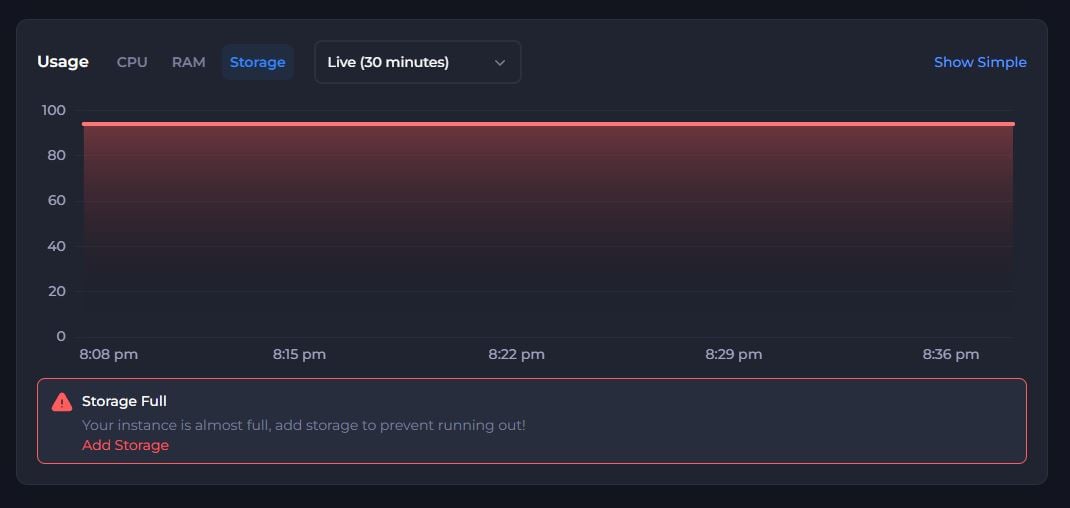
When your server gets close to its limit, the Shockbyte Panel shows a warning with an Add Storage button. You can use that button to increase your limit yourself in a few clicks.
Note
Your server storage limit is separate from your backup storage, which holds the backups you create in the Backups tab. To get more backup storage, add the Backup Space add-on to your server.
#Increasing Your Storage Limit
When your server is almost full, you'll see a Storage Full banner in the panel with the message: Your instance is almost full, add storage to prevent running out!
-
Navigate to the Shockbyte Control Panel and open your server.
-
Find the Storage Full banner and click Add Storage.
-
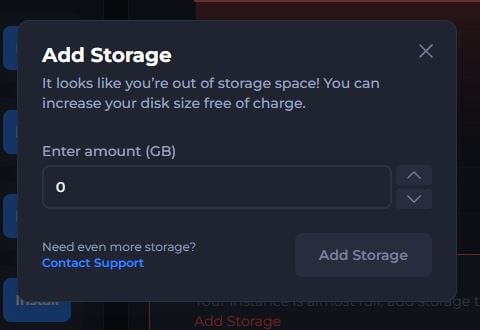
Enter the amount of storage space you would like to add to your server.
-
Save your changes.
There's no charge for increasing your storage limit, and you don't need approval from our team up to 100GB.
#Increasing Storage Beyond 100 GB
You can raise your storage limit up to 100 GB yourself from the panel. If your server needs more than 100 GB, contact our support team and tell us what the extra space is for, such as a large world, a big modpack, or several worlds you want to keep. We'll review the request and increase the limit for you.
Important
Server storage is for files your server uses, such as worlds, mods, plugins and configs. We don't allow server storage to be used for personal files or other content unrelated to your server.
#Freeing Up Space
Before you raise your limit, check whether your server holds files you no longer need. Removing them keeps your server tidy and helps it run smoothly. Common examples include:
- Old worlds you don't play anymore.
- Backup copies or archives saved inside your server files.
- Large log files from plugins, mods or scripts.
You can keep copies of your worlds in the Backups tab instead of storing them in your server files.
#Troubleshooting
- My storage fills up fast and then drops back down.
A mod, plugin or script on your server is likely writing large temporary files, such as logs. Check your logs folder and recently changed files, then update or remove the mod or plugin causing it. Raising your limit won't fix this.
- I don't see the Add Storage button.
The button appears on the Storage Full banner, which shows when your server is close to 90% of its limit. If you need more space before you see the banner, contact our support team.
- I need more than 100 GB.
Contact our support team with details of what the extra space is for, and we'll take a look.
If you still need help, contact our support team and we'll take a look for you.