Still have questions?
Come chat with us and we will get back to you as soon as possible!

Shockbyte
Support Team
How to Reset your Necesse Server
If you would like to have a fresh start on your Necesse server, you can either completely reset your server, generate a new world, or reset your player data.
Important
As this process involves deleting files, make sure to create a backup of your server before proceeding with the steps in this guide.
#Resetting the Entire Server
Resetting the entire server will delete all server files, including the world and settings.
-
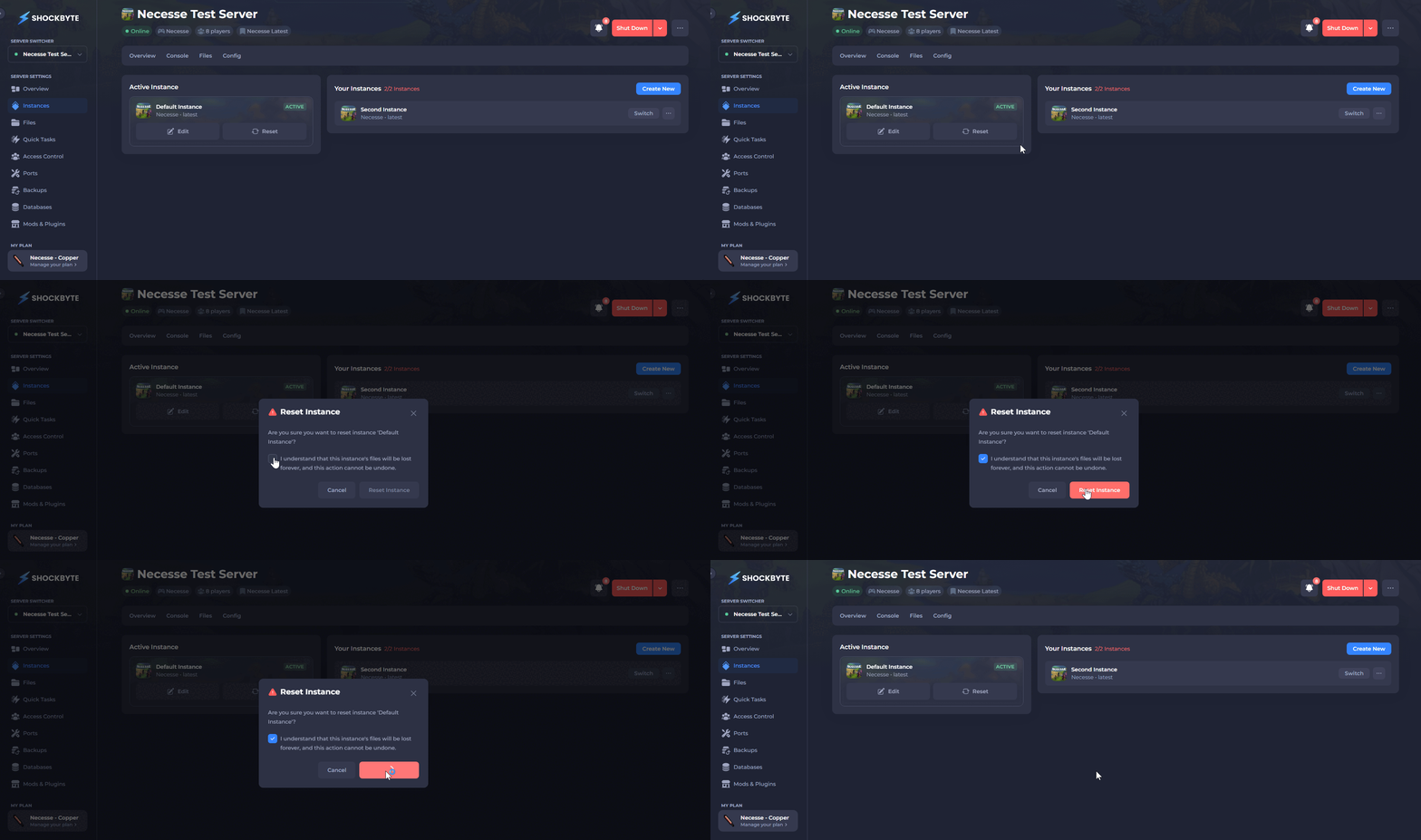
Open your Server Control Panel.
-
Navigate to Instances on the left-hand side.
-
Select Reset on the Active Instance.
-
Accept the prompt confirming the deletion of all server files.
#Resetting Player Data
If you'd like to reset either a specific player's data, or all player data on the server, the relevant player data files can be deleted.
-
Open your Server Control Panel.
-
Stop the server and wait for it to go Offline.
-
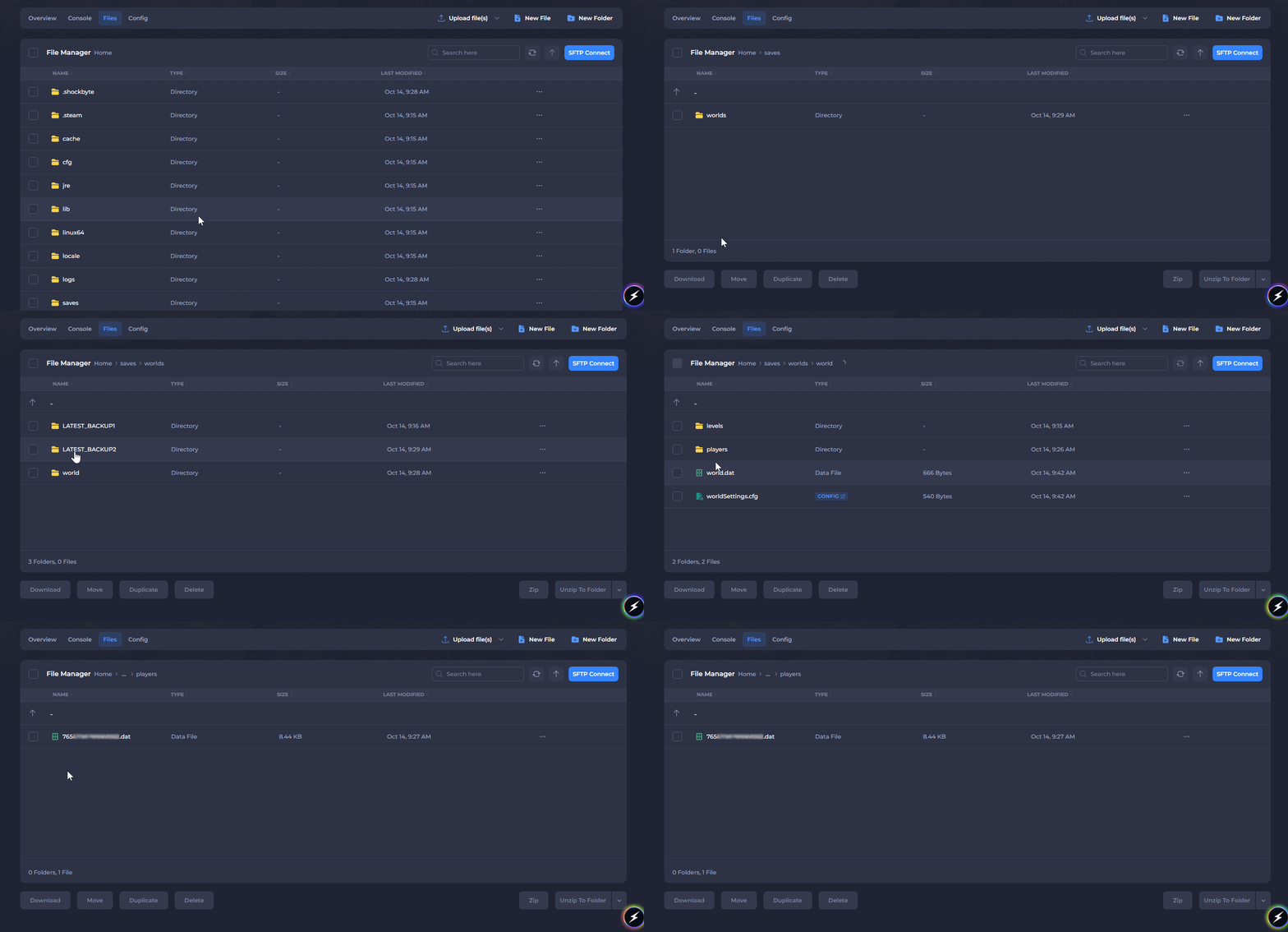
Navigate to Files and open the directory
/saves/worlds/(WORLD FOLDER)/players/.
If the world name was changed, open the world folder matching the correct name. Your world name can be can be found in the Necesse Server Settings in the Config editor if unsure.
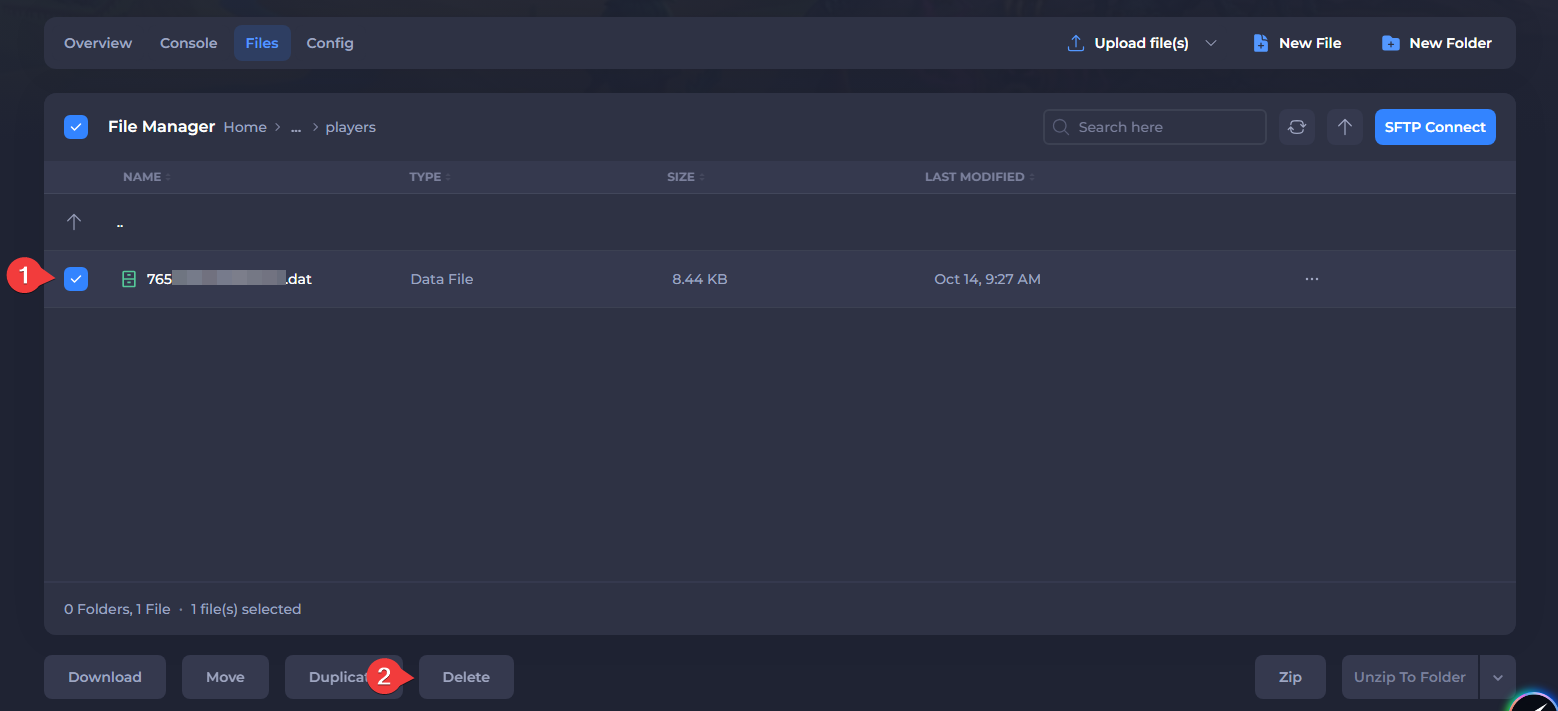
- Delete any files containing the Steam ID of the target player.
- Start your server.
#Generate a New World
Generating a new world allows you to switch to and play on a new world without deleting any of the server files, including the server settings and your old world data.
To learn more about Necesse server hosting, you can browse our library of Knowledgebase articles here.