Still have questions?
Come chat with us and we will get back to you as soon as possible!

Shockbyte
Support Team

How to Install Any Gamemode on your Garry's Mod Server
One of Garry's Mod main selling points is the vast variety of gamemodes that have been built upon it. This article will cover how to install any gamemode on your GMOD Server.
Note
If you're looking to install Trouble in Terrorist Town or Sandbox gamemode, you can skip the Changing your Server's Default Gamemode section of this article as both of these gamemodes are already included with Garry's Mod by default.
#Installing Game Modes from the Workshop
Many gamemode authors publish their gamemodes directly to the Steam Workshop. For example, the popular Murder gamemode is available on the workshop.
To install a workshop gamemode on your Garry's Mod server, simply add it to your server’s workshop collection. If you do not already have a collection, you can create one by following our How to Add a Steam Workshop Collection to Your Garry's Mod Server guide.
You should also force clients to download the workshop content to prevent missing assets, as explained in our How to Automatically Have Players Download Workshop Addons tutorial.
Once the gamemode has been added to your workshop collection and workshop.lua file, you can proceed to the Changing Your Server’s Default Gamemode section of this article.
#Manually Installing Game Modes
Important
On the internet, anybody may create and distribute a Garry's Mod gamemode. It is possible to introduce backdoors and other dangerous code into GMOD gamemodes, therefore only install gamemodes from authors you trust. GmodStore and the Steam Workshop, for example, are typically safer.
- Download the gamemode you wish to install onto your computer.
- Extract the gamemode by right-clicking the ZIP and selecting "Extract All" from the menu that appears.
- Determine if the gamemode should be installed into the gamemodes folder or the addons folder.
-
If the gamemode should be installed into
addons, the folder you extracted will contain a folder namedgamemodes.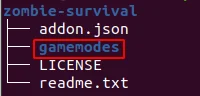
-
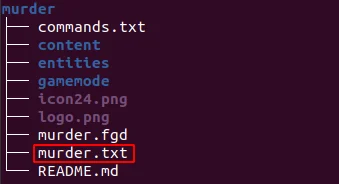
If the gamemode should be installed into gamemodes, the folder you extracted will contain a text file with the name of the gamemode.
Important
If the folder and the text file do not have the same name, rename the folder so that it has the same name as the text file.
-
Connect to the server's FTP. We recommend using FileZilla. Locate the server's
addonsandgamemodesfolders by double-clicking thegarrysmoddirectory within the remote site section (right side by default) of FileZilla. -
If the gamemode is to be installed into the
gamemodesdirectory, drag the folder from your file manager and drop it into your server'sgamemodesfolder. If the gamemode is to be installed into your server'saddonsfolder, drag the folder from your file manager and drop it into your server'saddonsfolder. -
Follow the steps in the next section.
#Changing your Server's Default Game Mode
- Access your Control Panel and Stop your server.
- Navigate to the Config tab and select the Garry's Mod Server Settings file.
- Locate the
Game Modesetting and set your desired Game Mode.
- If you uploaded the gamemode into
garrysmod/gamemodes, then this is the name of the folder you uploaded. - If you uploaded the gamemode into
garrysmod/addons, this is the name of the folder inside the gamemodes folder within the folder you uploaded (garrysmod/addons/<folderYouUploaded>/gamemodes/<useThisName>). - If you used the workshop collection method to install the gamemode, check the workshop item's description or installation instructions.
- If you would like to load Sandbox or Trouble in Terrorist Town, use
sandboxandterrortownrespectively.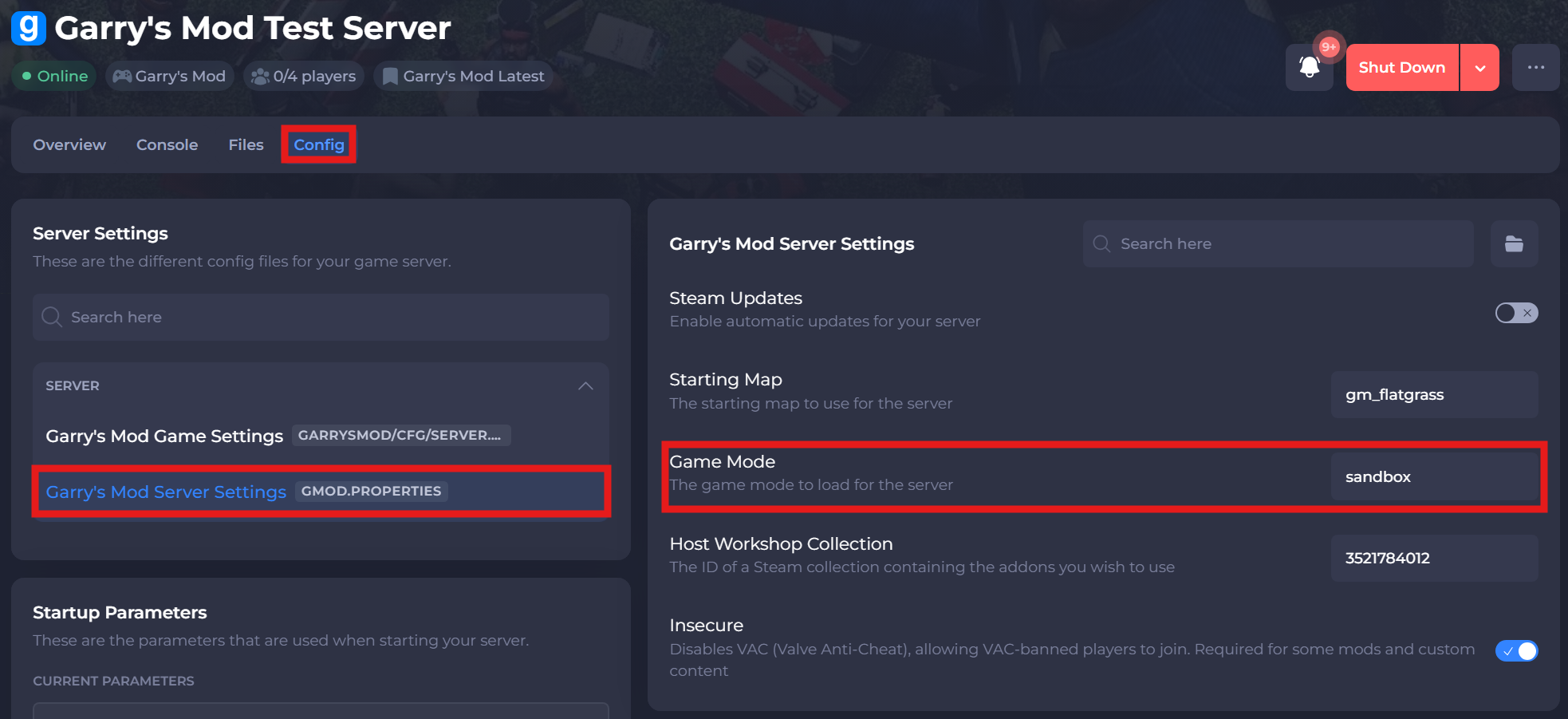
- Save and restart your server to ensure the new changes apply.
If you require any further assistance, please contact our support at: https://shockbyte.com/billing/submitticket.php