Satisfactory
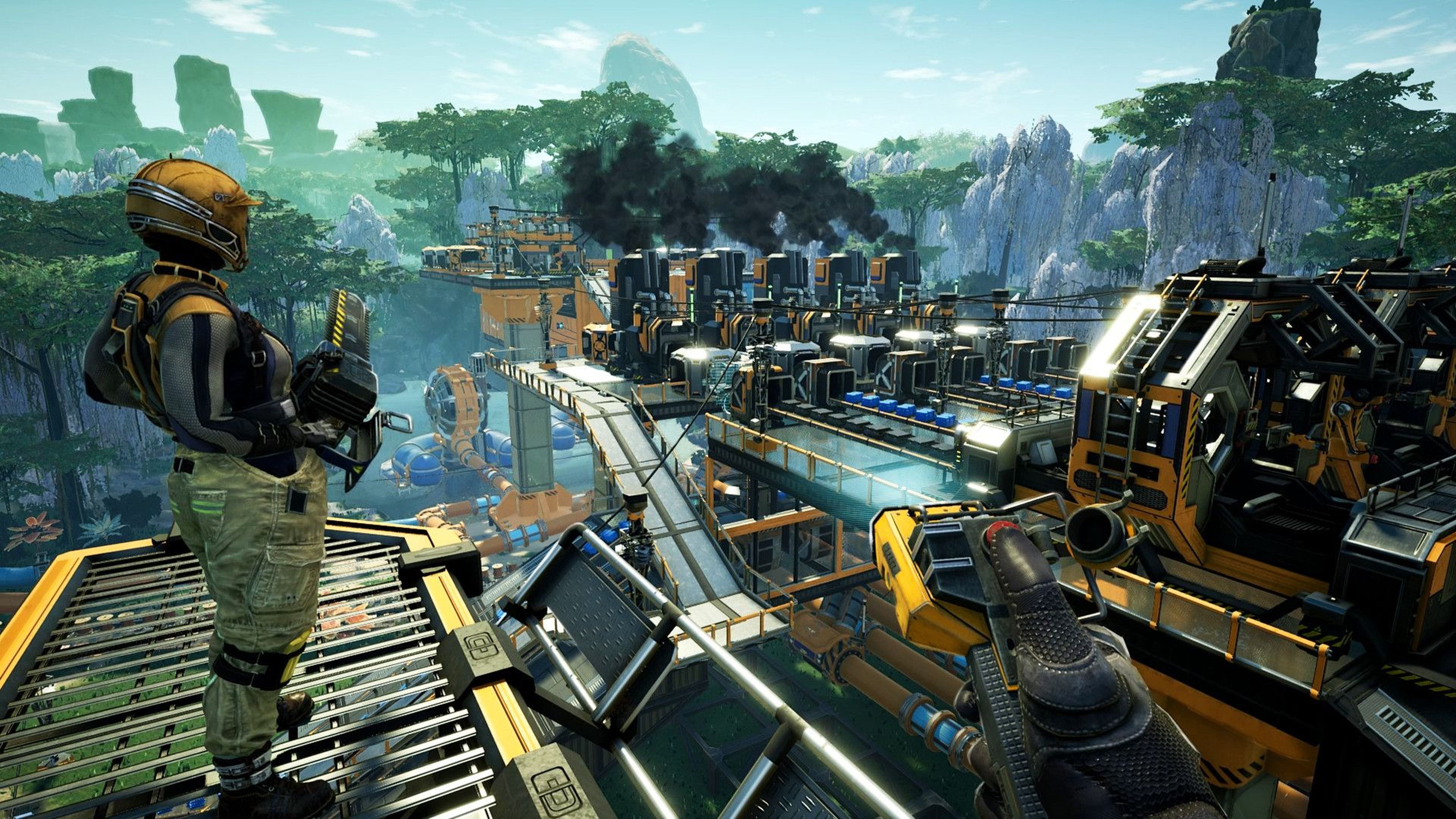

Satisfactory
18 ArticlesUnlock the ultimate guide to Satisfactory game server hosting, where you’ll find everything you need to build your factory empire in this captivating open-world game. Whether you're a newcomer or a seasoned player, our knowledgebase is packed with essential resources to elevate your Satisfactory experience to the next level!
How to Install Mods on Your Satisfactory Server
Installing mods allows you to expand your server's functionality be adding new features, and gameplay mechanics. In this guide, we will make use of the Satisfactory Mod Manager to install mods on your server. --- Installing the Satisfactory Mod Manager The Satisfactory Mod Manager allows you to easily install mods, their dependencies, and the Mod Loader (SML) with minimal hassle. 1. Download the Satisfactory Mod Manager: https://smm.ficsit.app/ 2. Open the .exe file, and follow the steps to install the program. --- Adding Your Server to the Satisfactory Mod Manager After installing the Satisfactory Mod Manager, we can add the server. 1. Access the Control Panel. 2. Navigate to Files. 3. Click on SFTP Connect, and note down your connection details. 4. Connect to your server via SFTP using this guide, and note down your server directory. Most of the time, this will be something like: . 5. Open the Satisfactory Mod Manager. 6. Click on Manage Servers. 7. Change the Manage Server menu to advanced mode. 8. Set the connection mode to SFTP, and enter the connection string in the following format: The server has now been added to the Satisfactory Mod Manager. --- Installing a Mod on Your Server With the server added, you can now install mods on your server. 1. Select your server as the active Game Installation. 2. Start the download of the mod you wish to use. 3. Wait for the mod to be downloaded to your server. 4. Restart your server for the mod to be loaded. You have now successfully installed the mod on your server.
How to Upload Blueprints to Your Satisfactory Server
Satisfactory blueprints allow players to save factory layouts for future use. This makes factory building more efficient by letting players copy parts of a factory without having to build it from scratch every time. --- How to Find Blueprint Files Blueprints can be downloaded online or created in-game. Downloading Blueprint Files Online 1. Navigate to the Satisfactory Calculator website. 2. Download the and files of the blueprint that you'd like to use on your server. How to Find Blueprints Created in Your Save Game 1. Use Win+R to open the Run program, or search and open the "Run" program in your Windows start menu. 2. Enter the following path in the Run program: 3. Open the folder matching the name of the save where you created the blueprint. 4. Identify the blueprint that you created and keep the folder open. Your blueprint files are both the and files. These can be uploaded to the server. --- Uploading Blueprints to Your Server 1. Access your server's Control Panel and shut down the server. 2. Navigate to the Files tab on your server. 3. Navigate to . 4. In this folder, open the folder. ::ProseNote{title="Note:" description="If the folder is not present, join your server, create a blueprint in-game, then refresh the File Manager in the control panel. This will generate the blueprints directory." appearance="default"} :: 5. In the blueprints folder, open the folder matching the name of your save game. 6. Upload the and files inside this folder. Now you can start the server, and your blueprints should be available in-game.
How To Upload Or Download A Save From Your Satisfactory Server
If you already have an existing Satisfactory single-player world, you can upload this to your server to allow your friends to join. You can also download a world from the server to continue playing in your single-player game. In this guide, you will need both the Session Name and File Name of a save. Each Session Name (e.g. ‘My New Save’) can contain multiple save files. Each save file will be listed within the session by its File Name (e.g. 'My Newest Save'). Preparing a downloaded savegame This section only needs to be followed if you are uploading a downloaded savegame. If you already have the world’s .sav file in single player, you can skip this step. 1. Download the .sav file you would like to use. 2. Go to the Satisfactory Save Games folder on your computer. On Windows, press WINDOWS + R and then enter . On Linux, navigate to . 3. Move the downloaded .sav save file within one of the subfolders. --- Uploading the save to your server 1. Open the menu by pressing Escape. 2. Click Server Manager, select your server, and click Manage Saves. 3. Click Upload Save, select which session and save you would like to upload, and click Upload Game. 4. You can now load the world using our How to Save or Load a Save guide. --- Downloading the save from your server This section only needs to be followed if you want the downloaded savegame as a file. If you just wish to have it in single player, you can skip this step. 1. Open your server's file manager or an FTP client such as FileZilla. 2. Navigate to . ::ProseNote{title="Note" description="Some FTP clients may not show the .config folder by default. Either copy and paste the file path, or use the panel's File Manager." appearance="default"} :: 3. Download the .sav save file from the server to your computer. --- Importing a save to single-player 1. Open the menu by pressing Escape. 2. Click Server Manager, select your server, and click Manage Saves. 3. Click Download Save, select which session and save you would like to download, and click Download Game.
How to Unclaim Your Satisfactory Server
You may find that your server has already been claimed after trying to join for the first time. This happens when another user found your server’s IP before you and was therefore able to set it up themselves instead. --- Unclaiming your Satisfactory server 1. Stop your server using the Control Panel. 2. Navigate to Files. 3. Go to , select the file, and click Delete. 4. Start your server. Your server has now been unclaimed and is ready to be used! Follow our guide on How to Set Up Your Satisfactory server to Get Started.
How To Setup Your Satisfactory Server
When first connecting to your Satisfactory server, you will need to claim your server. When you claim your Satisfactory server, you’re given the option to set an admin password, choose a starting map, and so much more! --- Claiming your Satisfactory server 1. Start your server from your Control Panel. 2. Add the server to the Satisfactory Server Manager by following our guide here. 3. After adding the server after its first start, Satisfactory requires you to claim your server. Enter a name for your server and press Confirm. 4. Set an administrative password for your server, then press Confirm. This is the password you will use to manage your server settings and to use the in-game console. ::ProseNote{title="Note" description="It's important to set a strong password for your server. Be sure to save your password in a safe location and only share with trusted users." appearance="default"} :: 5. Choose any starting map for your Satisfactory save. You can hover your mouse over each map to familiarize yourself with the differences. Click your map of choice. 6. Enter a session name for your Satisfactory save. This is the directory all your saves will be placed under. 7. Click the button to create the world selected and join your server.
How To Save Or Load A Save On Your Satisfactory Server
Your game can be loaded or saved on your server by using the Server Manager. --- Saving the game 1. Open the menu by pressing Escape. 2. Click Server Manager, select your server, and click Manage Saves. 3. Click Create Save, select the session you would like to save to, enter a filename for the save, and click Save. Loading a save 1. Open the menu by pressing Escape. 2. Click Server Manager, select your server, and click Manage Saves. ::ProseNote{title="Note" description="You may be disconnected from the server when loading a save. If this happens, please wait, and try to reconnect." appearance="default"} :: 3. Click Load Save, select which session and save you would like to load, and click Load.
How To Reset Or Change The Satisfactory Admin Password
If you want to change or have forgotten your server's administrative password, you will need to launch Satisfactory and access your Server Settings. --- Changing the admin password from server settings 1. Launch Satisfactory and navigate to the Server Manager. 2. Select your server, click Server Settings and Authenticate to your server. 3. Press Change Password next to . 4. Enter the password of your choice. You will need to retype it to confirm you entered it correctly. After entering it twice, click the confirm button. ::ProseNote{title="Note" description="The method below should only be used if you've forgotten your admin password. Be aware, all server settings will reset, and you will need to setup your server again. Your server save won’t be affected if all steps are followed." appearance="default"} :: Resetting your admin password 1. Stop your server from the Control Panel. 2. Navigate to Files. 3. Navigate to the path and select the ServerSettings.<port.sav file, and press Delete. 4. Start your server. 5. Claim your server by following our guide here. When claiming your server, you will be able to set a new administrative password. 6. Navigate to Manage Saves then click Load Save. 7. Click your most recent save and press Load Game. 8. Press Status to monitor when the world has finished loading. Once this has loaded, press Join Game to join your world!