Still have questions?
Come chat with us and we will get back to you as soon as possible!

Ruben B
Partnership Manager

All Console Commands for Your Project Zomboid Server
Console commands allow users to modify the game’s settings, spawn items, or run functions that would otherwise be unavailable. You can use them in two different ways:
#Access Through The Control Panel
The first way to use commands is by accessing the Console through your Control Panel. You can type them directly into the Console.
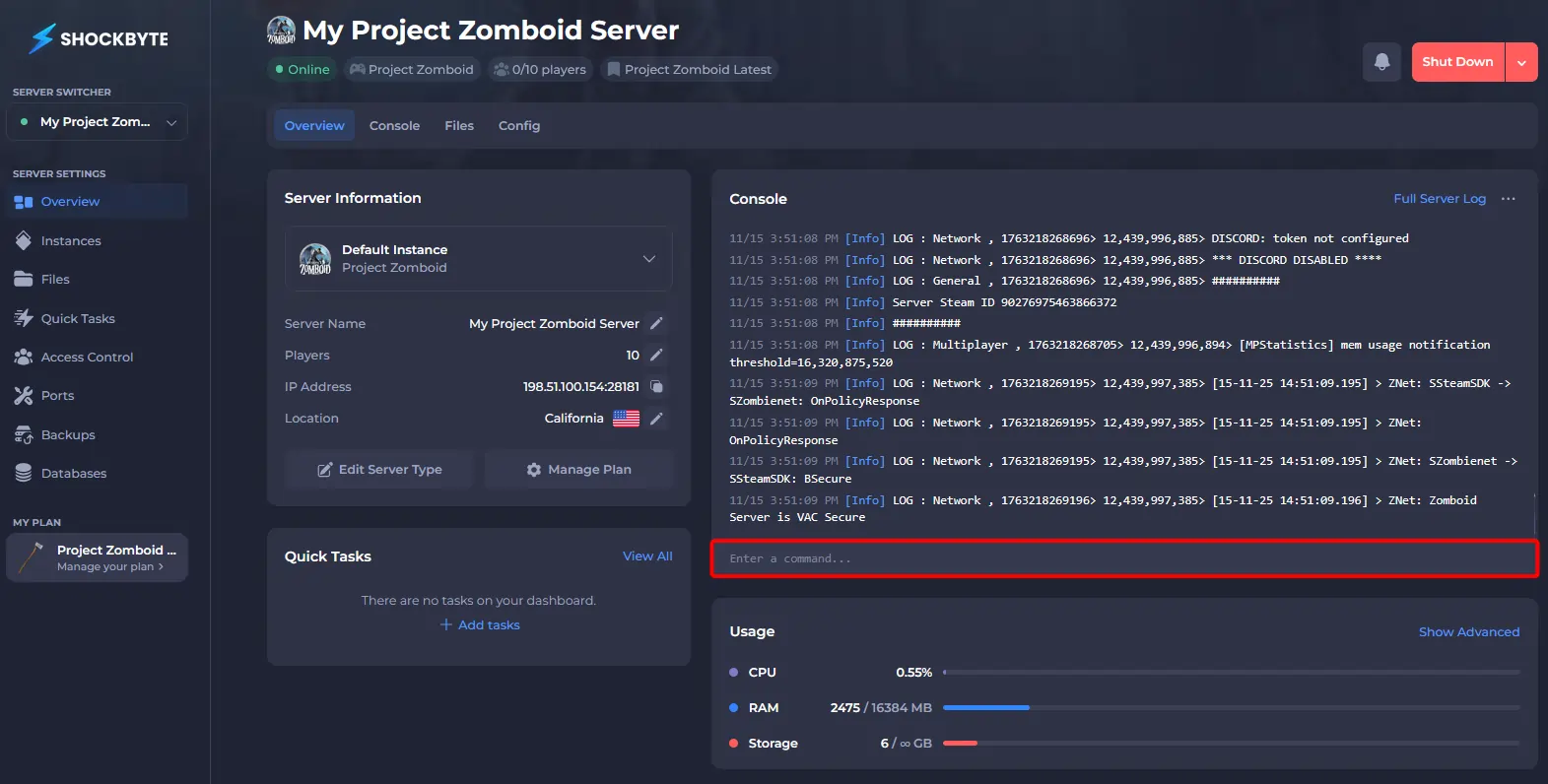
If you would like to use commands from within your server, you will first need to set the player’s access level from the console. You can learn more in our article on How to Become an Admin on your Project Zomboid Server.
#Access Through In-Game Chat
Once you have been given permissions from the console, you can access commands from within a Project Zomboid server by entering the commands directly into your in-game chat. To access the chat, press T.

#List of General Commands
| Name | Description | Syntax |
|---|---|---|
| additem | Gives an item to the player. | /additem “user” “module.item” |
| addvehicle | Spawns a vehicle. | /addvehicle “user” |
| addxp | Gives XP to a player. | /addxp “user” “perk=XP” |
| alarm | Sounds a building alarm at the admin’s position. Must be in a room. | /alarm |
| changeoption | Changes a server option. | /changeoption option="newOption" |
| chopper | Places a helicopter event on a random player. | /chopper |
| changepwd | Changes your password. | /changepwd “pwd” “newPwd” |
| createhorde | Spawns a horde near a player. | /createhorde “number” |
| godmode | Makes a player invincible. | /godmode “user” |
| gunshot | Makes a gunshot noise near the player. | /gunshot |
| help | Brings up the help menu. | /help |
| invisible | Makes a player invisible to zombies. | /invisible “user” |
| noclip | Allows a player to pass through solid objects. | /noclip “user” |
| quit | Saves and quits the server. | /quit |
| releasesafehouse | Releases a safehouse you own. | /releasesafehouse |
| reloadoptions | Reloads server options. | /reloadoptions |
| replay | Records and plays a replay for a moving player. | /replay “user” [-record | -play | -stop] “filename” |
| save | Saves the current world. | /save |
| sendpulse | Toggles sending server performance info to the client. | /sendpulse |
| showoptions | Shows a list of current server options and values. | /showoptions |
| startrain - stoprain | Starts and stops rain on the server. | /[start | stop]rain |
| teleport | Teleports to a player. | /teleport “toUser” or /teleport “user” “toUser” |
| teleportto | Teleports to certain coordinates. | /teleportto x,y,z |
#List of Moderation Commands
| Name | Description | Syntax |
|---|---|---|
| addalltowhitelist | Adds all current users connected with a password to the whitelist. | /addalltowhitelist |
| adduser | Adds a new user to the whitelist. | /adduser “user” “pwd” |
| addusertowhitelist - removeuserfromwhitelist | Adds/removes a single user connected with a password to the whitelist. | /addusertowhitelist “user” |
| banid - unbanid | Bans/unbans a Steam ID. | /[ban | unban]id “SteamID” |
| banuser - unbanuser | Bans/unbans a user. | /[ban | unban] “user” |
| grantadmin - removeadmin | Gives or removes admin rights to a user. | /[grantadmin | removeadmin] “user” |
| kickuser | Kicks a user from the server. | /kickuser “user” |
| players | Lists all connected players. | /players |
| servermsg | Broadcast a message to all players. | /servermsg “message” |
| setaccesslevel | Set the access/permission level of a player. | /setaccesslevel “user” “[admin | moderator | overseer | gm | observer]” |
| voiceban | Ban a user from using the voice feature. | /voiceban “user” [-true | -false] |