Schedule 1
Schedule 1
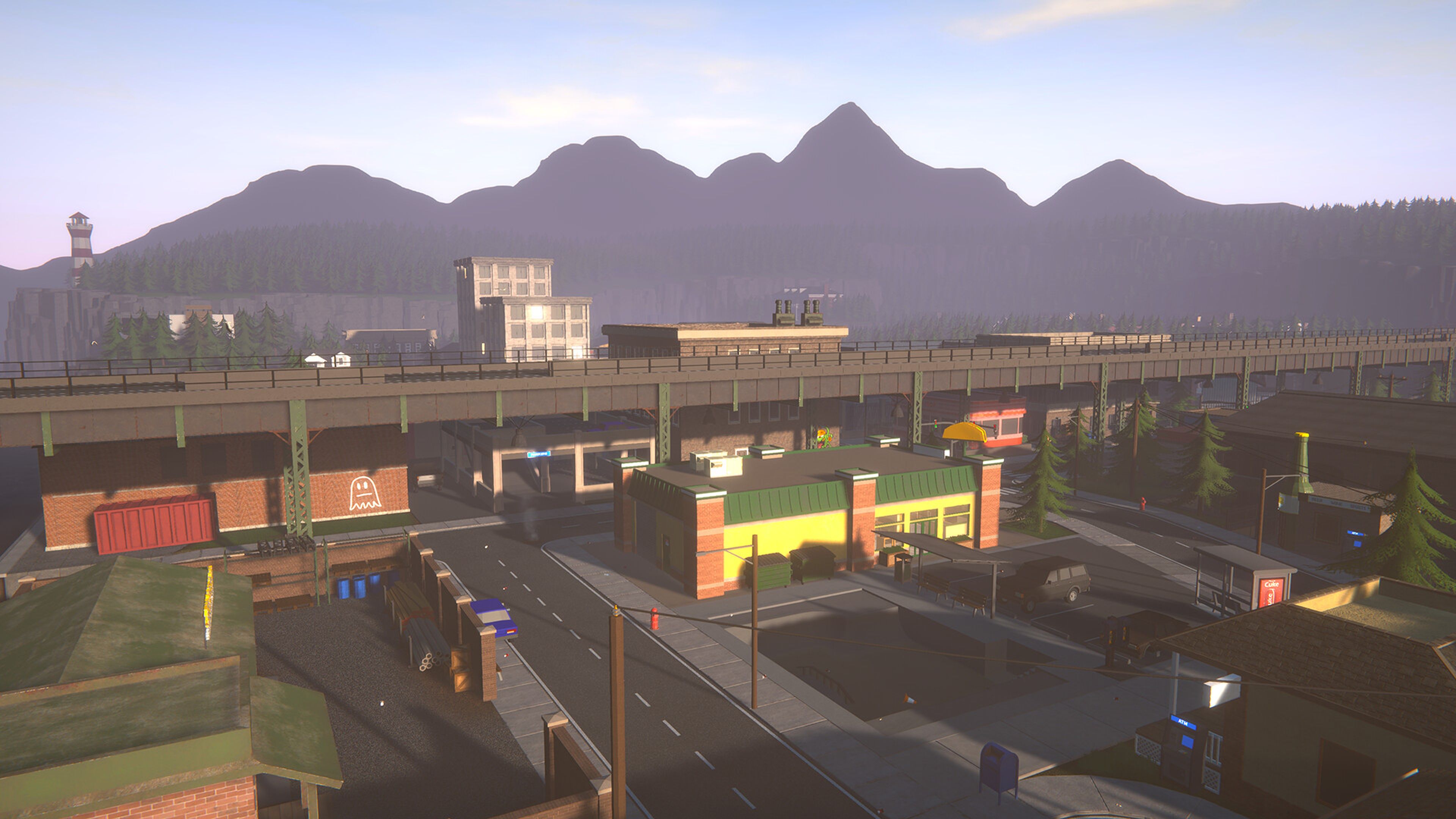
5 ArticlesBuild a drug empire from the ground up in Schedule I, a darkly comedic open-world crime simulator where you manufacture, distribute, and expand your operation across the gritty streets of Hyland Point.
How to Configure your Schedule 1 Server Settings
Once your Schedule 1 server is up and running, you can customize it to suit your preferred playstyle. From setting a server password to adjusting the max player count, the server configuration file gives you control over how your server behaves. This guide will walk you through how to access and edit your server settings directly from the control panel. --- Configuring your Server Settings A list of your server settings for your Schedule 1 server can be found below: | Setting | Description | | -------- | ------- | | Server Name | The name of your server. | | Server Description | A short description shown to players. | | Server Password | Password required to join. Leave blank for an open server. | | Allow Sleeping | Allow players to sleep to advance time. | | Pause When Empty | Pause the game simulation when no players are connected. | | Time Progression Multiplier | How fast in-game time passes. 1.0 is normal speed. | | Fresh Save Quest Start | Where new saves begin: from the intro or skipping it. | | Enable Auto-Save | Automatically save the server on a timer. | | Auto-Save Interval (Minutes) | Minutes between automatic saves. | | Save On Player Join | Save when a player joins. | | Save On Player Leave | Save when a player leaves. | --- If you require any further assistance, please contact our support at: https://shockbyte.com/billing/submitticket.php
Getting Started with your Schedule 1 Server
Welcome to your Schedule 1 server hosted on Shockbyte! Schedule 1 is a drug empire building game where you start as a small-time dealer and work your way up, growing your operation, managing staff, and expanding your criminal enterprise with friends on your own dedicated server. This guide will walk you through getting your server up and running, from setting up your game to joining in-game and inviting others. --- Which version do you have? Schedule 1 servers come in two versions, and your game setup depends on which one your server is running: - IL2CPP (recommended) - runs on the standard Steam version of the game. Most players should use this. No Steam branch switching needed. - Mono - runs on the game's branch. Best if you want heavier modding. Requires switching Steam branches. Everyone joining must be on the same version as the server. Check your server type before setting up, then follow the matching Step 1 below. --- Setting up to play Schedule 1 needs a few one-time setup steps before you can connect. Every player who wants to join will need to complete these first. Step 1: Set your game version If your server is IL2CPP (recommended): No action needed, keep the standard version of the game installed. Skip straight to Step 2. If your server is Mono: 1. Open your Steam Library, right-click Schedule 1 and select Properties. 2. Go to the Game Versions & Betas tab. 3. Under Selected Game Version, select alternate from the dropdown. 4. Close the window and let Steam finish updating before moving on. Step 2: Install MelonLoader MelonLoader is the mod loader the client mod runs on. Both versions need it. 1. Download the installer from the MelonLoader download page. 2. Open the MelonLoader.Installer file. 3. Select Schedule 1 from the list. 4. Click Install and wait for it to finish. Step 3: Add the client mod This is what lets your game connect to dedicated servers. Download the one that matches your server version: - IL2CPP (recommended): Il2cppClient.zip - Mono: Mono-Client.zip 1. Right-click the file and choose Extract All, then Extract. 2. Open your game folder: in Steam, right-click Schedule 1, hover over Manage, and click Browse Local Files. 3. Drag the Mods folder from the extracted files into your Schedule 1 game folder. 4. If asked to replace or merge, choose Yes / Replace. That's it, your game is ready! Next, see How to Join your Schedule 1 Server to connect. --- Getting Started The following articles cover the most common questions you may have when first starting with your new Schedule 1 server. - How to Join your Schedule 1 Server - How to Change the Name and Description of your Schedule 1 Server - How to Make your Schedule 1 Server Private - How to Configure your Schedule 1 Server Settings --- If you require any further assistance, please contact our support at: https://shockbyte.com/billing/submitticket.php
How to Make your Schedule 1 Server Private
Want to keep your drug empire invite-only? Making your Schedule I server private is simple! Head to your server panel and navigate to the Config area, then open the Schedule I Server Settings file. From there, you'll find the option to set your server to private, ensuring only the players you invite can join your game. --- Setting a Server Password 1. Access your Control Panel and navigate to the Config tab. Select the Schedule 1 Server Settings file. 2. Locate the settings. Add your desired password. 3. Save and restart your server to ensure the new changes apply. --- If you require any further assistance, please contact our support at: https://shockbyte.com/billing/submitticket.php
How to Change the Name and Description of your Schedule 1 Server
Personalizing your Schedule I server is quick and easy! To change your server's name and description, head to your server panel and navigate to the Config area, then open the Schedule I Server Settings file. From there, you'll be able to update the server name and description to whatever suits your operation best. --- Changing the Name & Description 1. Access your Control Panel and navigate to the Config tab. Select the Schedule 1 Server Settings file. 2. Locate the and settings. Add your desired values to these fields. 3. Save and restart your server to ensure the new changes apply. --- If you require any further assistance, please contact our support at: https://shockbyte.com/billing/submitticket.php
How to Join your Schedule 1 Server
Ready to join your Schedule 1 server? This guide covers grabbing your server's connection details and adding it in-game. ::ProseNote{title="Note" description="Before you can connect, your game needs to be set up: MelonLoader and the client mod installed (plus the alternate branch if your server is Mono). If you haven't done this yet, follow our Getting Started guide first." appearance="default"} :: --- How to find your server IP address To find the IP address of your server, you will need to log in to your control panel. Once you've logged into your control panel, copy your server IP and port. --- Joining your server in-game 1. Launch Schedule 1 and click Servers from the main menu. 2. Click Add Server. 3. Enter a Server Name of your choice. 4. Enter your server's IP and Port in the designated fields. 5. Click on Save Server, then select your server from the list and click Join. 6. (Optional) If your server has a password, enter your password when prompted and click Join. Your server will be saved to your list for quick access next time. --- If you require any further assistance, please contact our support at: https://shockbyte.com/billing/submitticket.php