Mods & Plugins

Mods & Plugins
63 ArticlesAdvice on Minecraft Mod & Plugin integration.

How to Setup GSAuth for Staff 2FA on your Minecraft Server (GamerSafer)
In this guide, we'll show you how to quickly set up a two-factor authentication (2FA) system for your server staff using GamerSafer's GSAuth plugin. This straightforward process takes about 5 minutes and adds an extra layer of security to your Minecraft Server. Minecraft Servers can encounter many challenges, but you can tackle one major concern right away. By implementing GSAuth for staff 2FA and using the GamerSafer App for Android or iOS, you safeguard your server against unauthorized access and protect your staff's accounts from being compromised. We'll walk you through the steps to activate staff 2FA on your server, ensuring it's as simple as possible. While GSAuth offers a variety of features, this tutorial will focus solely on the initial setup of staff 2FA. Please note, you should be familiar with installing and configuring a Spigot or Paper server, as those details are not covered here. --- Getting Started The GSAuth for Minecraft plugin can be installed on individual servers, like with Paper and Spigot, or on server networks running Velocity or Waterfall. The plugin can be used for staff 2FA, or for more full-featured setups to enable player ban appeals, age assurance, or parental consent flows. However, this tutorial will only cover the basic staff 2FA tutorial for individual Paper servers. For more information on the other features in GSAuth, take a look at the plugin wiki. --- Requirements An active GSAuth subscription (for $5/month with a Shockbyte plan add-on) Minecraft Java Edition Server Software 1.19 or newer The GSAuth Plugin for Spigot/Paper (download link) GamerSafer API Key and Guild ID (check your email after purchase) A permission plugin of some kind installed (LuckPerms, UltraPermissions, etc…) --- Installing GSAuth on your server 1. Navigate to the control panel and Stop your server. 2. Go to the plugin releases and download the latest version for your server type. 3. Open your Files and navigate to the folder. Drag & drop the plugin into the folder. 4. Start your server once to generate any required config files, and Stop the server once it has fully booted. 5. Open your Files and navigate to the newly created folder and open 6. Insert your Guild ID and API Key into the file as shown below. You should have received these within 24 hours after signing up for GSAuth. Do not share these with anyone else! Save and close the file. 7. Start the server. If you don't see in the console, check your configuration before continuing. --- Using GSAuth Now as GSAuth has been installed on your server, it's very easy to configure which LuckPerms groups (such as your staff) should require 2FA. 1. Run the command replacing the group name with the group you wish to require 2FA. 2. Reconnect to the server and you will see a book and QR code guiding you through linking your account to the GamerSafer App. 3. Scan the QR code from within the GamerSafer App and confirm that you want to join the Minecraft server. 4. Once confirmed within the app, press the Emerald Block in-game to continue. And there you have it. Each time your staff members connect to the server, they'll be required to confirm their identity via the GamerSafer App to receive access to their staff member permissions. From the config.yml file, you can configure different parts of the GSAuth plugin, including the different restrictions and security that can take place. You can now celebrate better account security within your staff team, helping to prevent security breaches and improve the reliability for players in your community.
How to Use Shockbytes Minecraft Modpack Installer
The Shockbyte control panel features an easy-to-use modpack installer with CurseForge and Modrinth modpacks automatically supported and updated. Modpacks are a great way to experience a whole new Minecraft, bringing a massive variety of content you may have never experienced before. ::ProseNote{title="Disclaimer" description="Our installer currently only supports modpacks that have a server pack. We are actively working to add support for these modpacks. In the meantime, they can still be installed manually." appearance="default"} :: ::ProseNote{title="Don't know which modpack to use?" description="You can look at our list of the best modpacks of all time, most of which are available on our Modpack Installer." appearance="discovery"} :: Using the Modpack Installer In order to see our modpack installer, you must be running a server type such as Fabric, Forge, or NeoForge. After installing one of these server types, you will be able to see our modpack installer on the top navigation bar on your panel. 1. Access your control panel and Shut Down your server. 2. Navigate to the Mods & Plugins tab. If you already have a modpack selected, you may also select the "Browse Modpacks" button in the "Active Modpacks" area on the Overview page. 3. Search for the modpack you want to install and simply click Install. 4. Select a build you wish you use, then click Install on the pop-up. ::ProseNote{title="Note:" description="Sometimes our system is unable to automatically detect the Forge/Fabric/NeoForge version needed for the modpack. In this case, you will need to manually configure this. If you are unable to find this, please submit a ticket for assistance." appearance="default"} :: 5. Give the new server instance a name and description and click Continue. ::ProseNote{title="Warning:" description="Your server will now restart multiple times while it installs your modpack. Depending on the pack's size, this can take up to 10 minutes. Please do not try manually restarting your server or editing its files in the meanwhile." appearance="danger"} :: That's it! When your server boots up, the modpack will be installed and your server will be ready to go!

How to Use Multiverse Portals
Multiverse Portals is a complement module to Multiverse-Core, which allows the creation of custom portals. Unlike normal portals, MV Portals can be configured to make their destination anywhere. For example, a portal in the overworld could be set up to send you to the Nether, 15 blocks forward, or even another world (using Multiverse) All Multiverse modules (such as Portals) require the Multiverse-Core plugin to also be installed. Additionally, the extension module must be the same version as the Multiverse-Core that you have installed. For example, if Multiverse-Core is 4.0.0, Multiverse-Portals should be 4.0.0. --- Installing Multiverse Portals You can install your plugins with our plugin installer or by uploading the JAR files via FTP. 1. Access your control panel and Stop your server. 2. Install Multiverse-Portals. You can do this via two methods explained here. 3. Start your server to install the plugin & its configuration. --- Making your First Portal Once you construct a portal, you can then configure it using a wand. 1. Build your entry and exit portals. Portals can be constructed out of any block; they can also be any size and shape that you want. You can fill the portal with glass panes to make them look better, if you’d like. 2. Obtain a Multiverse portal wand: As an operator, enter the command . If you do not have access to this command, then you will need to OP yourself. You can see how to do so here. If you have WorldEdit installed, you can use their wand instead via the command . 3. Using either wand, left-click one of the corners of your portal. You should see “First position set to (x, y, z)”. 4. Now, again using the wand, right-click the opposite corner block. You should see “Second position set to (x, y, z)”. 5. To create the portal within these dimensions, enter the following command: Your first portal has now been created! --- Linking 2 Portals Together Once you have a portal created, you can then connect this portal to another that you have created. 1. Once you have two portals created, select the entry gate of the first portal using the following command: . 2. Now modify the destination (exit) portal with the command: . 3. If you want this portal to send you back to the previous location, do the same, but the other way around. Starting from step 1, selecting the entry gate, and then setting the destination location. Additional Commands: will display all of the currently set up portals on your server. will delete a portal. For advanced commands you can use, check out the GitHub Wiki. Portal Destinations Multiverse-Portals benefits from being able to use Multiverse-Core’s destination locations. To make use of these features, add the following to the end of your modify destination command (): - Specifies a world destination (e.g. ), including a compass bearing at the end, will ensure you are facing the right direction after being teleported (se= South East). Compass bearings can be found by pressing F3 (Fn + F3 on macOS). - Specifies a world & coordinate destination (e.g. ). - Specifies another portal as the destination (e.g. ). If you would like to investigate other Multiverse destinations, including firing out of a cannon! Check out this page. --- Modifying the Config Files To further enhance your experience with Multiverse-Portals, it's advised to learn how to configure the plugin as well! You can do this by editing the configuration files. 1. Access your control panel and Stop your server. 2. Select the plugins folder to open it 3. Open the Multiverse-Portals plugin folder. 4. Edit the configuration files to your liking. Feel free to check out the Multiverse Portals wiki for more instructions on what you can edit in these configuration files, and how you can configure them. 5. Once done making changes to the config files, Save and Restart.
How to Setup Dynmap
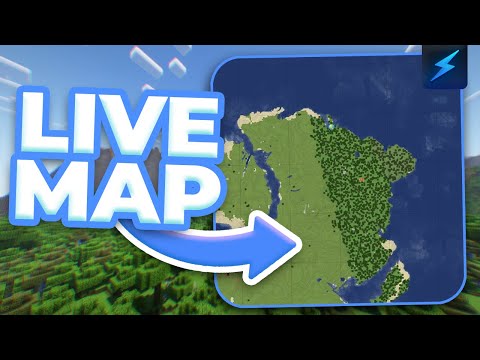
Dynmap is a plugin that allows you to view a live map of your Minecraft server world, similar to Google Maps. This tutorial will teach you how to set this plugin up for your server. Before anything else, you should already have Dynmap installed on your server. These can either be downloaded from SpigotMC or CurseForge, depending on your Server Type. Additionally, it is recommended to Setup a World Border for your worlds before generating your Dynmap to limit how much server space Dynmap (and your world) can take up. ::ProseNote{title="Plugin Installation" description="This article covers a plugin, which must first be installed onto your server. If you have not already installed the plugin onto your server, please follow this guide." appearance="danger"} :: Reserving an Additional Port In order for Dynmap to work properly, it requires its own dedicated port. Luckily, it's a short process to reserve an additional port for your server. 1. Open your server panel, then click the Ports tab on the left-hand sidebar 2. Click the Add Additional Port button 3. Give the new port a name and description, then click Add Port 4. Click the copy button next to your new port to copy it to your clipboard --- Configuring Dynmap After installing Dynmap onto your server, you will also need to configure some essential options before having access to your server's Dynmap web server. 1. Access your server's control panel and navigate to the Files tab. 2. Select the plugins folder to open it 3. Next, open the dynmap folder 4. Click configuration.txt to begin editing the Dynmap configuration 5. Set the field to or Dynmap generates images for each chunk, which can accumulate and occupy a large space in your server storage. Setting this option to or ensures that the generated images are not too large and that your server does not violate Shockbyte's Fair Use Policy. 6. Set the webserver-port field to the additional port you generated earlier 7. Save the file, then restart your server 8. Open a web browser and navigate to Make sure to replace the IP:PORT part of the provided web URL with your server's IP and the additional port you used to configure Dynmap. For example, in our case, our web URL will be . You may notice that not much of your world will display at first. This is because Dynmap has to generate an image for each chunk when a player loads it. If you would like, you can fully generate your Dynmap with the command. Keep in mind, generating your map will use up a huge portion of your server RAM and may cause lag spikes, which is completely normal. It is recommended to do this when there are no players on your server to prevent interruptions or lag while playing.
How to Set Up BlueMap
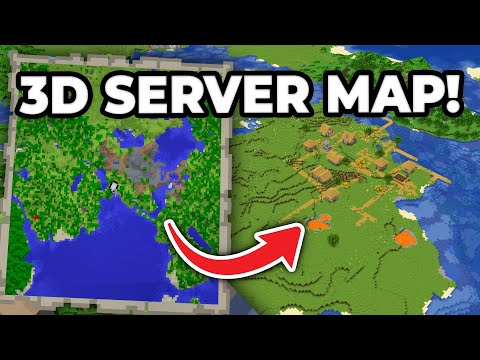
BlueMap is a plugin that allows you to create and view a live map of your Minecraft server world. Compared to its alternative, Dynmap, BlueMap offers some additional features but is a bit more resource-intensive. To follow this article, you will need to have BlueMap installed on your server. It is also recommended that you Setup a World Border for your worlds before generating your BlueMap to limit how much server space BlueMap (and your world) can take up. All of the BlueMap files are stored locally in the server files, as we do not support MySQL Databases as a storage method for BlueMap. --- Setting up BlueMap For BlueMap to function, you are required to set up an Additional Port for your server. 1. Access your control panel and Shut Down your server. 2. Navigate to the "Files" tab. 3. Navigate to the folder. 4. Click on to edit the file. 5. Set the option to true. Then click Save. 6. Go back and click on to edit it. 7. Set to your newly generated port, then Save the file. 8. Start your server to load the changes you've made. Once your server has fully loaded, you will be able to access your BlueMap map by navigating to in your web browser, replacing "IP" with your Server IP and "PORT" with the BlueMap Webserver Port that you specified in Step 7. You might see a blank map when first accessing your map. This is normal because the map images have not yet been generated. This will gradually be generated as players move around the world. For more configuration options, please visit the BlueMap Wiki.

How to Install Plugins on a Minecraft Server
Plugins are server-side modifications that allow server owners to change certain aspects of the game, which are a great way to extend the capabilities of their server. These plugins do not require a player to have anything additional installed on their client. Don't know what plugins you should install? Feel free to check out our Best Minecraft Plugins list. ::ProseNote{title="Plugin Compatible Server Type Required" description="Before getting started, your server must be running a Server Type that supports plugins such as Paper for Minecraft Java Edition. For more information on what Minecraft server types are available to you, please refer to this guide." appearance="danger"} :: ::ProseNote{title="Important" description="Make sure the plugins you download are compatible with the server version you have installed!" appearance="error"} :: Installing Plugins Manually Plugins are installed by uploading the file to the folder in your server files. We recommend searching popular and reputable websites like Modrinth or SpigotMC when downloading plugins, as it is possible for malware to exist in untrustworthy plugins. Be careful! 1. Access your server's Control Panel and navigate to the Files tab. 2. Select the plugins folder to open it. 3. Upload your desired plugin jar files. You can drag and drop your desired plugin jar files into this folder on your control panel to upload them, or you can click the upload button in the top right. Additionally, you can upload your plugin files using an SFTP client, should you wish to. 4. Start or Restart your server if it is already running. Installing Using the Shockbyte Plugin Installer Shockbyte automatically integrates the plugin libraries of some popular plugin provider websites like Modrinth and Paper Hangar. As a result, you can easily install thousands of popular plugins with one single click! 1. Open your server's Control Panel. 2. Click the Plugins tab to open the Shockbyte plugin library. 3. Locate your desired plugin, then click the Install button. 4. Start or Restart your server if it is already running. That's it! You've now successfully installed a plugin, and when the server restarts, you will be able to see it by running the command.
How to Install and Use Spark
Spark is a performance profiling plugin/mod which provides you with a variety of tools which help when diagnosing performance and memory issues. While Spark is simple to install, it has a lot of options, commands, and information that can feel a bit overwhelming to users. If you need help at any time, please don't hesitate to contact our 24/7 support team or check out the Spark documentation available here. --- Installing Spark To install Spark, you will need to download its jar file, then upload it to either your mods or plugin folder, as Spark is compatible with both Spigot/Paper servers and Forge/Fabric servers. 1. Download Spark from CurseForge or SpigotMC. There are two versions of Spark available. Depending on your server type, you will either want to use the CurseForge version or the SpigotMC version. If you are running a server type such as Spigot or Paper, you will want to download the SpigotMC version: https://www.spigotmc.org/resources/spark.57242/ If you are running a server type such as Forge or Fabric, you will want to download the CurseForge version: https://www.curseforge.com/minecraft/mc-mods/spark 2. Access your Control Panel and Shut Down your server. 3. Navigate to the Files tab. 4. Navigate to the or directory. ::ProseNote{title="Note" description="If you downloaded Spark from SpigotMC, you will want to navigate into the plugins folder. If you downloaded Spark from CurseForge, you will want to navigate into the mods folder." appearance="danger"} :: 5. Upload the Spark.jar file. 6. Start your server. --- Generating and Accessing a Profiler Report Although there are a variety of utility commands provided by Spark, we will only cover the CPU profiler tool. We highly recommend you refer to the Spark documentation if you'd like to learn more details about the CPU profiler tool or the other tools Spark provides. Running the Spark profiler will generate a link that will direct you to your server's Spark report. This link can be sent to Shockbyte Support to help our staff diagnose the cause of lag; however, it can be insightful to more advanced users as well. 1. Connect to your server and ensure you have OP. You will need OP in order to run commands related to Spark, which you can give yourself by running in your server's console. 2. Allow your server to run for 10 minutes or more, then use the command. 3. Click the link provided after your Spark report generates. Analyzing the Profiler After opening your profiler report, you can click the Server thread dropdown menu to expand the server's threads. According to the Spark Documentation, "Threads (at the top of the profile) will always show 100% next to them; this is because 100% of the time spent profiling the thread was, well, spent within that thread." Call threads (or each item in the dropdown menu) may be a little confusing, especially if you're new to Java programming or Minecraft server internals. You can find a list of notable call frames to be aware of on the Spark Documentation here. 1. Click the Call thread called Server thread to expand the menu. 2. Click the next Call thread which had taken the most percentage of time to complete to continue expanding the tree. 3. Continue this process until you have found a Call thread which gives you enough information to continue troubleshooting. 4. In this example, we can determine that our server lag is caused by an excessive amount of entities. Now we can focus on troubleshooting entity lag thanks to Spark. To learn more about Spark and how to read a report, we highly recommend reading the Spark Using the Viewer documentation.