Still have questions?
Come chat with us and we will get back to you as soon as possible!

Jay Miller
Game Engineer

How to Analyze a Timings v1 Report
A timings report is a diagnostic tool used on Spigot servers, that provides a detailed breakdown of server performance. Often, these are used to help server owners diagnose where server lag may be occurring and can be utilized to help manage your server.
Creating a Report
To learn how to create a timings report, click here to follow our guide. Once you have done this, you can follow the steps below to analyze the report.
#How to Read a Timings Report
Once a report has been generated, you may open it, Upon doing so, you will be presented with one of 2 variants.
This guide is focused on Timings v1 Reports, which are generated from Spigot server types. If your report doesn't look similar to the one below this means you most likely have a v2 timings report which is generated by PaperMC server types.
If you have generated a Timings v2 Report, you should follow this analyzation guide instead.
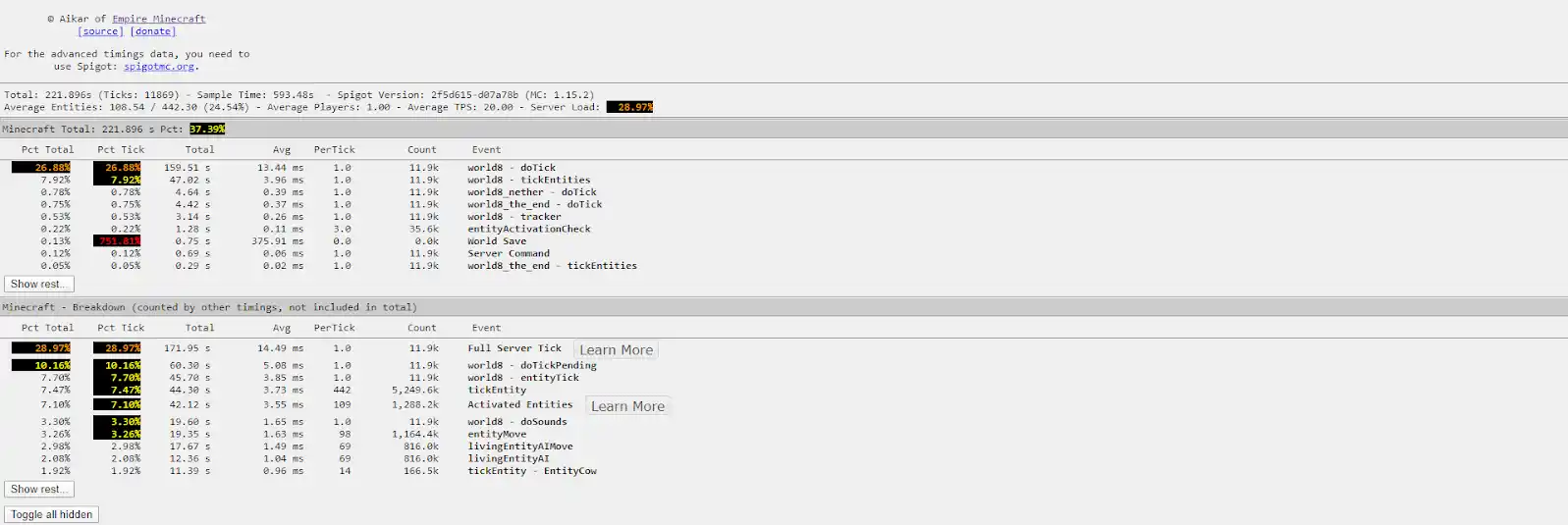
#Reading a Timings Report V1
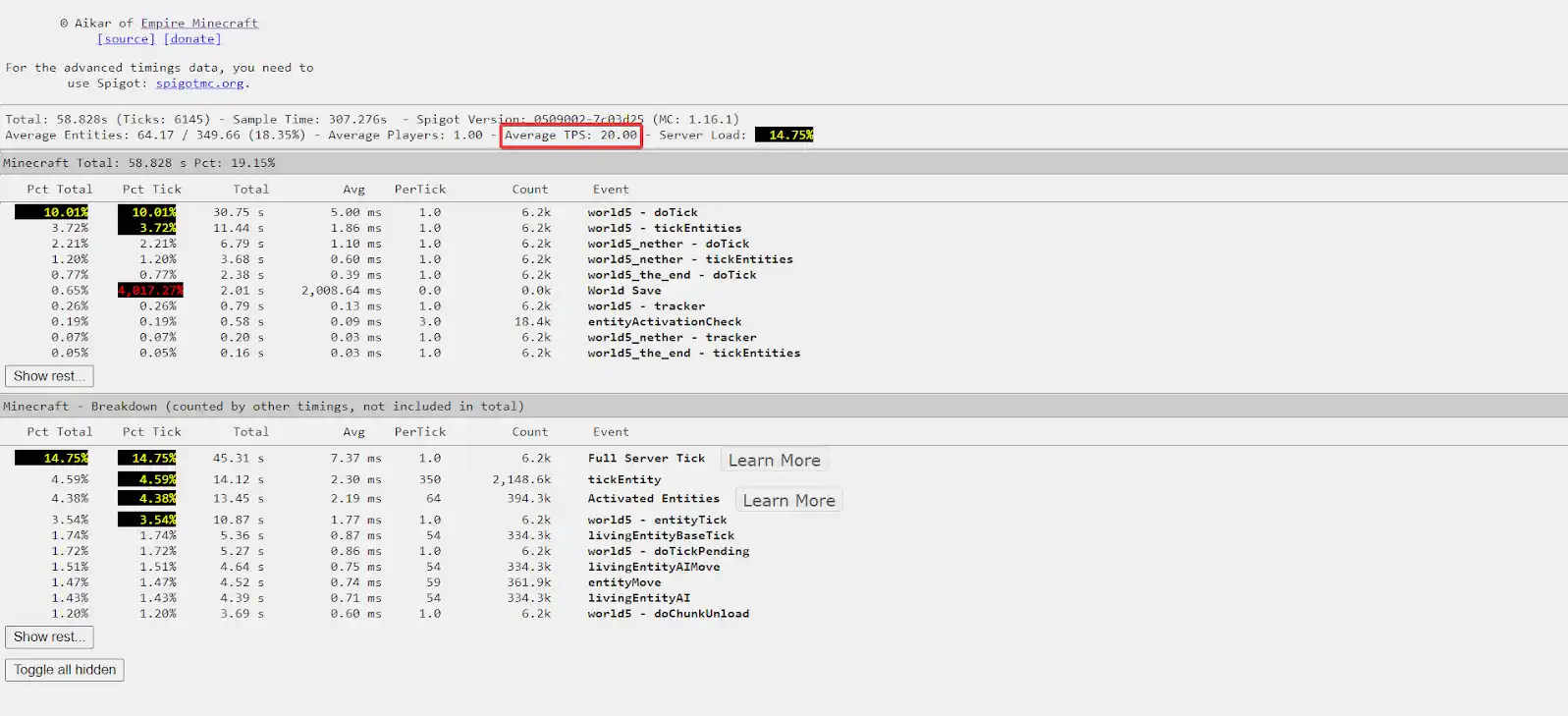
- Check Server Ticks per Second (TPS)
Check the Average TPS value. If it's above 18 TPS, your server isn't experiencing consistent tick-related lag. The lag may be caused by latency issues. To fix latency lag, consider changing your server location.
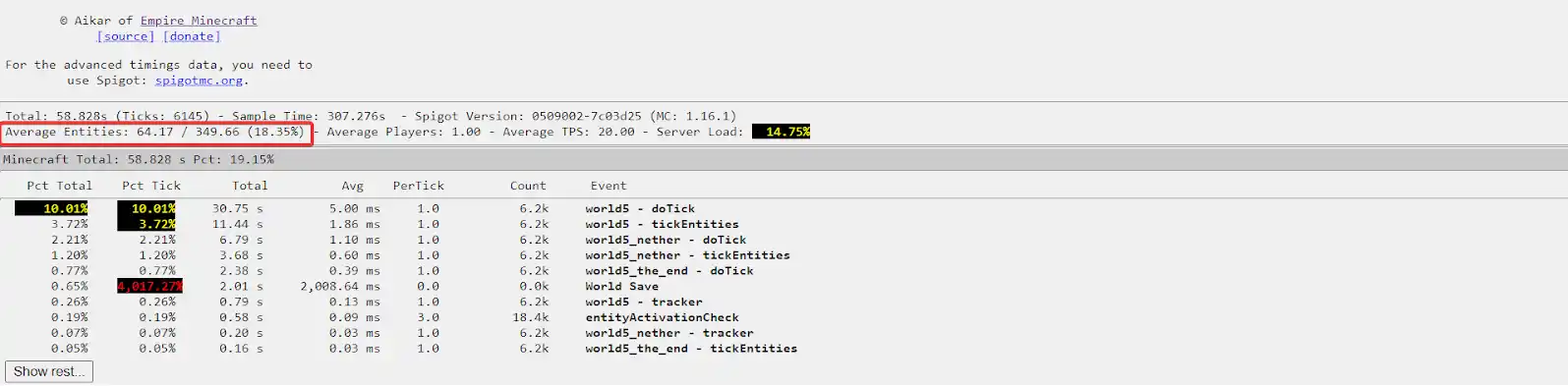
- Check Entity Count
Too many entities may take a lot of your server’s processing power. Check the Entity count value on your Timings report.
- Check Average Player Count
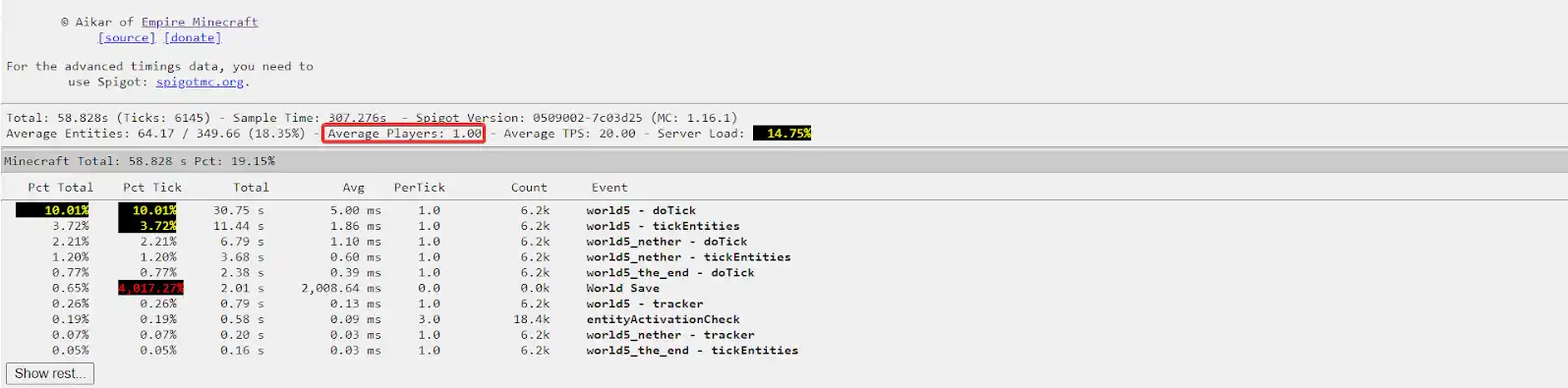
Players as entities take valuable resources to process their actions on the server. Therefore having too many players online at the same time may negatively impact your server’s performance. This is more common in cases where your server may not have enough RAM. If more than 20 players are connected to your server per GB of RAM, we suggest upgrading your server to reduce player-related lag (this may vary depending on your Server Type).
To see this value, check the Average Players value on your Timings report.
- Attempt to Resolve Alerts
Spigot Timings reports will alert you if some settings are not optimized or are beyond their normal values. In the example below, we can see that server is overloaded and the report also provides a resolution. The errors may vary, but they always contain a cause and suggestion on how to resolve the issue.

In rare cases, you may not be able to find any conclusive evidence of what is causing lag on your server.
There are a few ways you may resolve lag that is not appearing on your timings report. You may switch to PaperMC in an effort to improve server performance. We would also recommend checking the following documentation:
You may also simply upgrade your server to a higher plan, with more RAM, which may help solve your issues.
If your server is still lagging, you can always contact our 24/7 support team, providing your timings report in a ticket. We will be happy to take a look and assist you in finding a resolution for your lag problems.