Still have questions?
Come chat with us and we will get back to you as soon as possible!

Shockbyte
Support Team

How to Join your BeamMP Server
This guide explains how to join your BeamMP server. The steps below will walk you through both available connection methods so you can locate your server and start playing without any issues.
Important
An Authentication Key is required for your server to appear in the public server list. Please follow our guide that explains How to Add an Authentication Key to your BeamMP Server
#Installing the BeamMP Launcher
Before joining any BeamMP server, you'll need to install the official BeamMP Launcher on your computer.
- Visit the official BeamMP website at https://beammp.com.
- Download the BeamMP Launcher and install it on your computer.
- Launch the BeamMP Launcher and let it complete any first-time setup it requires.
Once the Launcher is installed, you can use either of the methods below to join your server.
#Joining via the Public Server List
This method is the easiest way to join your server, and is ideal for sharing it with friends who only need to know the server name.
You can find your server name in your Control Panel under the Config tab in the BeamMP Server Settings, on the Server Name field. To learn how to change it, check our guide on How to Change the Name of your BeamMP Server.
- Open the BeamMP Launcher to start the game with multiplayer support.
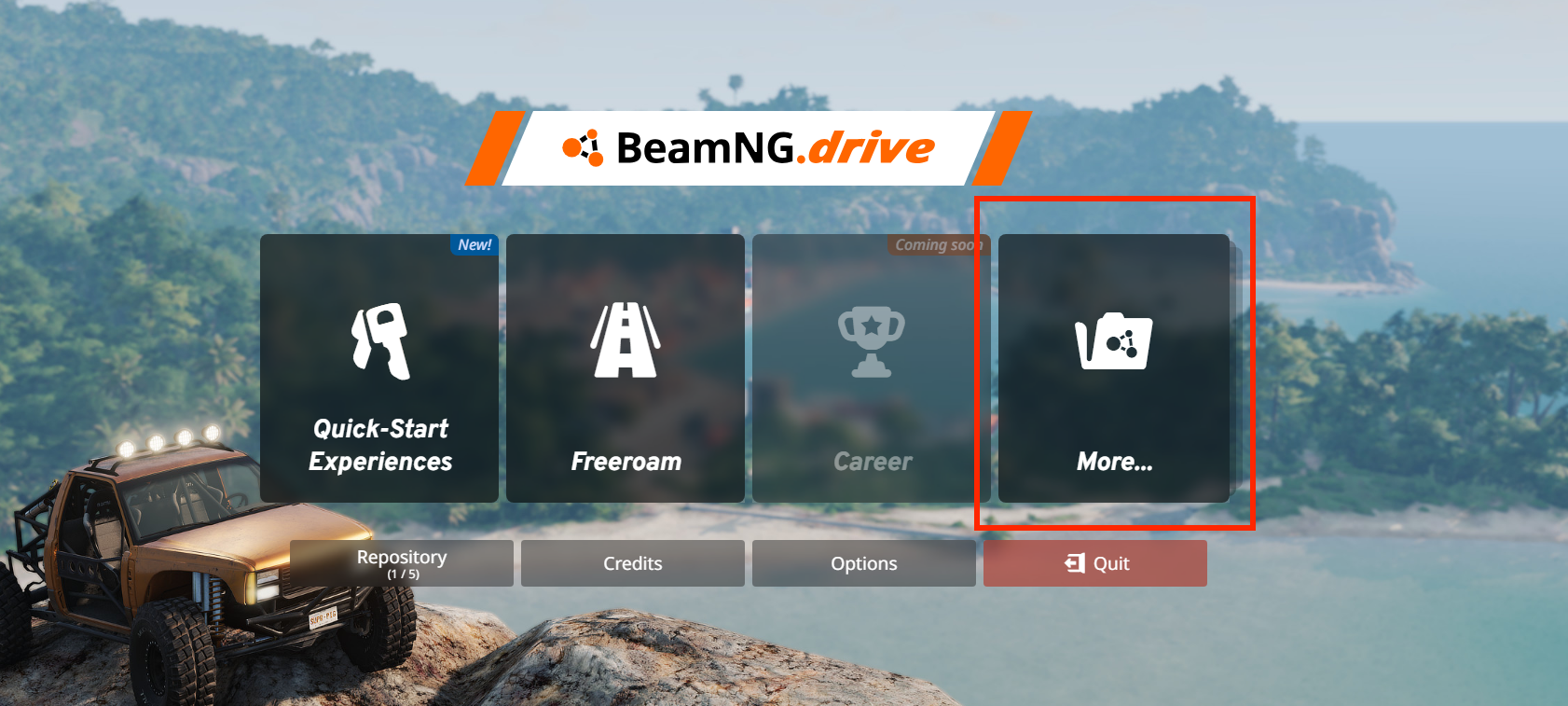
- From the main menu, click on More.
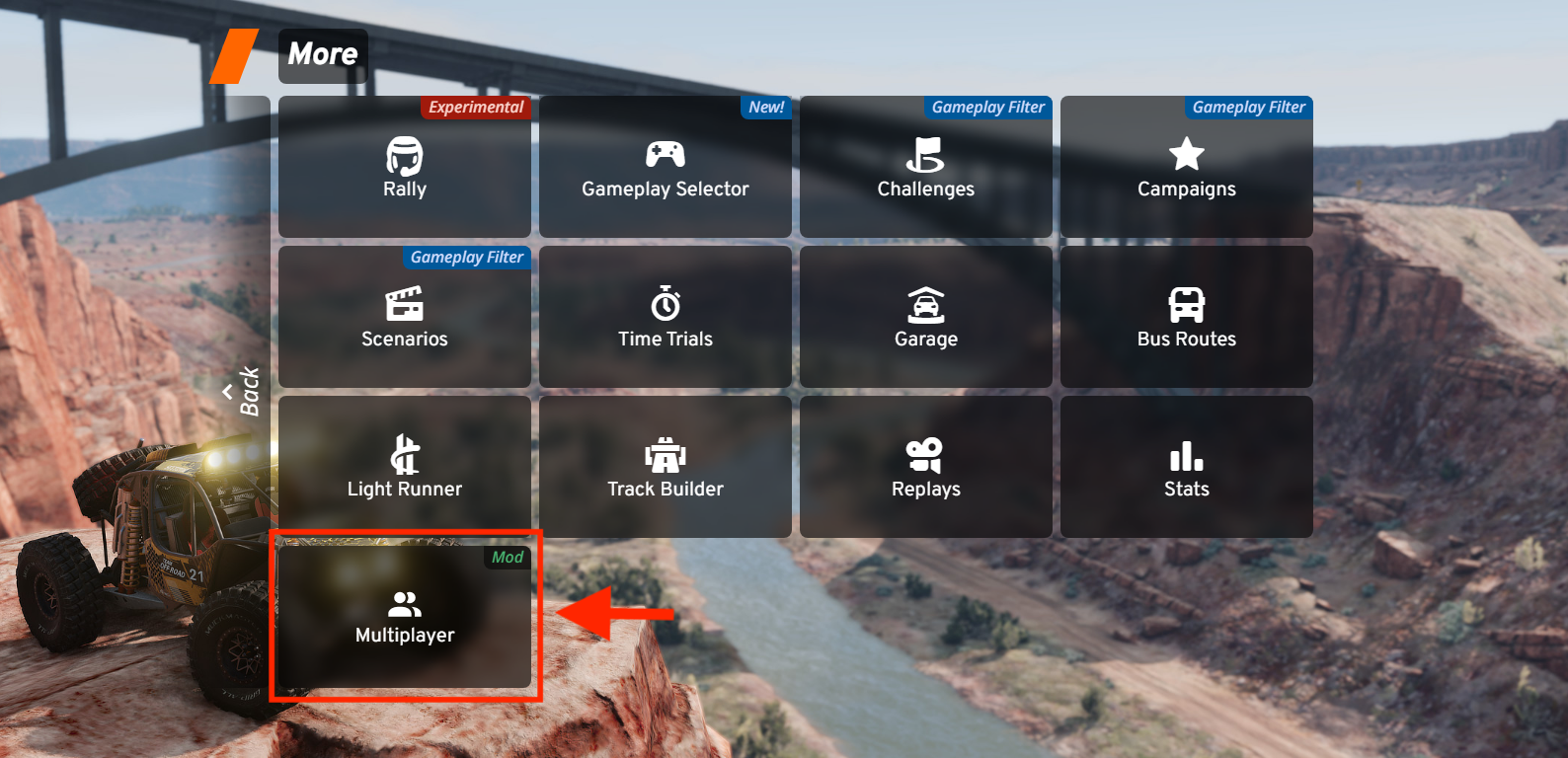
- Select Multiplayer.
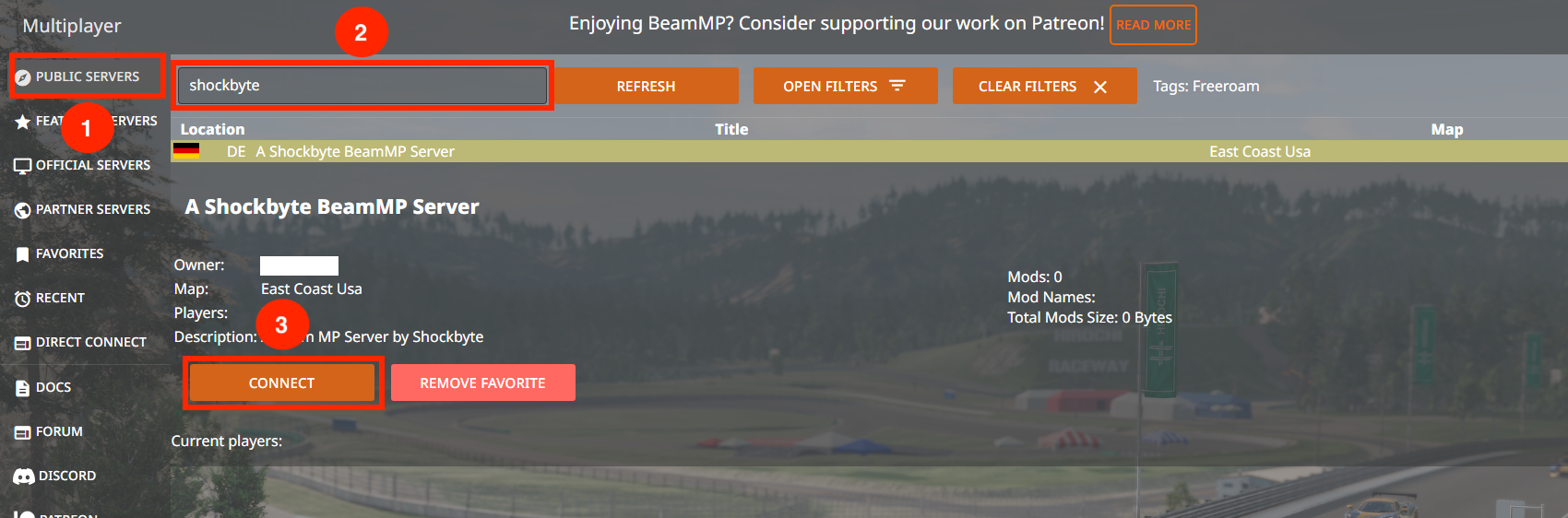
- Click on Public Servers.
- In the search bar, type your server name to locate it in the list.
- Select your server from the list and click Connect.
#Joining via Direct Connect
If your server is private or you'd prefer to connect using your server's IP and port, you can use the Direct Connect option instead.
You can find your server's IP and Port in your Control Panel on the main server page.
- Open the BeamMP Launcher to start the game with multiplayer support.
- From the main menu, click on More.
- Select Multiplayer.
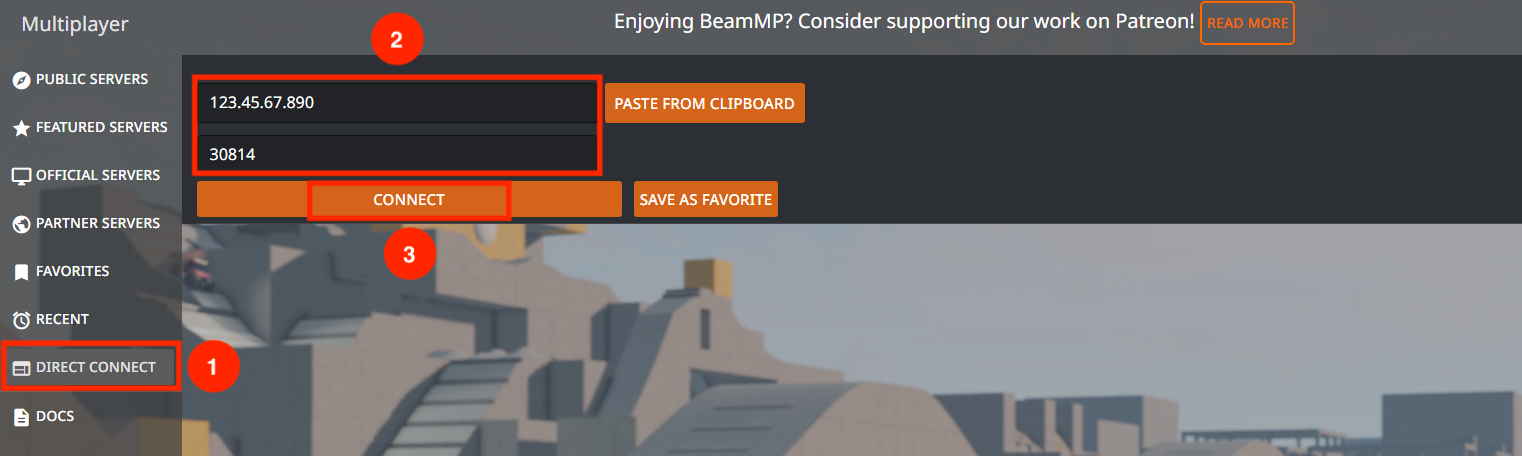
- Click on Direct Connect.
- Enter your server's IP and Port in the fields provided.
- Click Connect.
You have officially joined your server!
If you require any further assistance, please contact our support at: https://shockbyte.com/billing/submitticket.php