Still have questions?
Come chat with us and we will get back to you as soon as possible!

Shockbyte
Support Team

How to Modify Loot Tables on Your Rust Server
Rust loot tables determine what items players can find in containers like barrels, military crates, toolboxes, and elite crates.
If you want to increase resource gather rates instead, check out our guide on the topic here.
Oxide
This article assumes you have Oxide installed. If you need help with installing Oxide, you can find our tutorial here.
#Installing Magic Loot
Rust loot tables can be modified with plugins. We recommend using the Magic Loot plugin to modify loot tables.
You can install the Magic Loot plugin using our built-in installer on the control panel.
-
Open your control panel and stop your server.
-
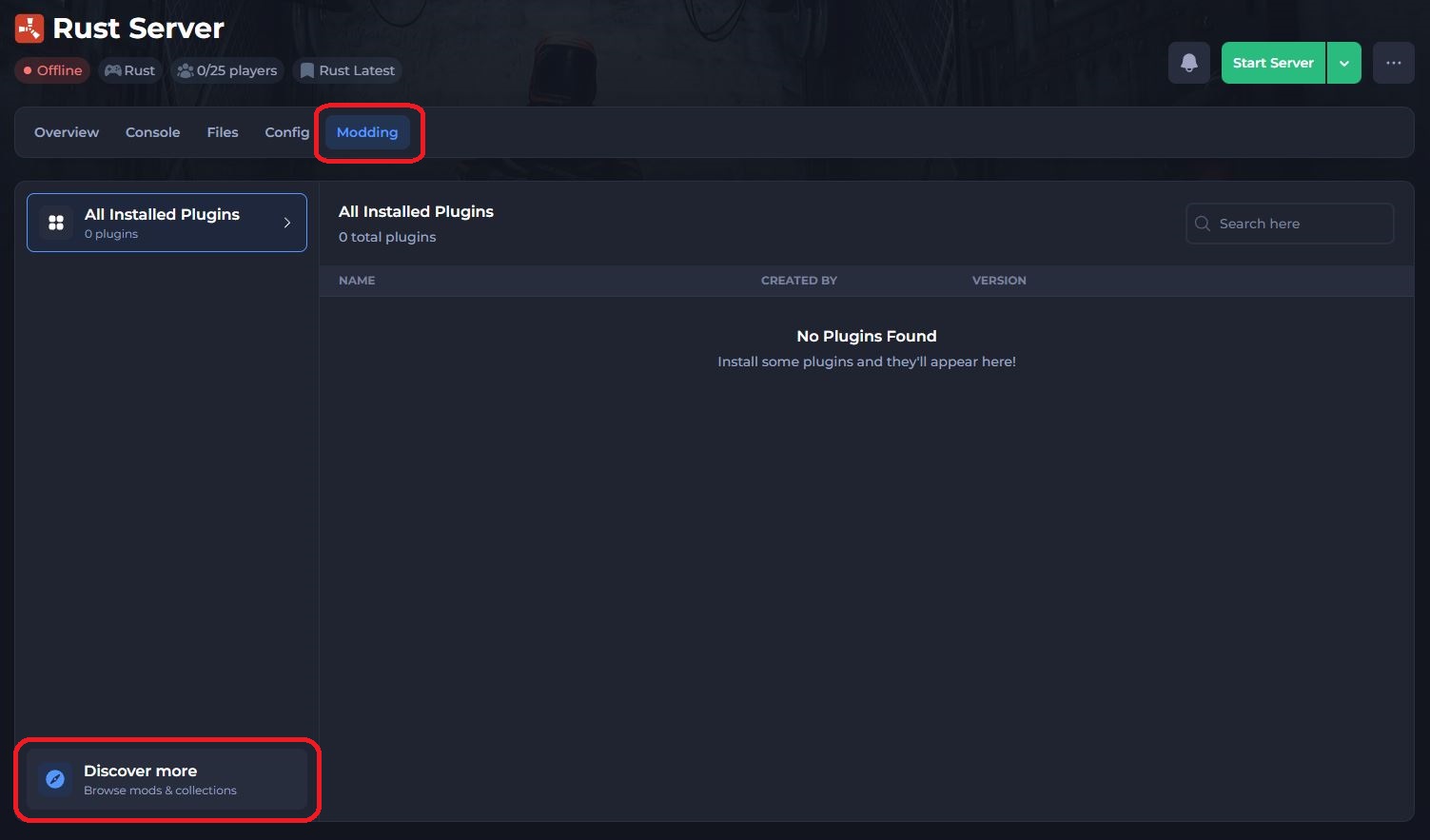
Navigate to the Modding tab and select Discover more.
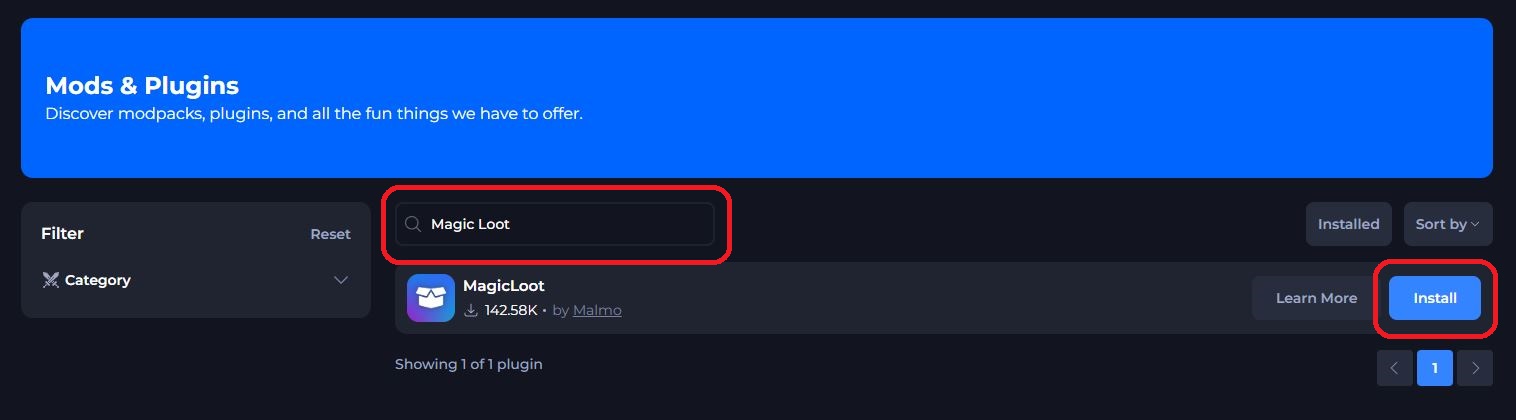
- Search for the Magic Loot plugin and click Install.
- Restart your server to install the plugin.
#Configuring Magic Loot
#Modifying Stack Sizes
-
Navigate to
/oxide/data/MagicLoot.json. -
Modify the value of the items that you want to change the stack size for.
-
Save the file and restart the server.
#Modifying Loot Tables
-
Navigate to
/oxide/config/MagicLoot.json. -
Configure the values of the items or containers that you'd like to change and restart the server.
These are the main categories found in the configuration file:
#General Settings
| Setting | Type | Description |
|---|---|---|
| General Item List Multiplier | Number | Multiplies all of the items listed under the "Manual Item Multipliers" category. |
| Non Item List Multiplier | Number | Multiplies all of the items not listed under the "Manual Item Multiplies" category. |
| Limit Multipliers to Stacksizes | Boolean | Limits the item to its stack size when enabled. |
| Multiply Blueprints | Boolean | Allows blueprints to be given out multiple times when enabled (depending on the current multipliers). |
| Disable Blueprint Drops | Boolean | Prevents blueprints from being multiplied. |
| Random Workshop Skins | Boolean | Applies random workshop skins to items when enabled. |
| Multiply Tea Buffs | Boolean | |
| Force Custom Loot Tables for Default Loot on all Containers | Boolean |
#Extra Loot
| Setting | Type | Description |
|---|---|---|
| Enabled | Boolean | Enables extra loot. |
| Extra Items Min | Number | Specifies a minimum of how many extra items should be added. |
| Extra Items Max | Number | Specifies a maximum of how many extra items should be added. |
| Prevent Duplicates | Boolean | Attempts to remove all duplicate extra items and replaces them with new ones when enabled. |
| Prevent Duplicates Retries | Number | Defines the amount of retries a duplicate item can have before it gets skipped and remains as a duplicate. |
| Force Custom Loot Tables for Extra Loot on all Containers | Boolean |
#Blacklisted Items
Items that are added to the blacklist will be blocked from spawning. Items must be listed in their shortname. Item shortnames can be found here.
#Manual Item Multipliers
Defines multipliers for individual items using their shortnames. Item shortname identifications can be found here.
#Containers Data
Defines multipliers and rarity for specific containers. All containers in the game are available in the configuration file.
Containers will come in the following format:
| Setting | Value | Description |
|---|---|---|
| Enabled | boolean | Determines whether the container is enabled. Set to true by default. |
| Extra Items Min | Number | Specifies a minimum of how many extra items should be added to the container. |
| Extra Items Max | Number | Specifies a maximum of how many extra items should be added to the container. |
| Loot Multiplier | Number | |
| Utilize Vanilla Loot Tables on Default Loot | boolean | Uses the game's default loot tables for the base loot in the container. |
| Utilize Vanilla Loot Tables on Extra Loot | boolean | Uses the game's default loot tables for any extra loot added. |
| Utilize Random Rarity | boolean | Enables random loot rarity based on items already present in the container. |
| Rarity To Use | 1, 2, 3, 4 | Specifies loot rarity on a scale of 1 - 4. |
Rarity To Use
-
Locate the container that you'd like to modify.
-
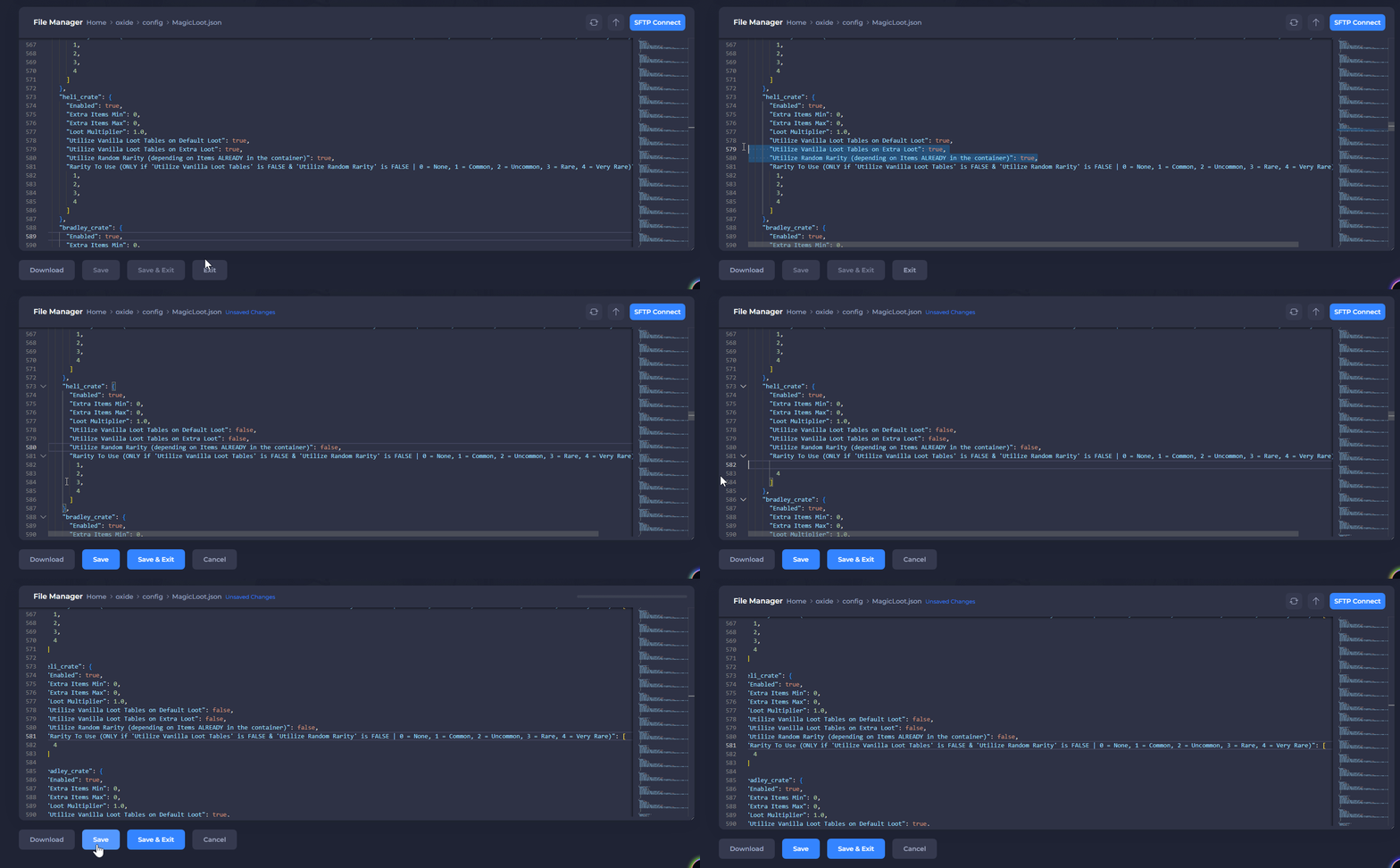
Set the following values to false:
Utilize Vanilla Loot Tables,Utilize Vanilla Loot Tables on Extra Loot, andUtilize Random Rarity -
Remove the extra rarity values, except for the value that you'd like to set.
In the following example, we set Heli Crates to a rarity of 4.
#Troubleshooting Magic Loot
- Why are my configuration files missing?
The configuration files should have been generated when the server restarted. If not, try running the oxide.reload all command in the console and refresh the file manager.
- Why aren't my containers or stack sizes updating?
Magic Loot won't modify pre-existing containers. This means that the containers must respawn naturally to have the updated loot tables. Alternatively, the map could be wiped. See our guide on the topic here.
- Why are stack sizes in containers bigger than the stack sizes of the same items in my inventory?
Magic Loot only modifies the stack sizes of items spawned inside of containers. To increase the stack sizes of all items on your server, see our guide on the topic here.
For more detailed information on how the plugin works, check out the documentation on the official plugin page here.
If you require any further assistance, please contact our support at: https://shockbyte.com/billing/submitticket.php