Still have questions?
Come chat with us and we will get back to you as soon as possible!

Shockbyte
Support Team
How to Select a Pregenerated World on Your 7 Days to Die Server
When you first purchase a 7 Days to Die server, Navezgane is the default selected map. This pre-generated world is designed by the developers and offers a fixed, non-randomized environment. It's ideal for players who prefer a consistent and predictable gameplay experience.
However, there are other pre-generated worlds available for you to select on your server.
Using a different world type
If you’re looking to use a randomly generated or custom world instead of a pregenerated world, check out our guide on all the different methods to change your world here: World Changes
#Checking the available Pregenerated worlds on your server
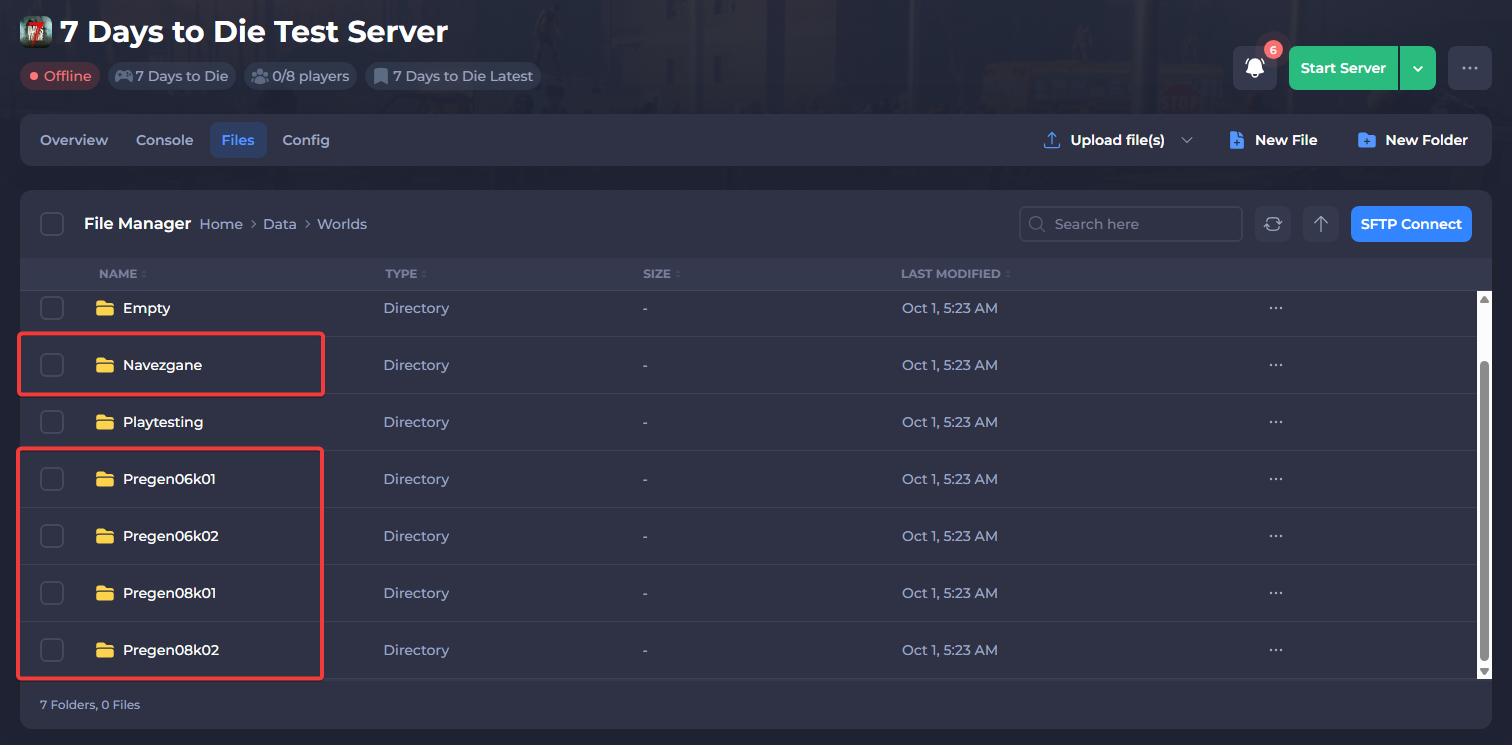
Pregenerated maps may be introduced or removed in different versions of 7 Days to Die. To view an up-to-date list of the current pregenerated maps available on your server, navigate to the following directory in your server files: /Data/Worlds
There are currently five pregenerated maps available for the latest version of 7 Days to Die:
Navezgane- (Default map)Pregen06k01- (6144)Pregen06k02- (6144)Pregen08k01- (8192)Pregen08k02- (8192)
If you're not sure which map to use, you can preview them before selecting one on your server with the following resource: Pregenerated Map Viewer
#Selecting a Pregenerated world on your server
If you do not want to use Navezgane and want to switch to one of the pregenerated maps listed above, you can follow the next steps.
-
Open your Server Control Panel.
-
Stop the server and wait for it to go offline.
-
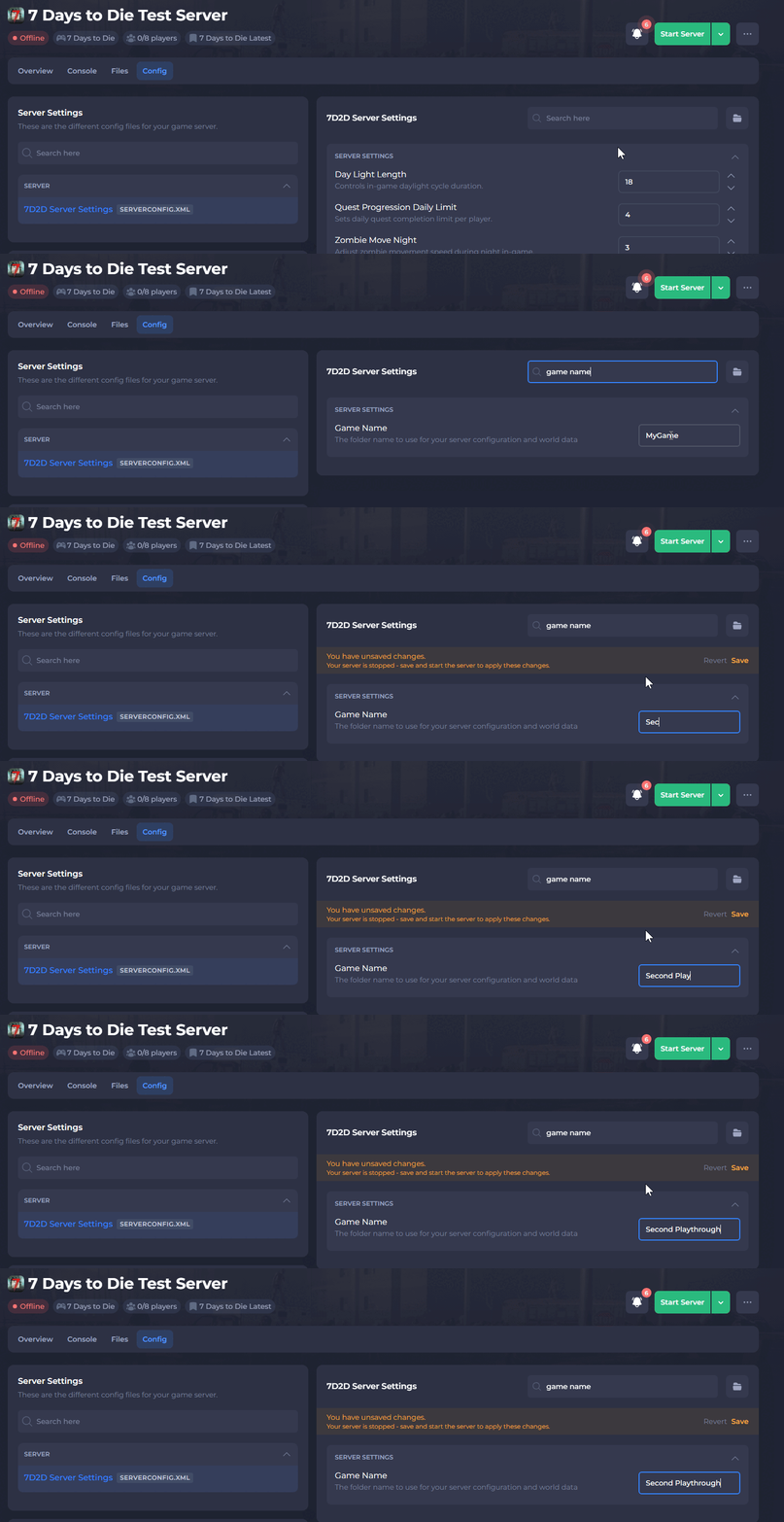
Navigate to the Config tab in the control panel, and then open the 7D2D Server Settings.
-
Locate the
Game Namevalue and set it to something new. This can be anything.
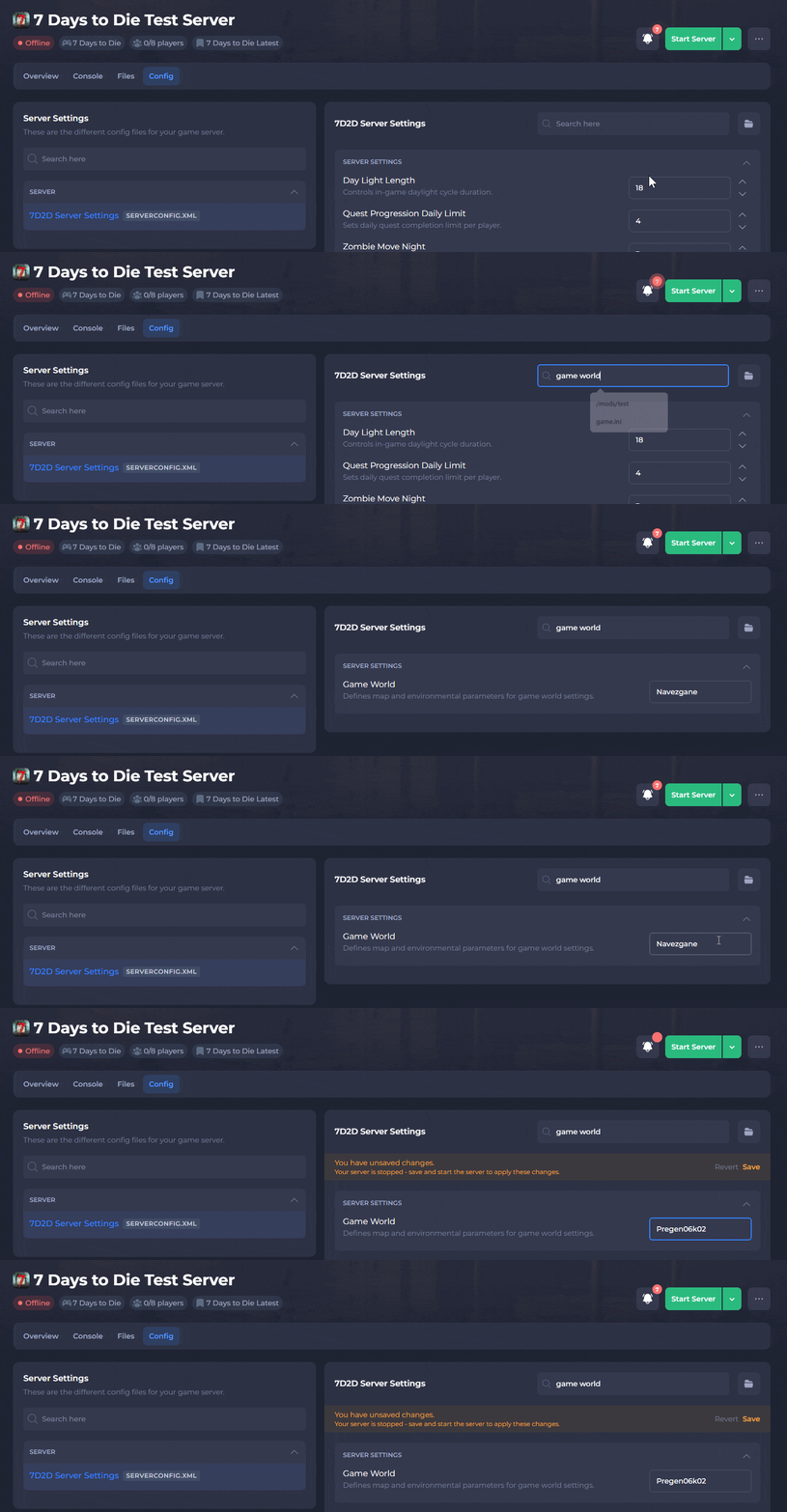
- Locate the
Game Worldvalue and set it to the name of the pregenerated map.
Make sure that it matches the name of the pregenerated map exactly, including the capitalization. Refer to the first section and /Data/Worlds if you're unsure.
- Save the file and Start your server.
That's it! Once your server starts, it will select the pregenerated map you specified.