Still have questions?
Come chat with us and we will get back to you as soon as possible!

Shockbyte
Support Team
How to Use Shockbytes Minecraft Modpack Installer
The Shockbyte Control Panel includes a modpack installer that supports CurseForge and Modrinth modpacks, and we keep the list updated automatically. Modpacks bundle hundreds of mods into one package, so you can play a new version of Minecraft without picking and configuring every mod yourself.
You can find the installer on the Mods & Plugins page of your panel. The installer creates a new instance with the modpack and the server type it needs, so your current world and files stay safe and you can switch back to them at any time.
Note
Our installer supports modpacks that include a server pack, which the modpack developer creates and maintains. If a modpack doesn't have one, you can install it manually by removing its client-side mods.
Don't know which modpack to use?
Browse CurseForge for the most popular modpacks players run. You can find most of them in our installer.
#Installing a Modpack
-
Navigate to the Shockbyte Control Panel and open your Minecraft server.
-
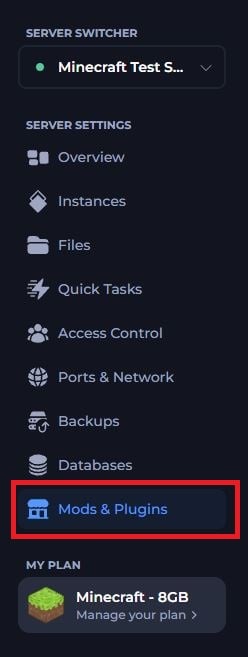
Under Server Settings in the left menu, select Mods & Plugins.
-
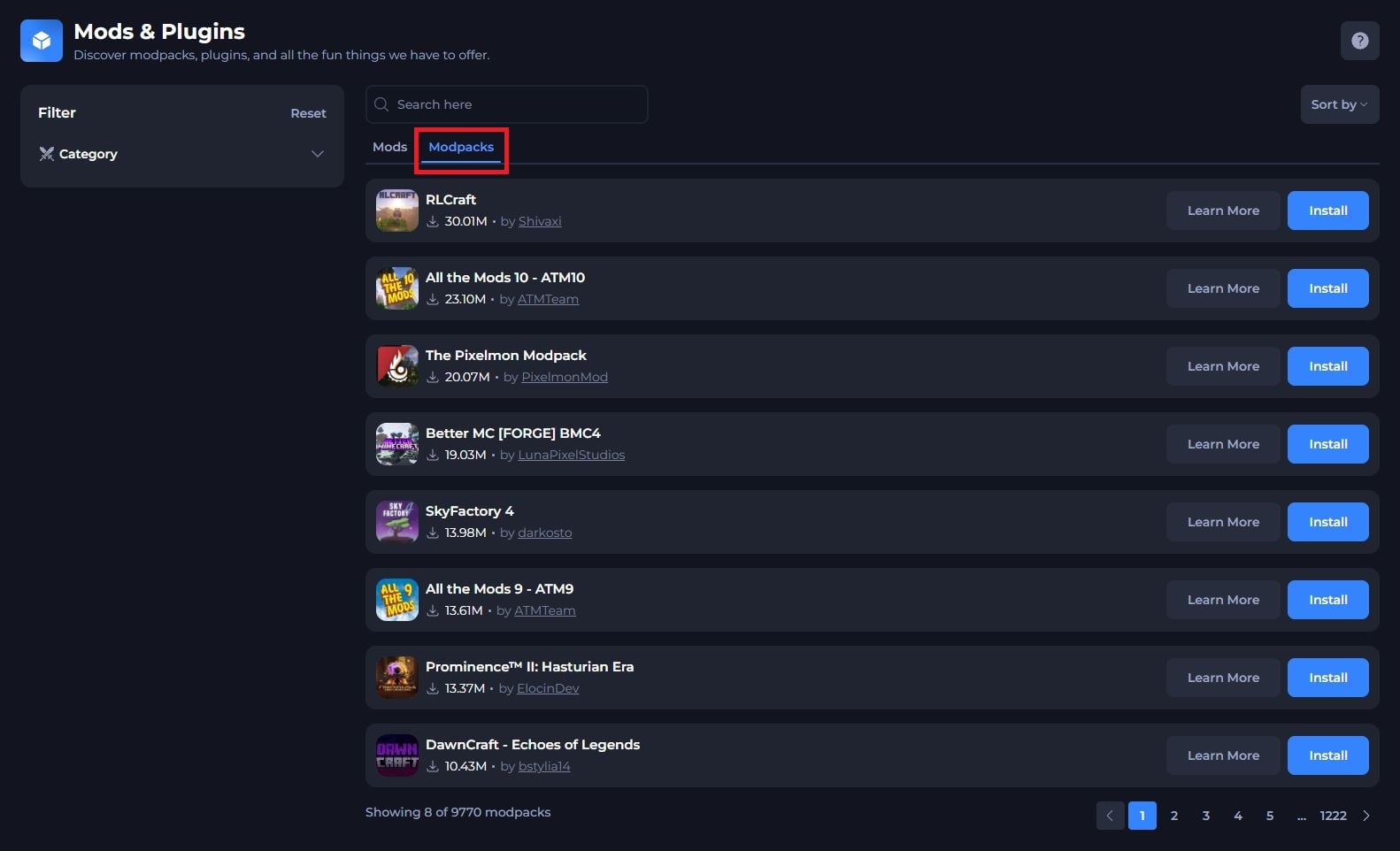
If you are already running a modded or plugin-based server type, select the Modpacks tab at the top of the list.
-
Find the modpack you want to install:
- Type the modpack's name in the Search here box.
- Use Category under Filter to narrow the list by theme.
- Use Sort by in the top right to change the order of the results.
-
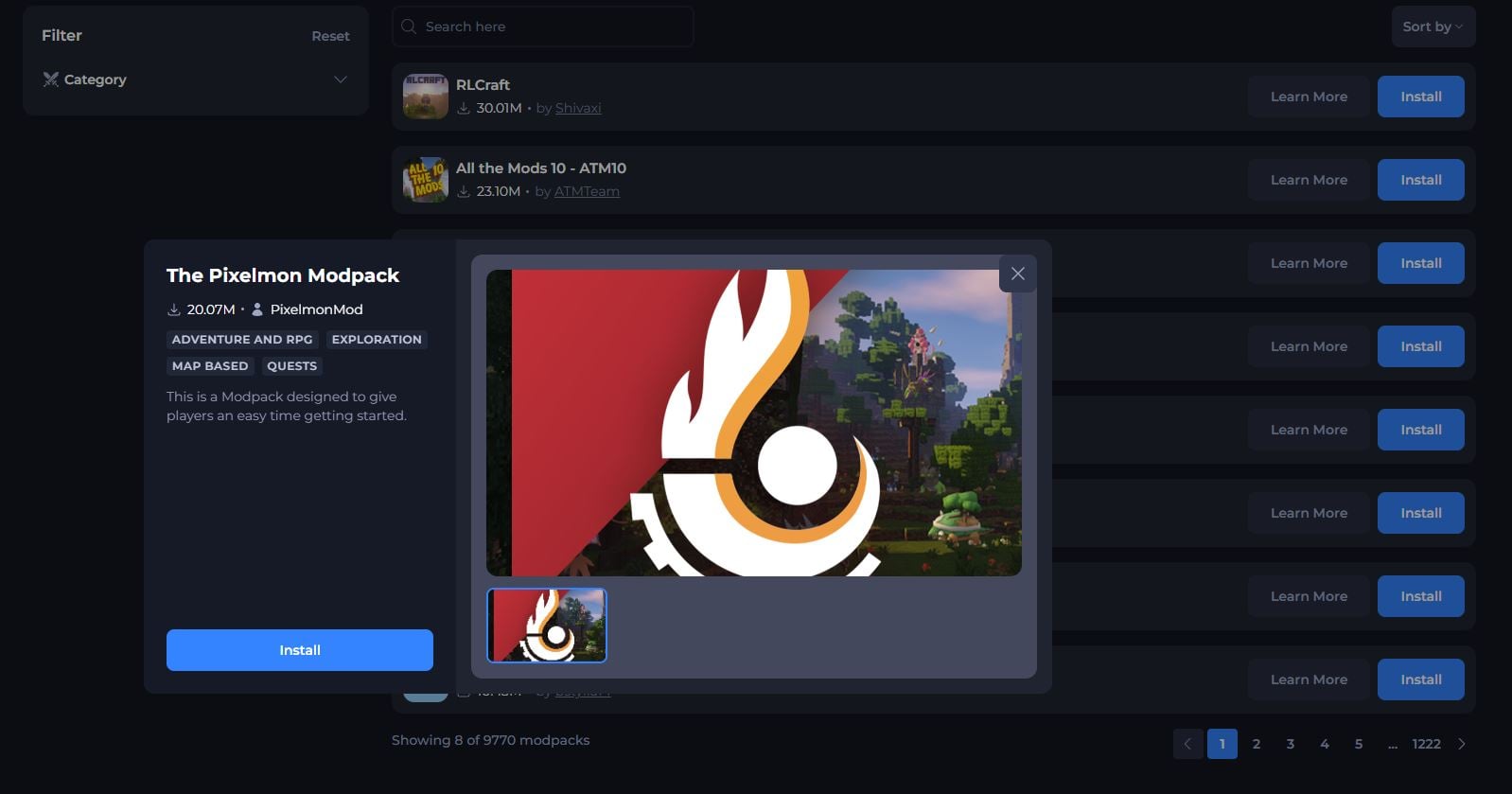
Click Install on the modpack you want.
-
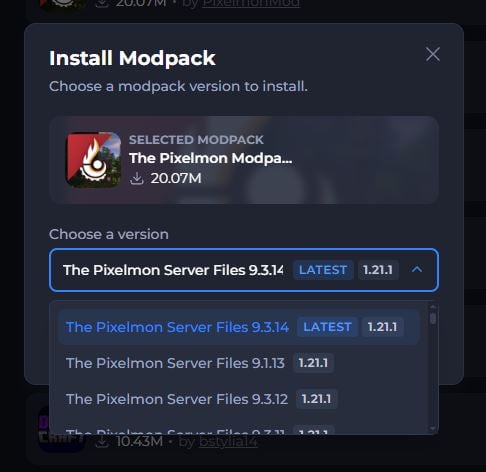
In the Install Modpack window, open the Choose a version dropdown and select the version you want. We mark the newest version with a LATEST tag, and each version shows the Minecraft version it runs on.
-
Click Install to confirm.
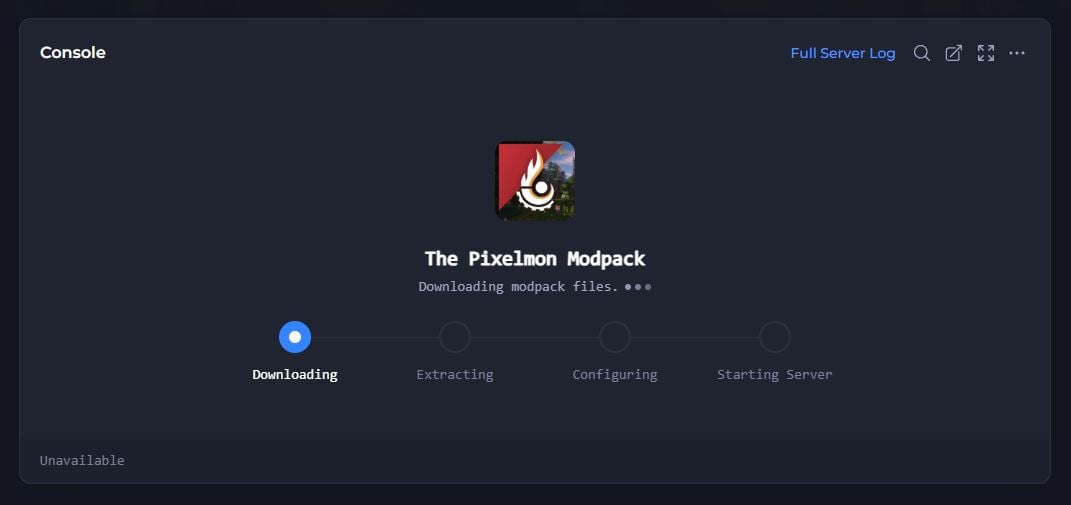
Our installer stops your server, creates the new instance, and switches your server to it. A progress screen covers the console while the modpack installs.
Important
Large modpacks can take up to 10 minutes to install. Don't restart your server or edit its files until the install finishes.
When the install finishes, your panel shows the modpack as your Active Instance and your server is ready to start. In the modpack list, the button for that pack changes to Installed.
Note
Our system sometimes can't detect which Forge, Fabric, or NeoForge version a modpack needs. If this happens, you'll need to set the version yourself. If you can't find the right version, submit a ticket and our team will help.
#If You're Out of Instance Slots
Each modpack you install uses one instance slot. If you've used all your slots, the panel shows an Out of Instance Slots window when you click Install.
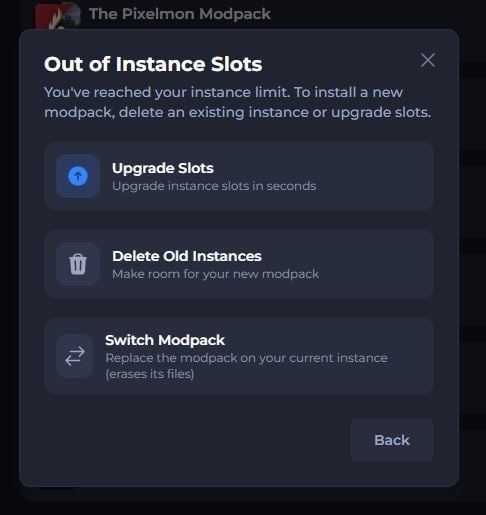
Choose one of these options to continue:
| Option | What it does |
|---|---|
| Upgrade Slots | Adds more instance slots to your server, so you can keep your current instances and install the new modpack. |
| Delete Old Instances | Lets you delete an instance you no longer need to free up a slot. |
| Switch Modpack | Replaces the modpack on your current instance with the new one. |
Important
Switch Modpack erases all files on your current instance, including your world. To keep anything, create and download a backup from the Backups page first.
#Switching Between Instances
Every modpack you install gets its own instance with its own world, mods, and settings. Installing a new modpack doesn't delete your old server, so you can move between them whenever you like.
-
Navigate to the Shockbyte Control Panel and open your Minecraft server.
-
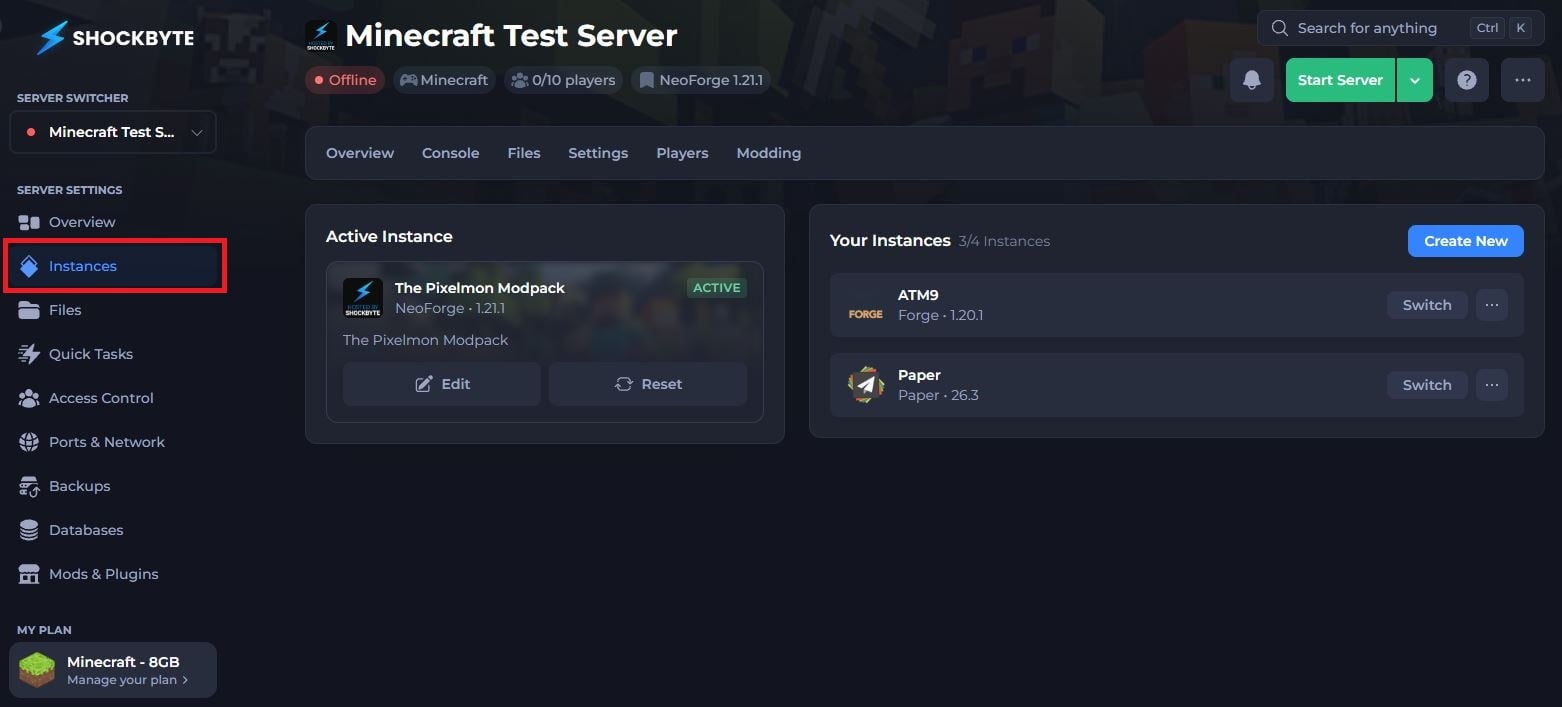
Under Server Settings in the left menu, select Instances.
-
Find the instance you want under Your Instances and click Switch. The panel stops your server and switches it to that instance.
Active Instance shows the instance your server runs now, along with its server type and Minecraft version. The counter next to Your Instances shows how many slots you've used out of your limit.
#Troubleshooting
- I can't find a modpack in the list.
Search for the exact name shown on CurseForge or Modrinth. If it still doesn't appear, the pack may not have a server pack. Follow our manual install guide to install it by removing its client-side mods.
- My server crashes after the install.
Check that the Forge, Fabric, or NeoForge version matches the version the modpack needs, and that your plan has enough RAM for the pack.
- I see an Out of Instance Slots window when I click Install.
You've used all your instance slots. Upgrade your slots, delete an instance you no longer need, or switch the modpack on your current instance.
To learn more about Minecraft server hosting, you can browse our library of Knowledgebase articles here.