
Once your Soulmask server is set up and configured how you would like it, you will be able to connect. There are a couple methods of connection, depending on your preferred choice.
Currently, it is recommended to direct connect to your server using your server address, as the community server list has poor filtering options.
Obtaining your Server IP
In order to connect to your server, you will need to know both the server IP and port. These can both be found in your server's Multicraft control panel.
Once logged in, you will be able to find your server's IP and port next to the Server Address. The IP is the numbers before the colon (:), while the port is the numbers following the colon (:).
Direct Connecting to your Soulmask Server
You can direct connect to your server from the in-game server browser, using the server address.
- Launch Soulmask.
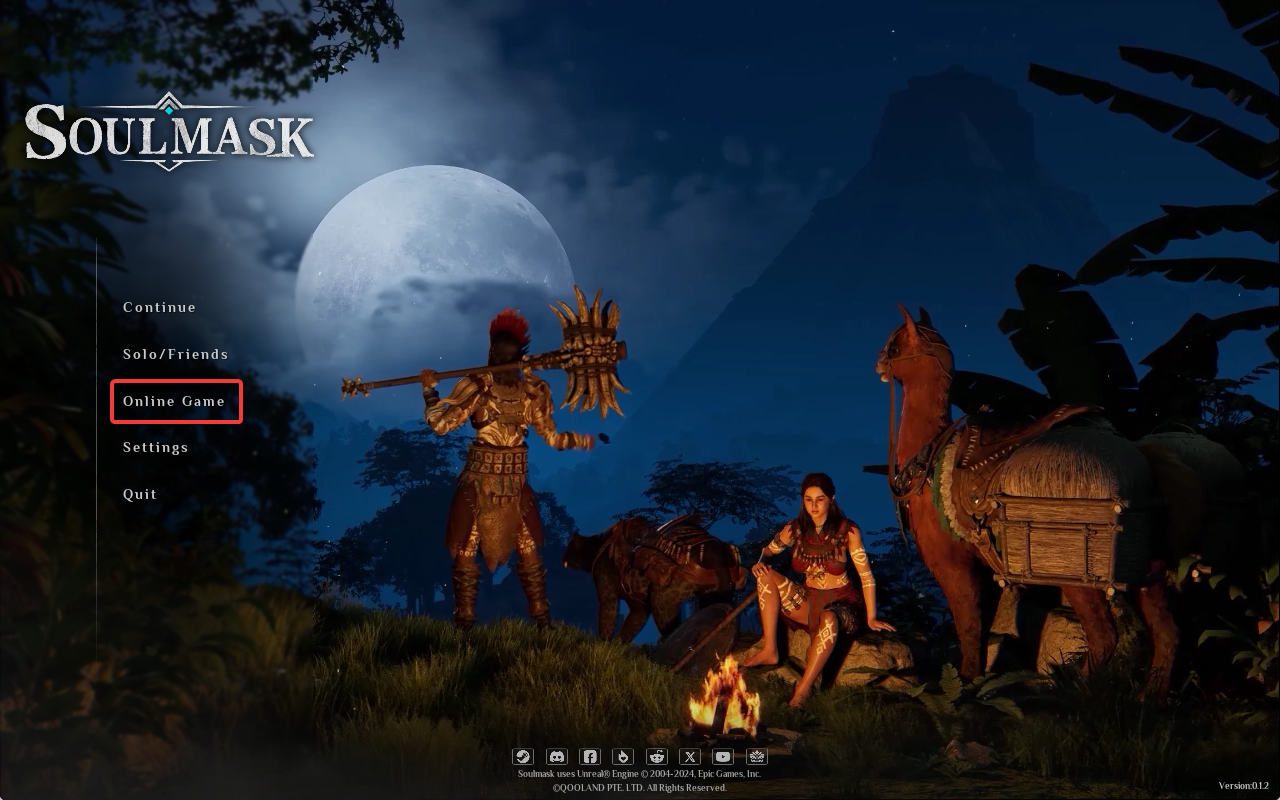
- Click Online Game.
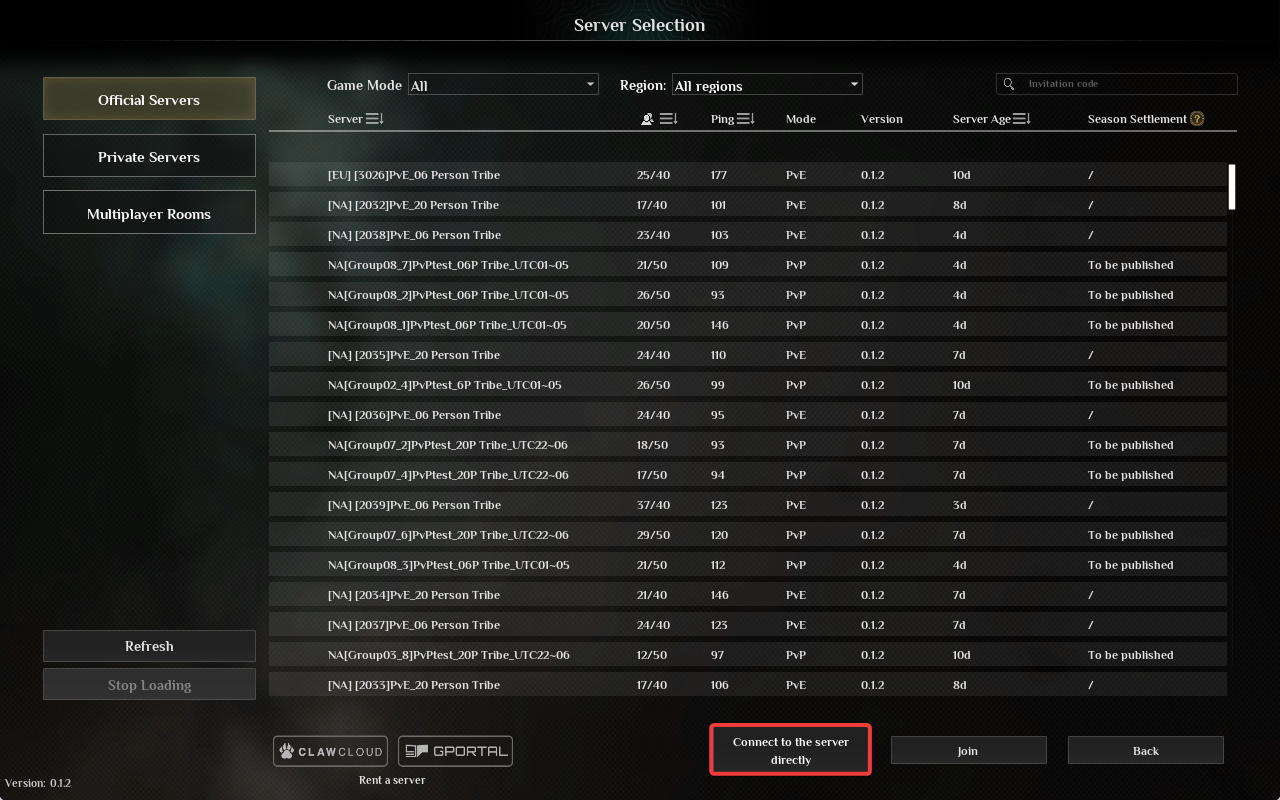
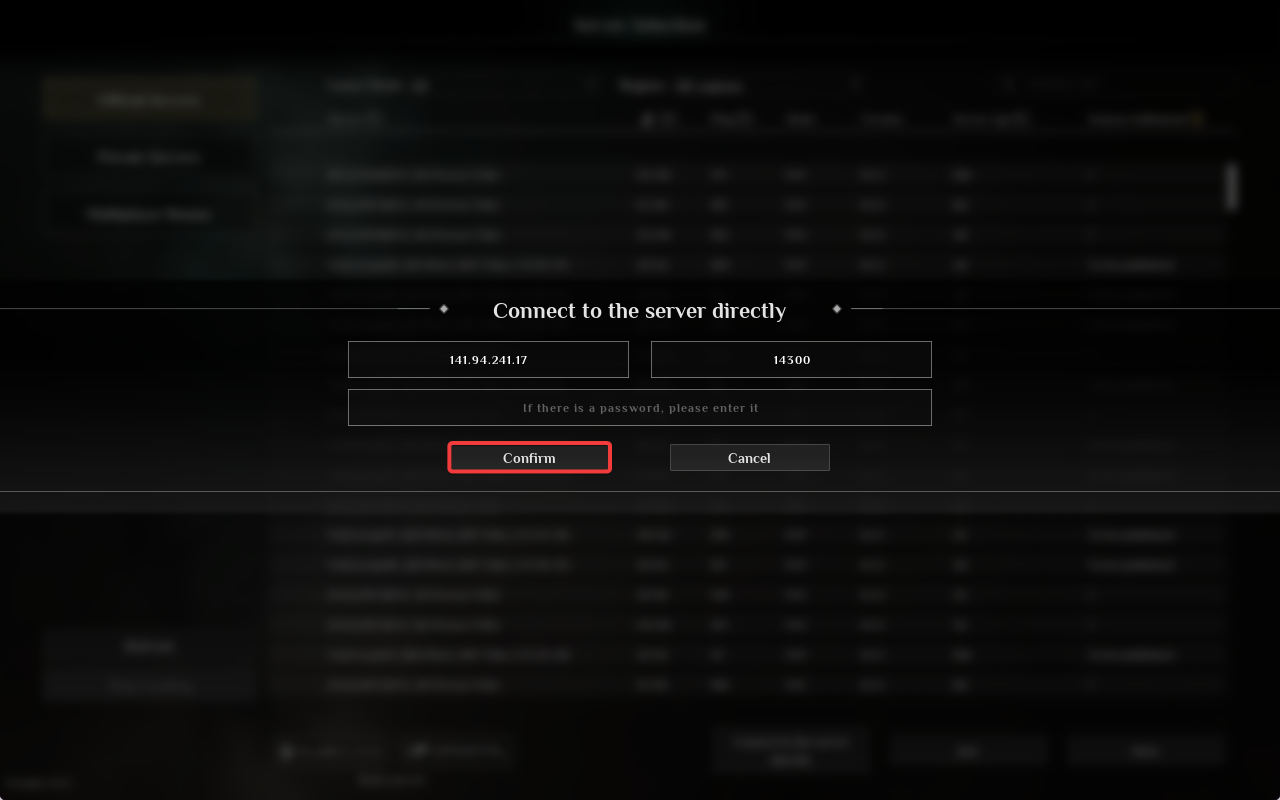
- Click Connect to the server directly.
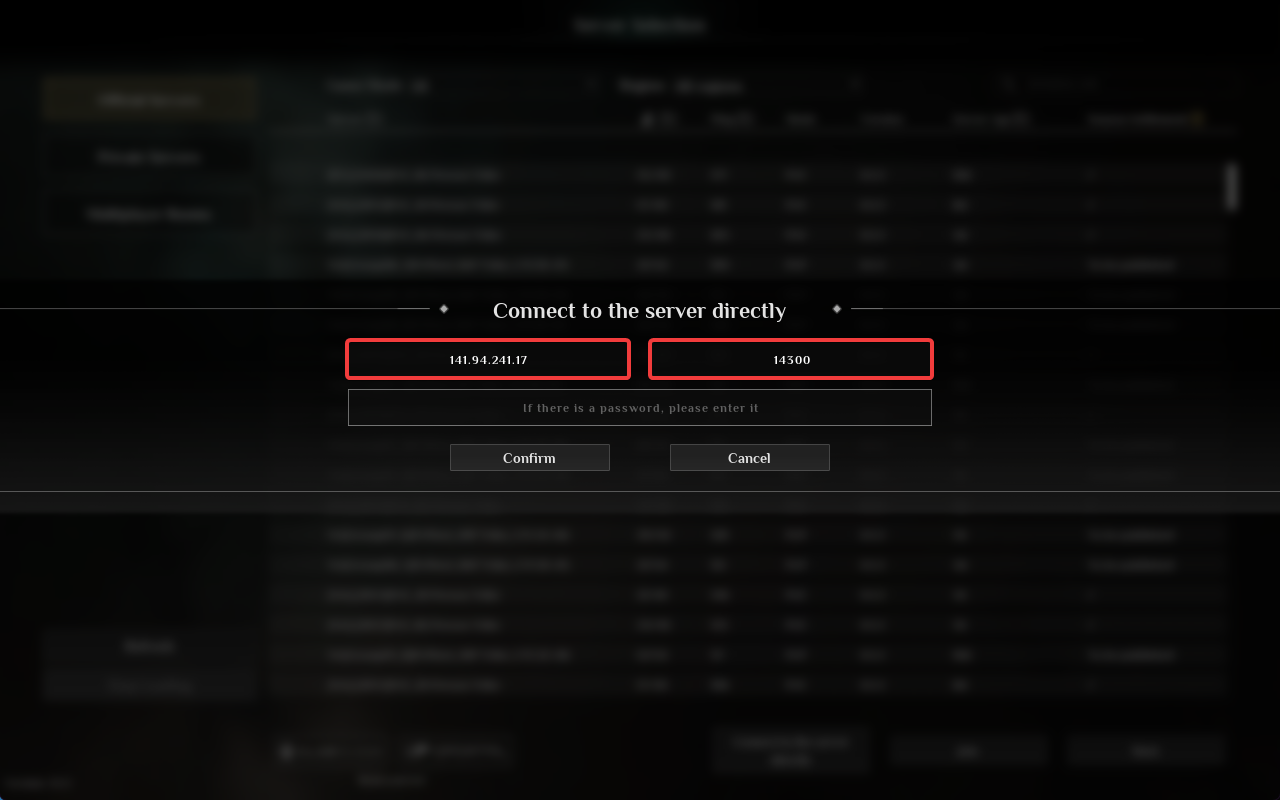
- Enter your server IP and port in the specified fields.
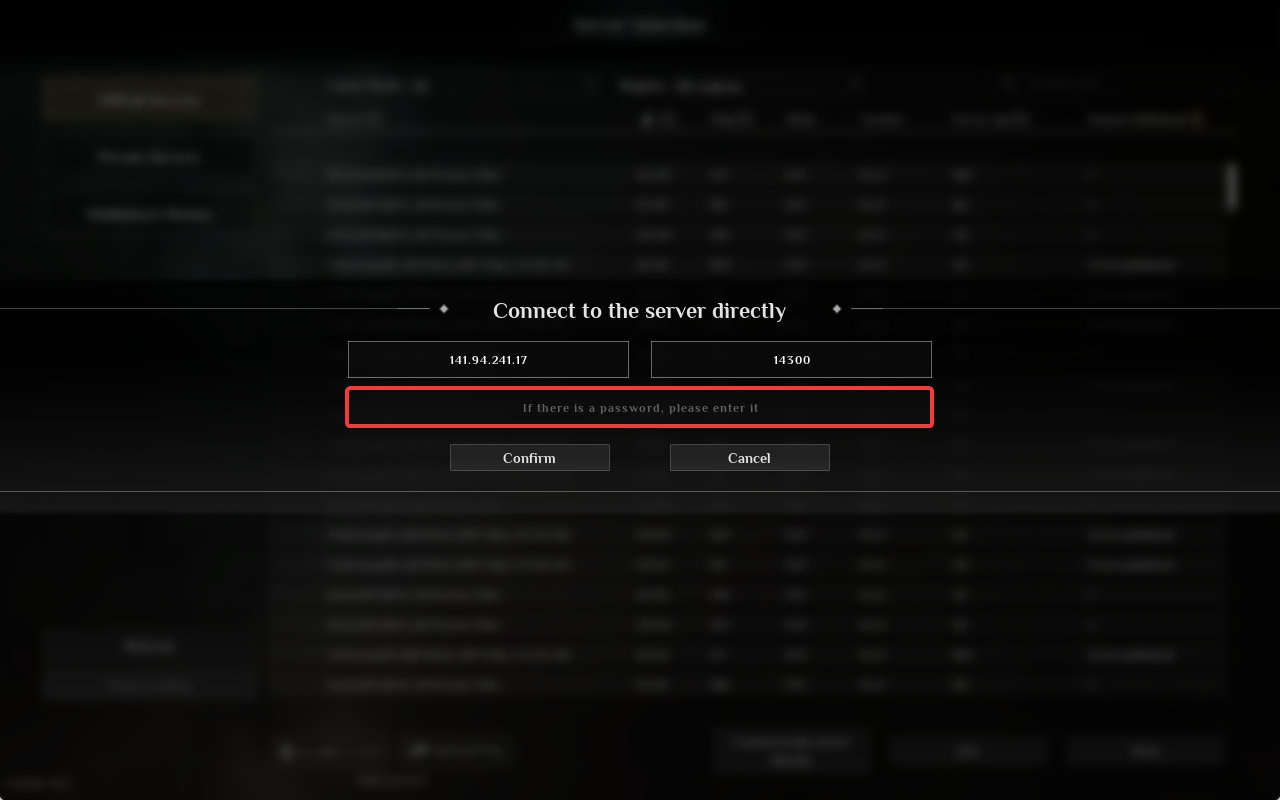
- If your server has a password configured, type it into the password field. If you don't have a password configured, leave it empty.
- Click the Confirm button to begin connecting to your server.
Interested in purchasing Soulmask servers with instant activation, easy customisation, and great & extensive Knowledgebase articles? Click the link to purchase a Soulmask private server.
To learn more about Soulmask Server Hosting, you can browse our library of Knowledgebase articles here.
If you require any further assistance, please contact our support at: https://shockbyte.com/billing/submitticket.php