
GOTV allows CS:GO server admins to record in-game events in the form of demo files which can then be used to watch back that game inside of the match itself.
Recording a Demo
By default GOTV will be disabled on your CS:GO server by default, so you will need to enable it before you can record a new demo.
- Access your control panel and Stop your server.
- Navigate to Files > Config Files.

- Click CSGO server.cfg.

- At the bottom of the file, add
tv_enable 1.
- Save and Start your server.
- Navigate to your server Console.

- Enter the command
tv_record <NAME>to start recording a demo.
- When you're ready to stop recording a demo, enter the
tv_stoprecordcommand.
Downloading your Demo
After you stop recording a demo, you can download it from your server's "csgo" directory.
- Access your server files via FTP, we recommend using Filezilla.
- Navigate to the
/csgo/directory.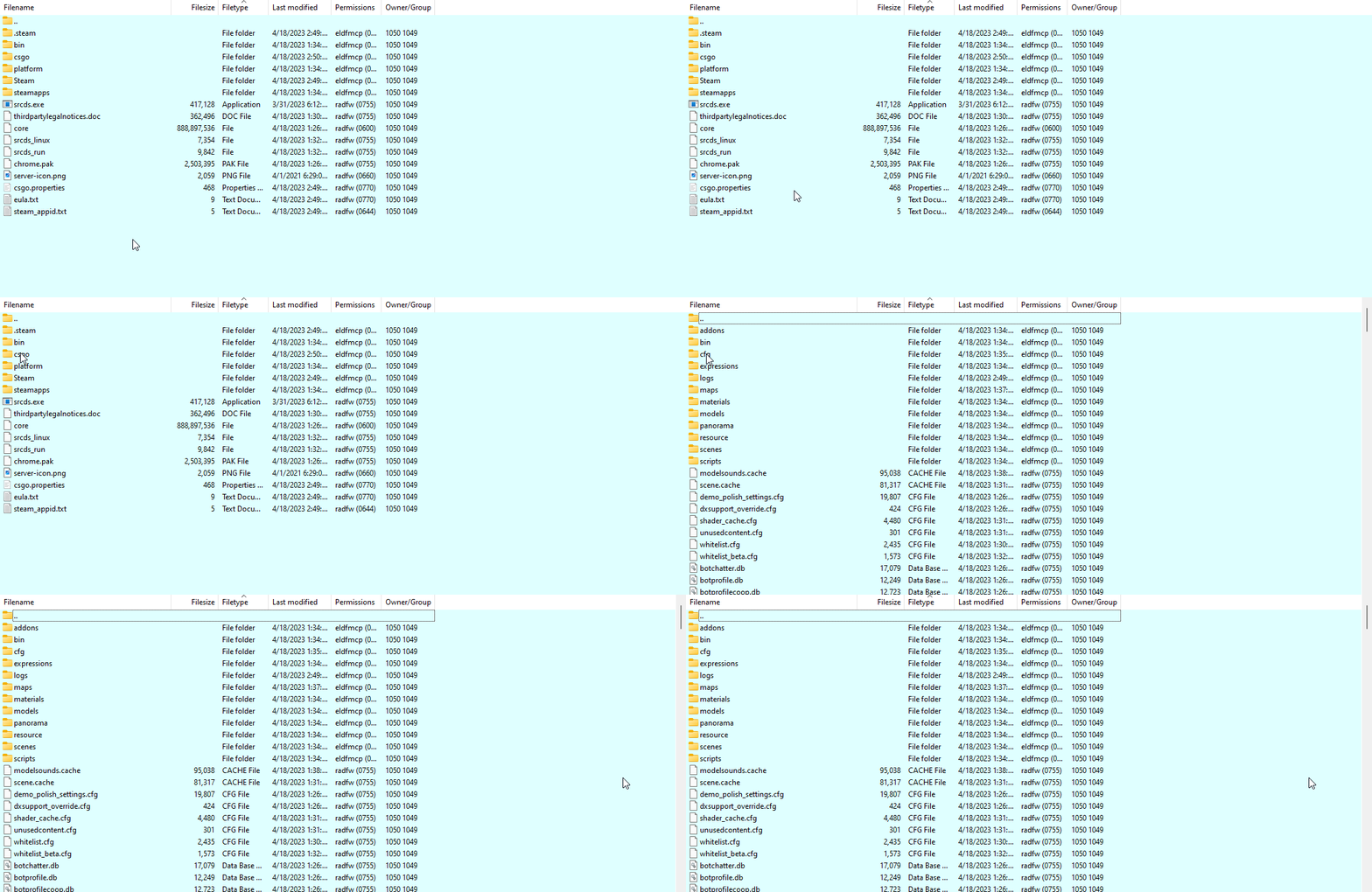
- Locate and download your demo file.

Watching your Demo
After your demo file has been downloaded, you can load it using the in-game demo controller UI.
- In-game, press
Shift+F2on your keyboard to open the demo controller UI. - Click the Load button.

- Navigate to the file location of your desired demo file and open it.

To learn more about CS:GO server hosting, you can browse our library of Knowledgebase articles here.
If you require any further assistance, please contact our support at: https://shockbyte.com/billing/submitticket.php